1.Wasil Reefe Run Sheet
1.1 Dashboard
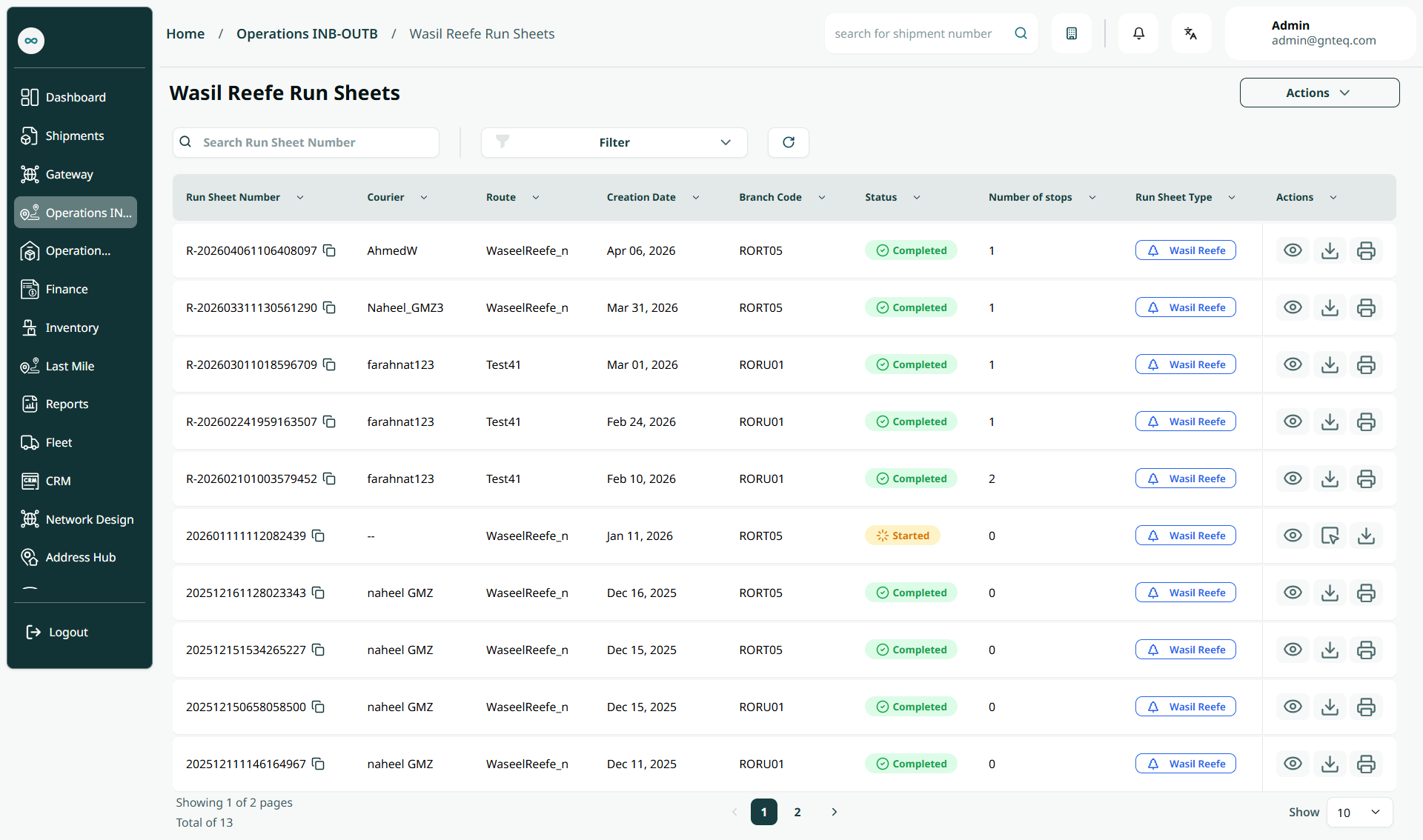
The supervisor can view the defined wasil reefi run sheets in the system by navigating to the ‘Wasil Reefe Run Sheets’ screen in the Operations module from the left navigation panel as follows:
-
Actions: The supervisor can print a summary report or a detailed report of the trip documents by clicking the Actions button.
-
Filter: the supervisor can search for the run sheet by typing the , courier, route name……etc.
-
Search: The supervisor can search for wasil reefe runsheet by entering the run sheet number
-
Rows Per Page: the supervisor can select the number of items to show on each page.
-
Actions: by clicking on this button the supervisor can view details, export report, export report, ……etc.
1.1.1 View Details
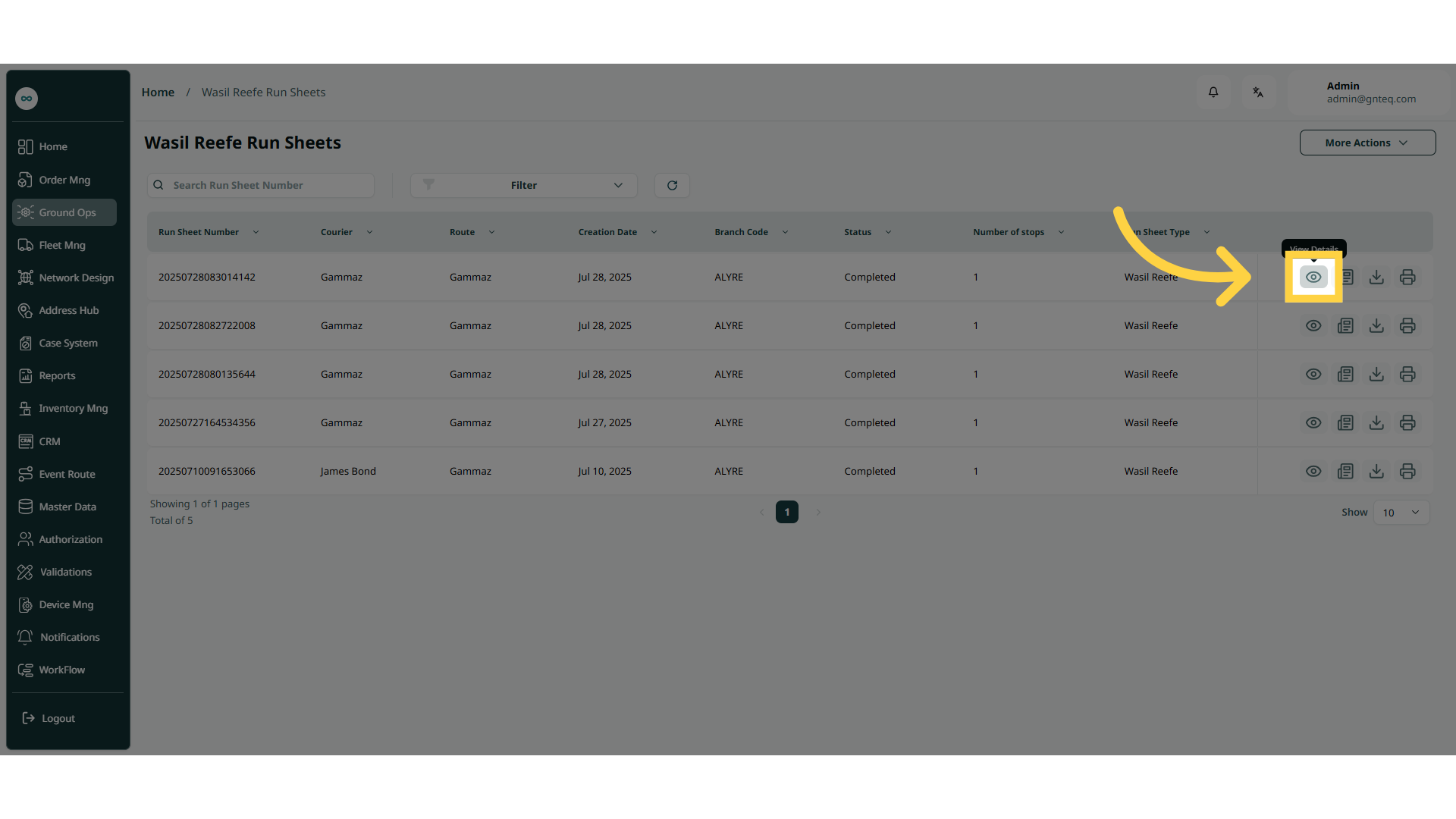
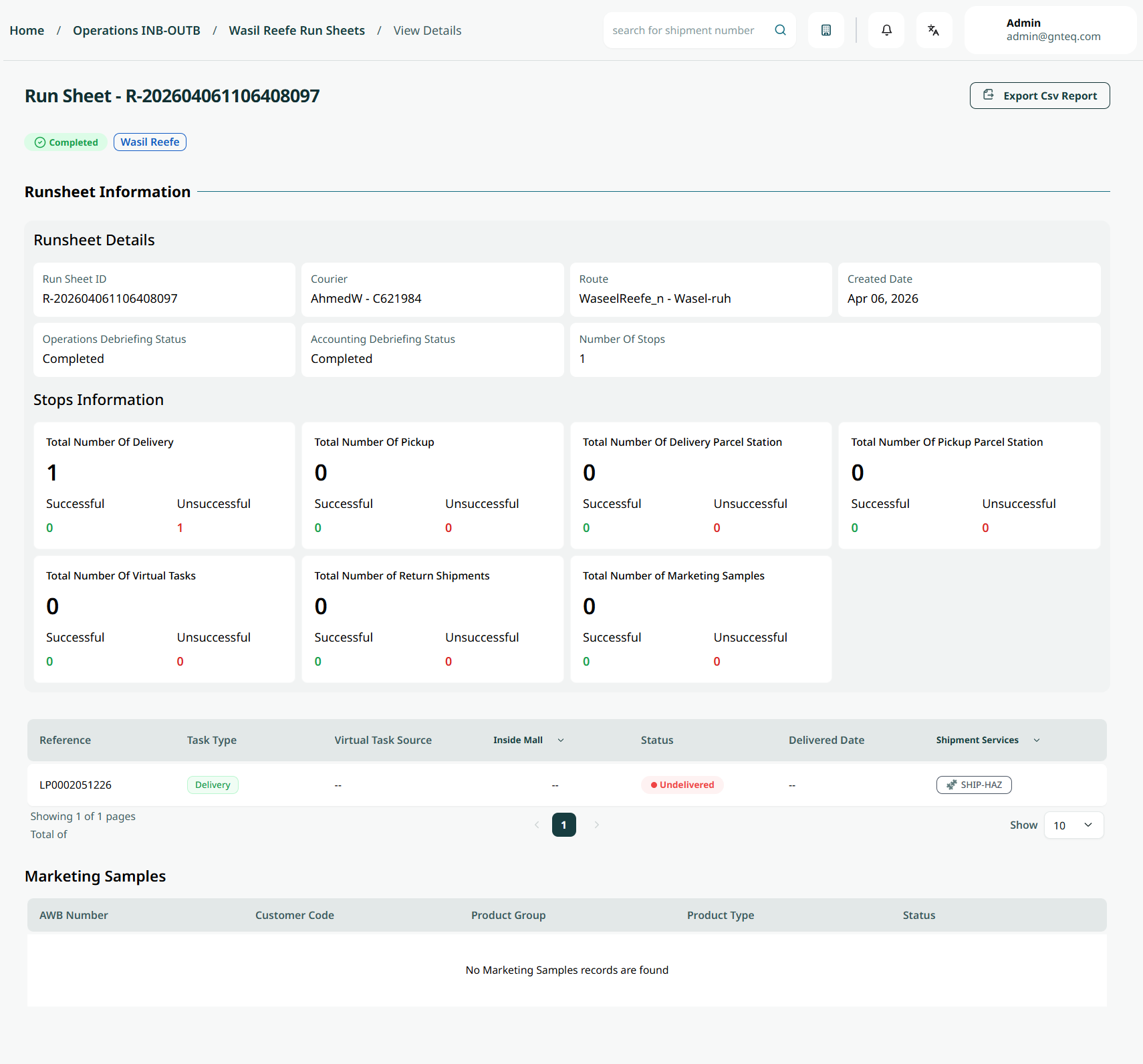
The supervisor can view details of an existing wasil reeefi run sheet by navigating to the ‘Wasil Reefe Run Sheets’ screen via the Operations module and clicking on the View Details button:
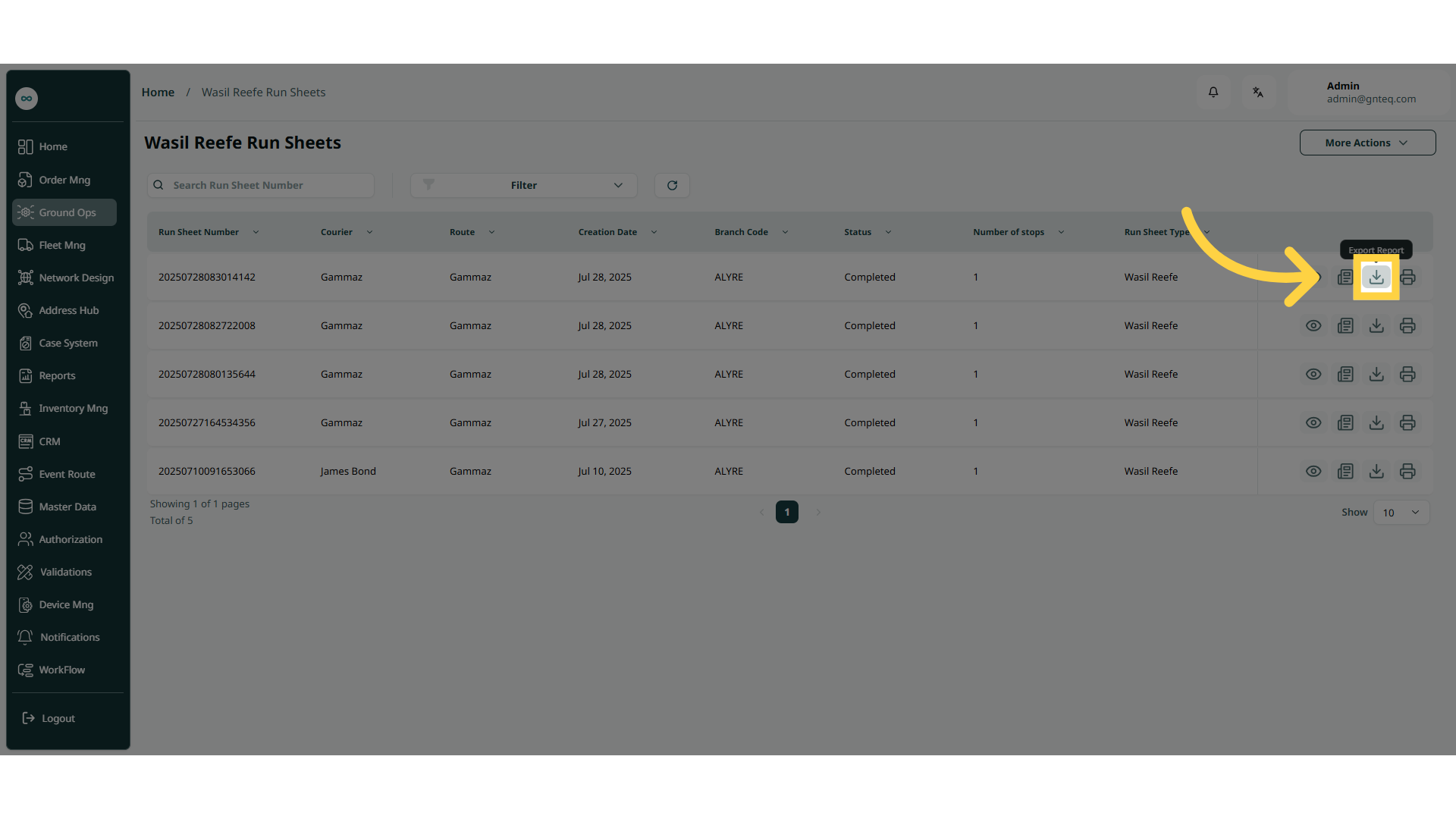
1.1.2 Export Report
The supervisor can export the report of wasil reefe run sheet by navigating to the ‘Wasil Reefe Run Sheets’ screen via the Operations module and clicking on the Export Report button:
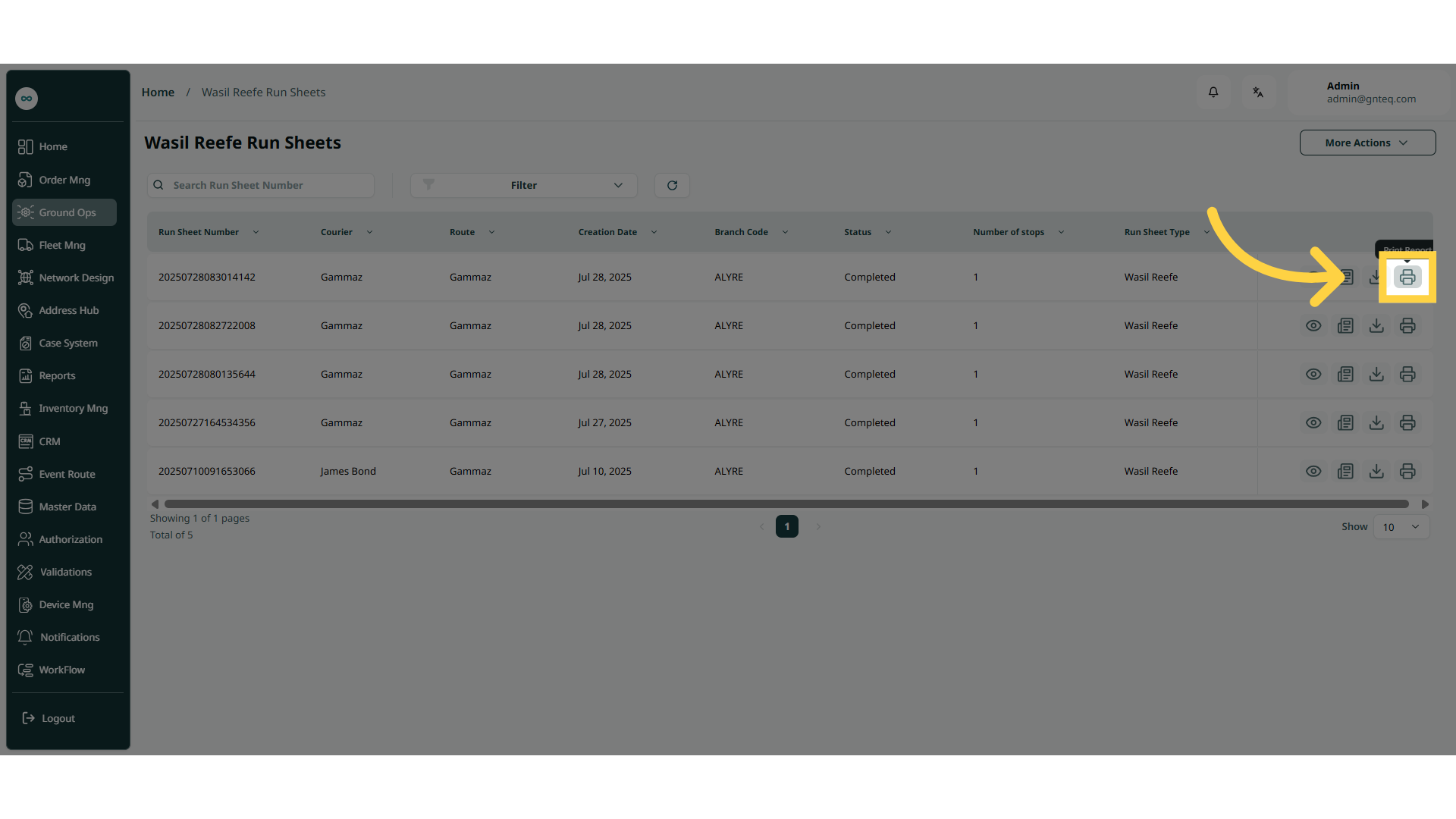
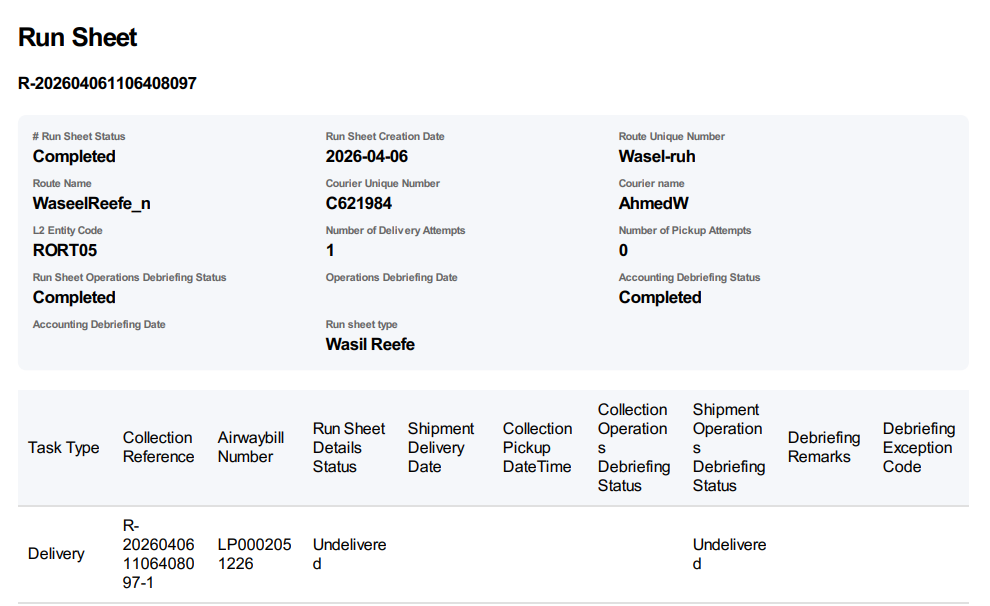
1.1.3 Print Report
The supervisor can print the report of the run sheet by navigating to the ‘Wasil Reefe Run Sheets’ screen via the Operations module and clicking on the Print Report button:
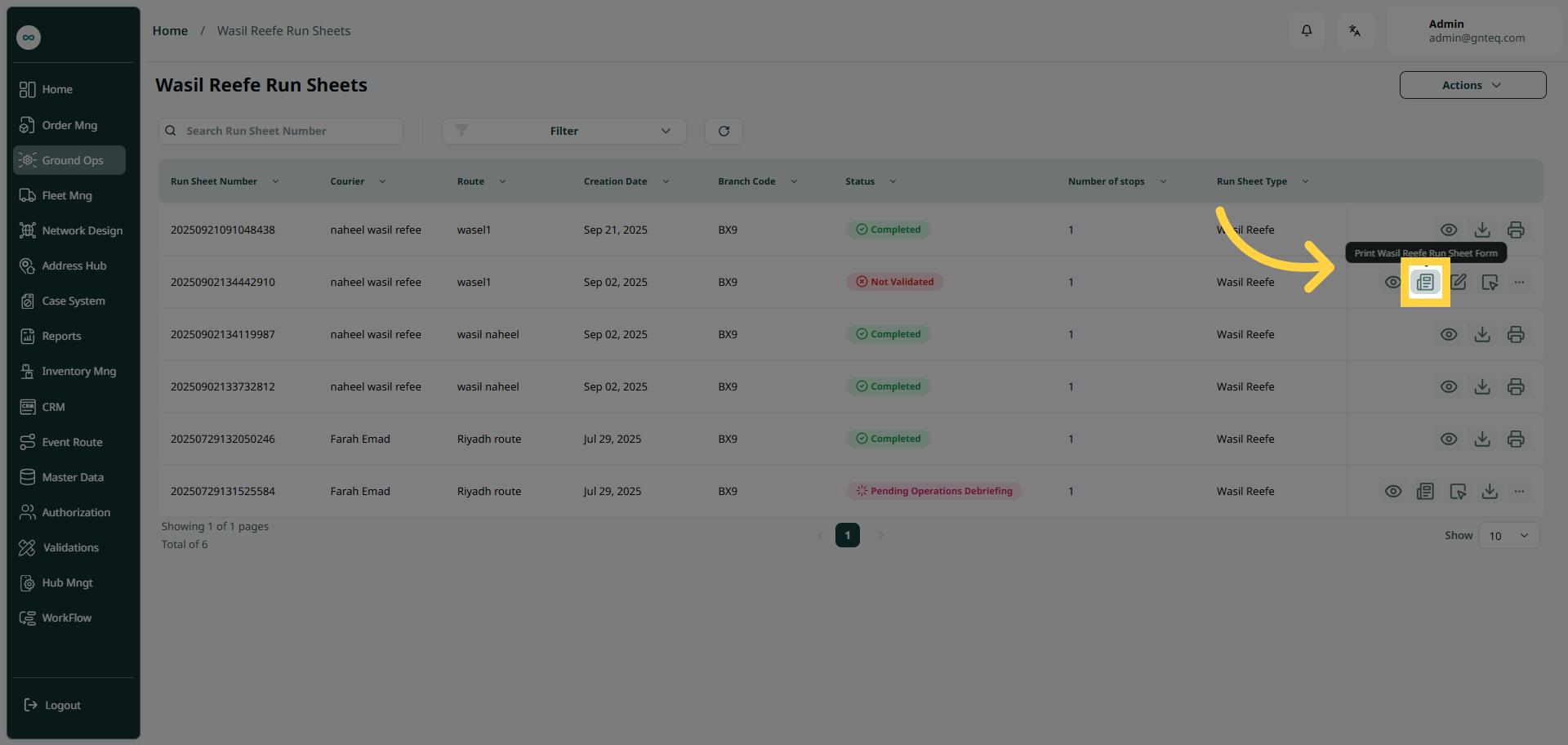
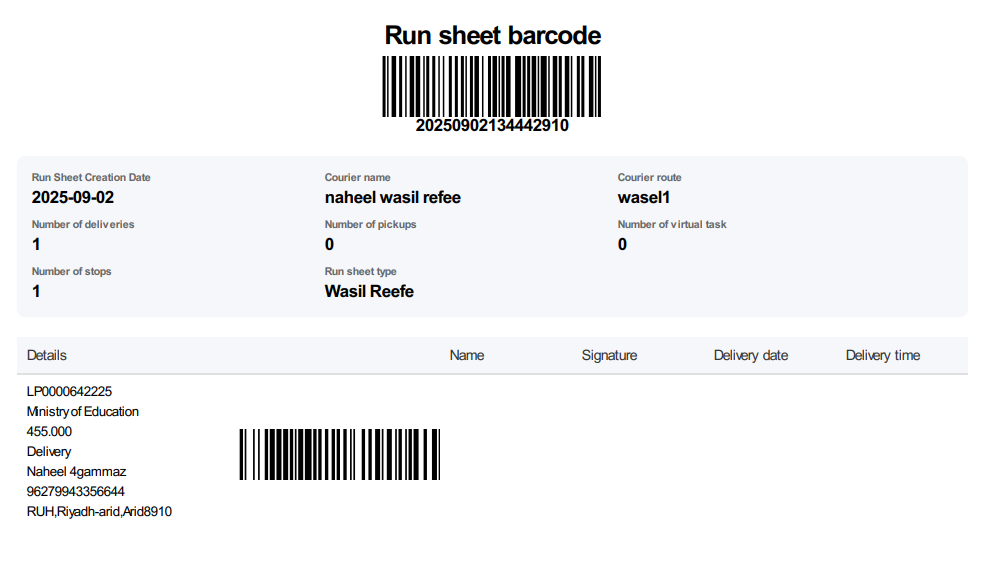
1.1.4 Print Wasil Reefe Run Sheet Form
The supervisor can print the report of the run sheet form by navigating to the ‘Wasil Reefe Run Sheets’ screen via the Operations module and clicking on the Print Wasil Reefe Run Sheet Form button. The run sheet status must be Not Validated.
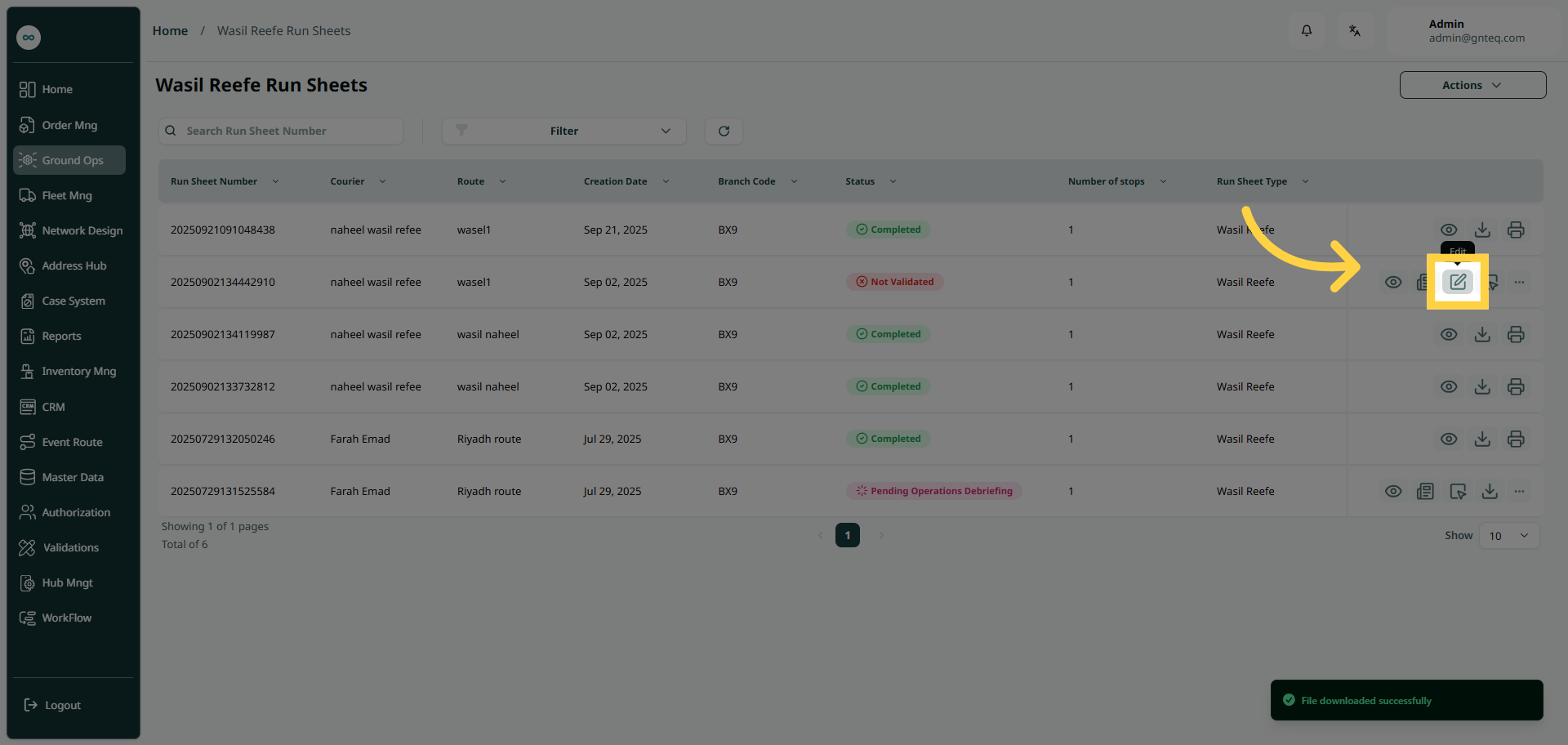
1.1.5 Edit Run Sheet
The supervisor can edit the run sheet by navigating to the ‘Wasil Reefe Run Sheets’ screen via the Operations module and clicking on the Edit button. The run sheet status must be Not Validated.
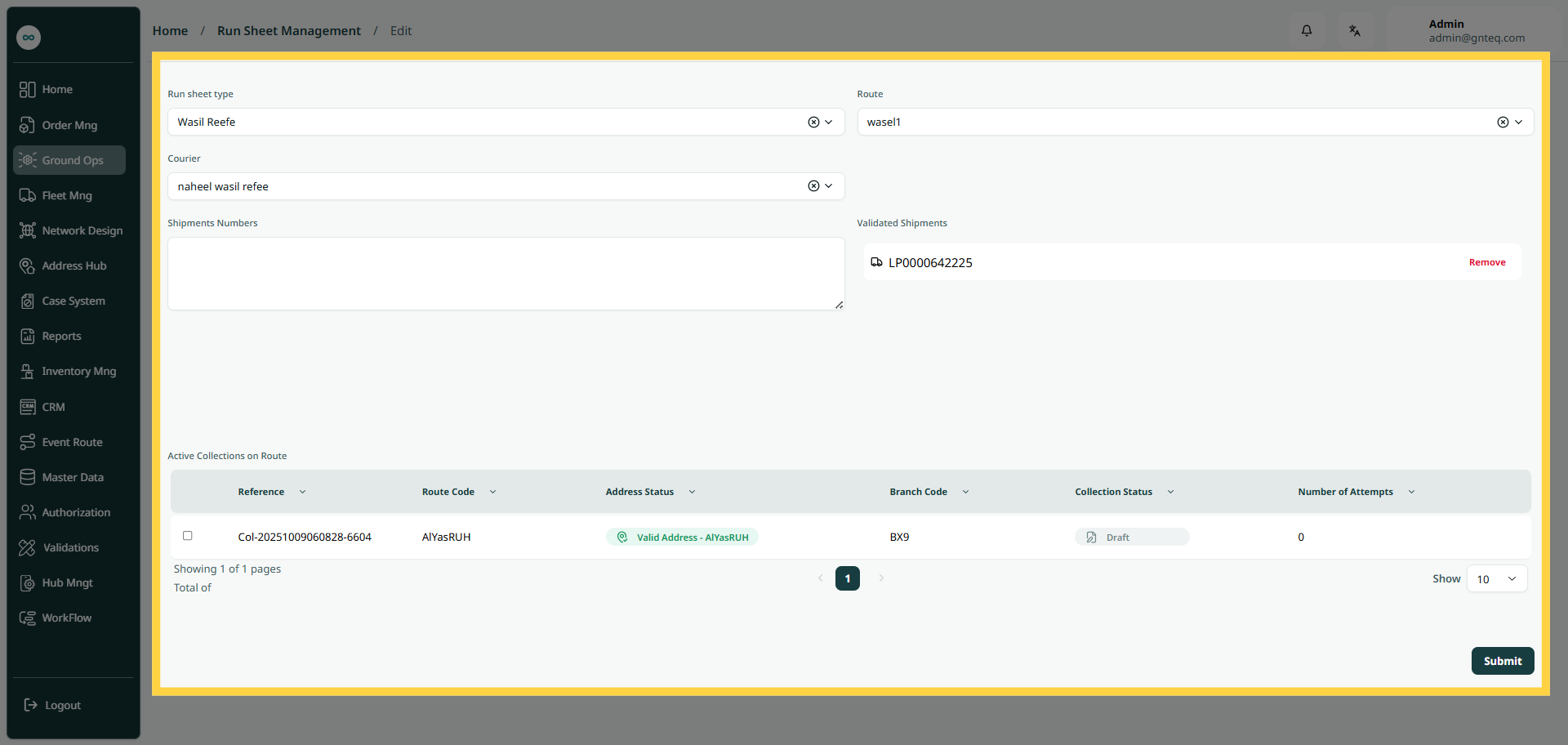
By clicking on Submit, the information will be updated successfully.
1.1.6 Perform Operations
The supervisor can perform operations on the run sheet by navigating to the ‘Wasil Reefe Run Sheets’ screen via the Operations module and clicking on the Perform Operations button. The run sheet status must be Not Validated.
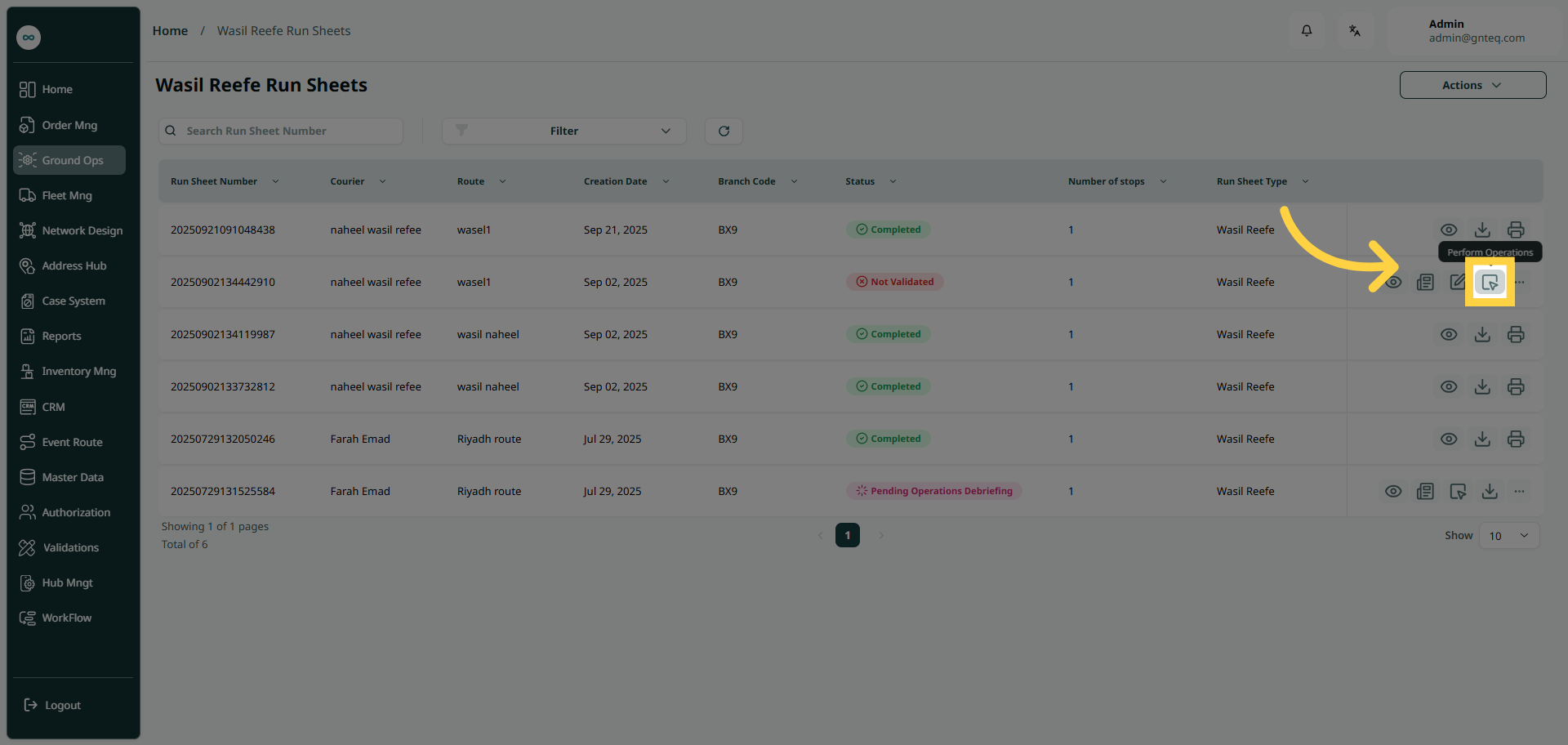
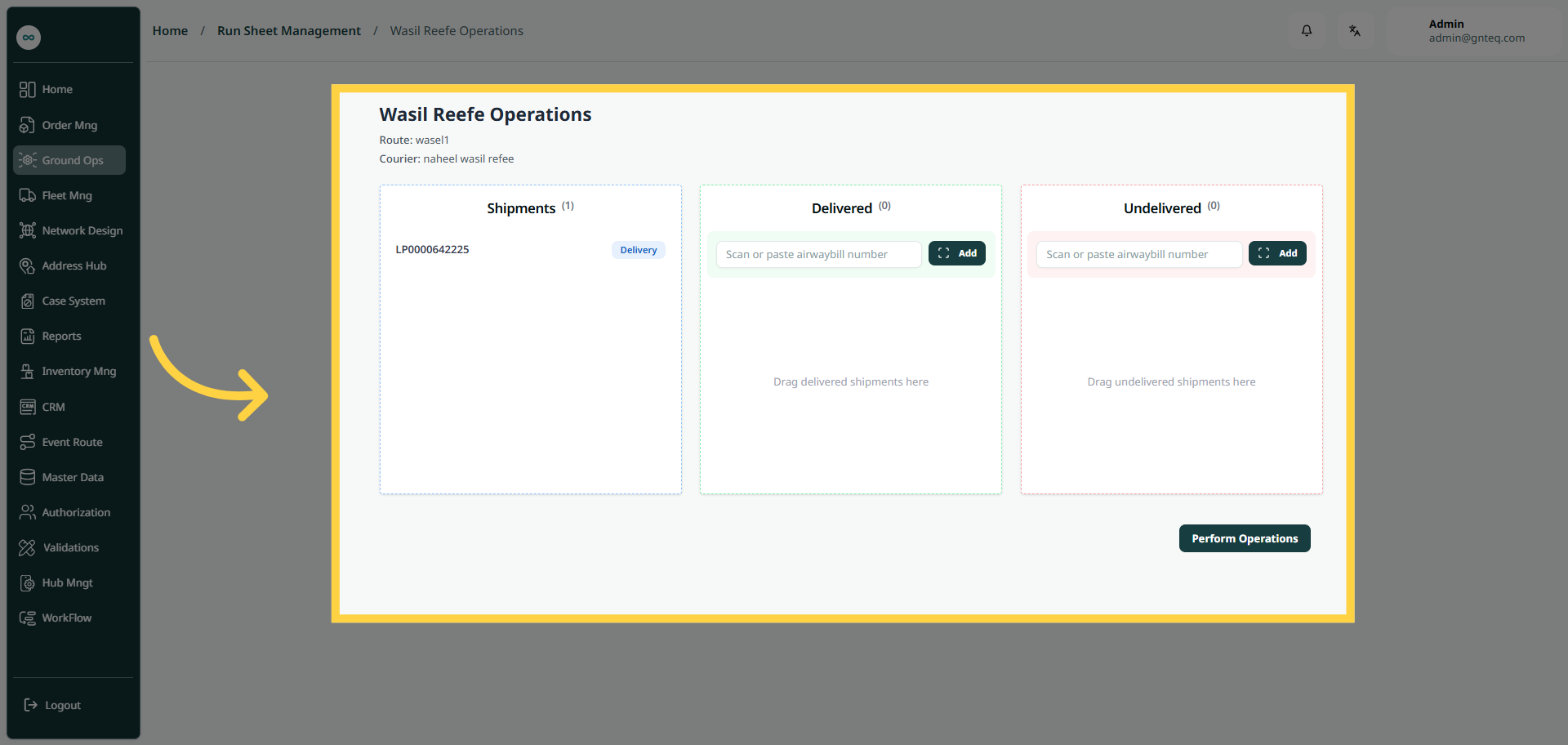
Note: The supervisor can add delivered or undelivered shipments by entering them manually or scanning them.
By clicking Perform Operations, the operation will be successfully created.
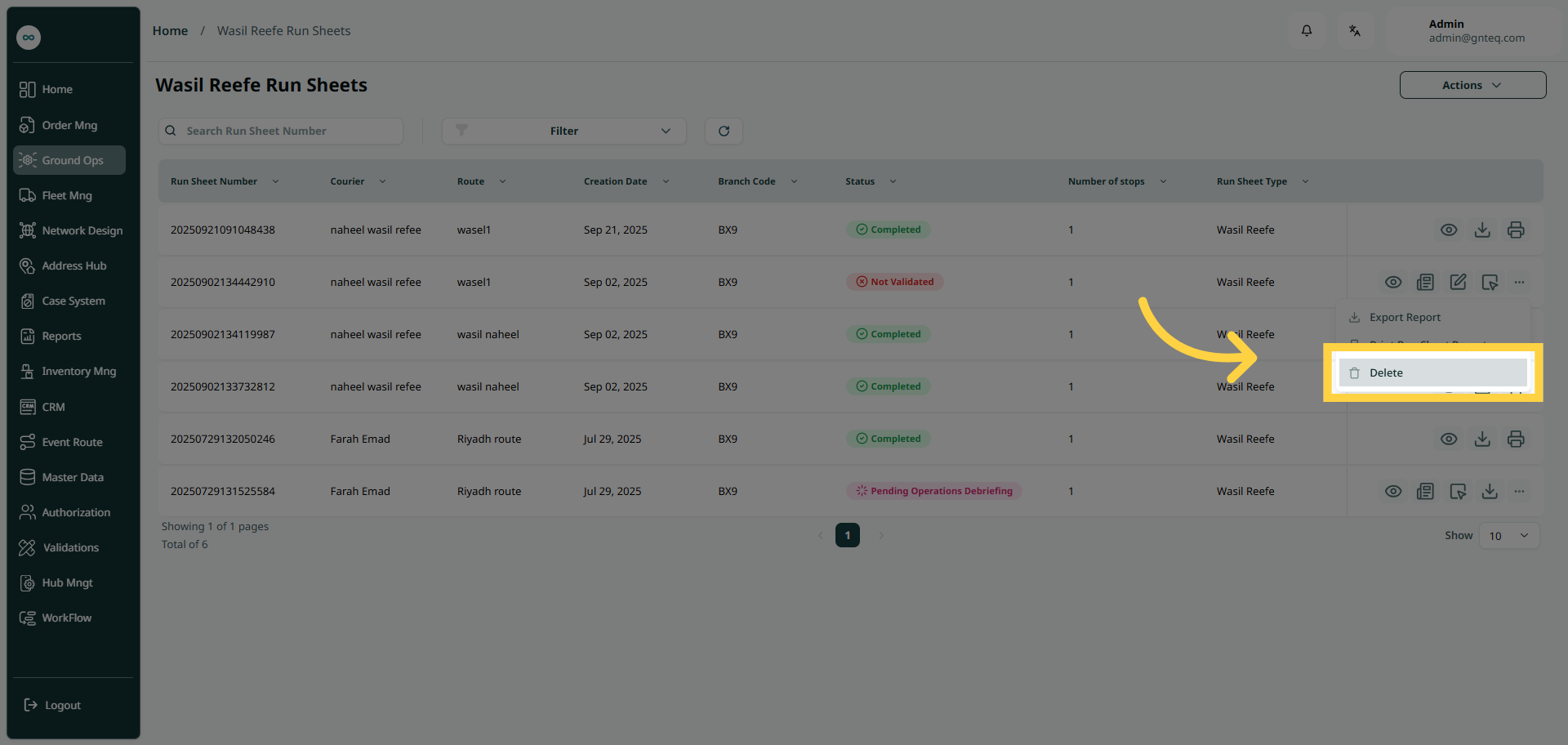
1.1.7 Delete Run Sheet
The supervisor can delete the run sheet by navigating to the ‘Wasil Reefe Run Sheets’ screen via the Operations module and clicking on the Delete button. The run sheet status must be Not Validated.