1. Intercept Module
1.1 Dashboard
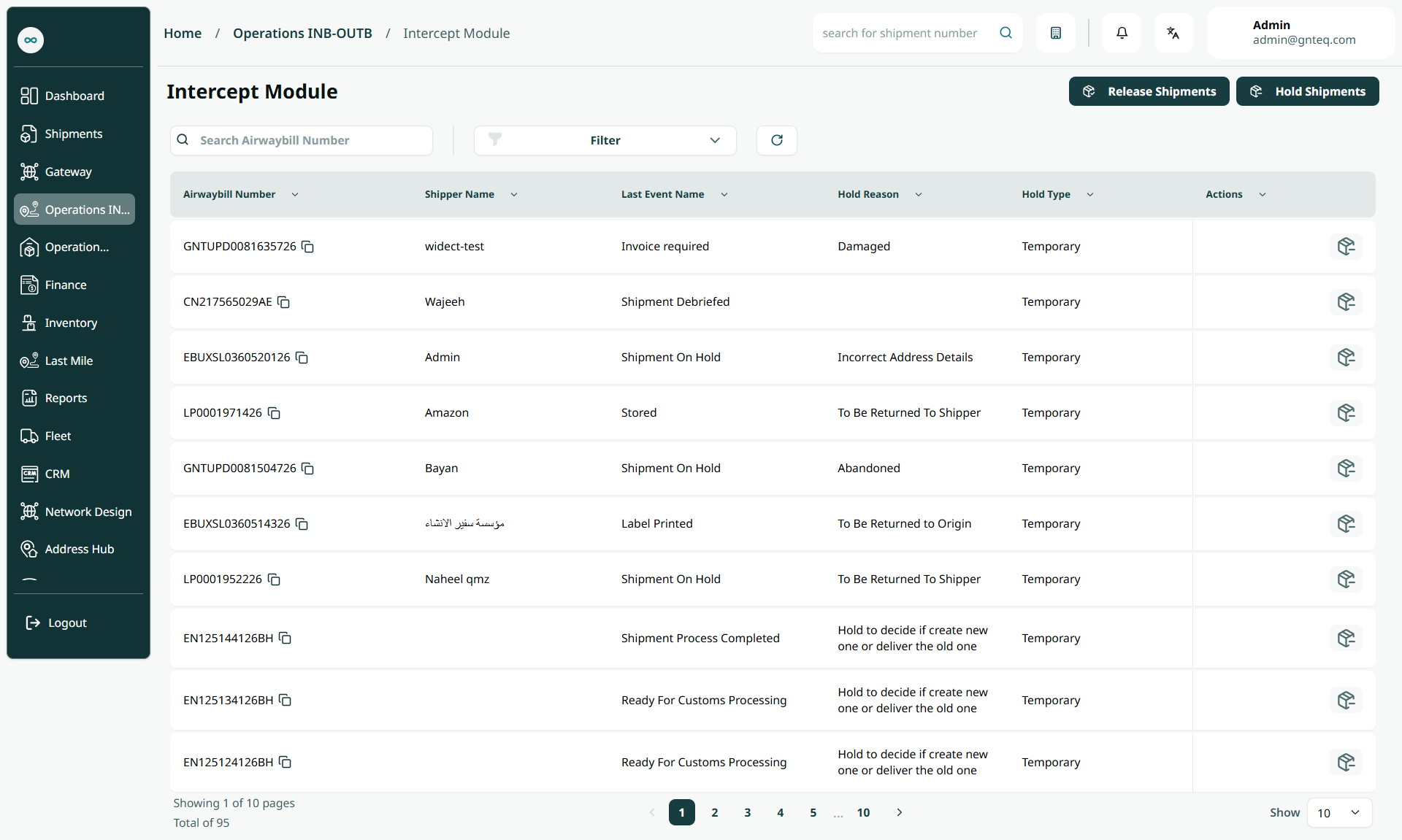
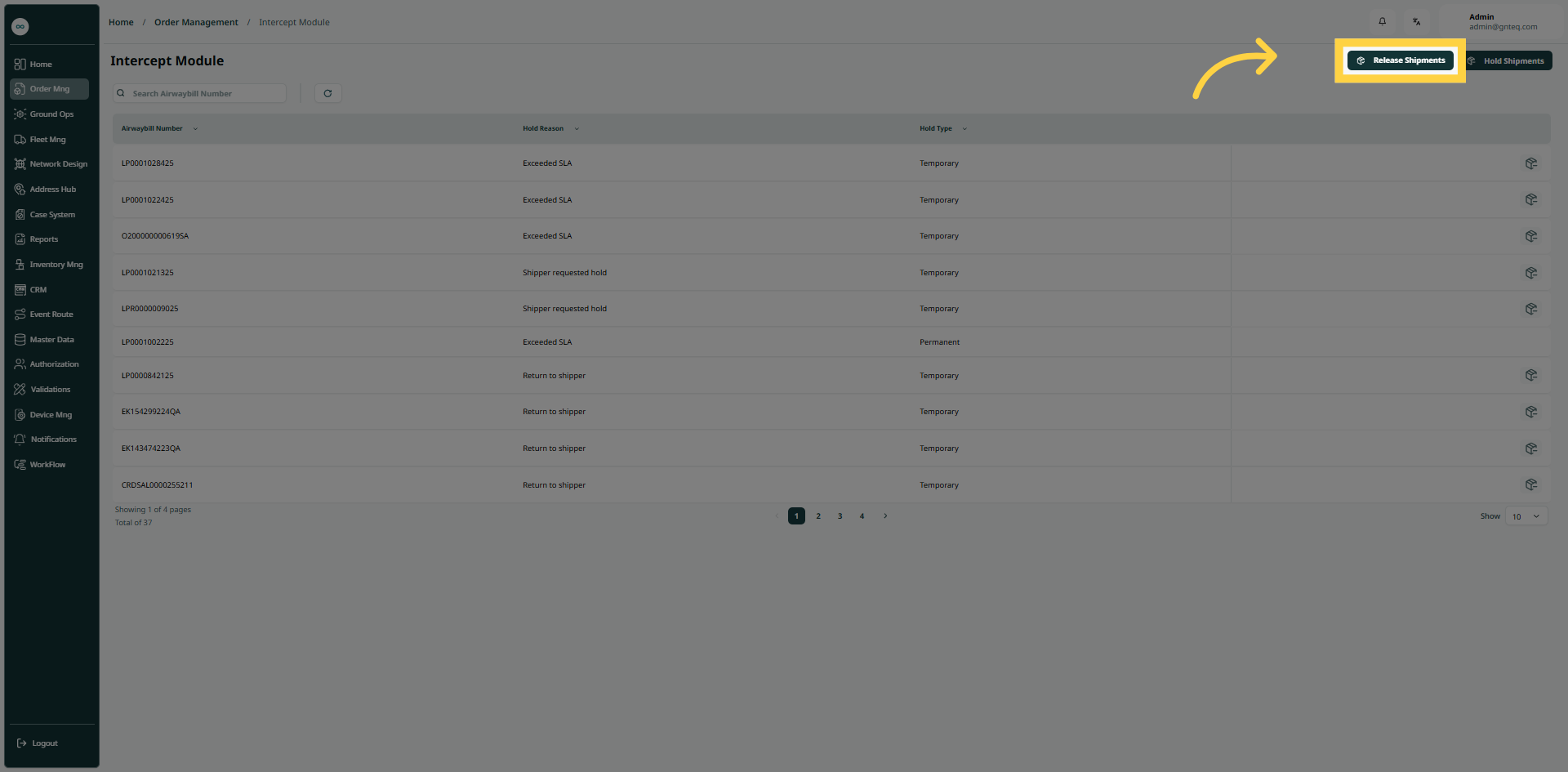
The user can hold and release shipments by navigating to the ‘Intercept Module’ screen via the Order Management as follows:
-
Hold Shipments: the user can add hold shipments by clicking on “Hold Shipments”.
-
Release Shipments: the user can add release shipments by clicking on “Release Shipments”.
-
Filters: the user can search for the event by the airwaybill number, hold reason.
-
Search: the user can search for shipments by entering the airwaybill number.
-
Rows Per Page: the user can select the number of items to show on each page.
-
Actions: by clicking on Actions, the user can release shipments from the hold section.
1.2 Hold Shipments
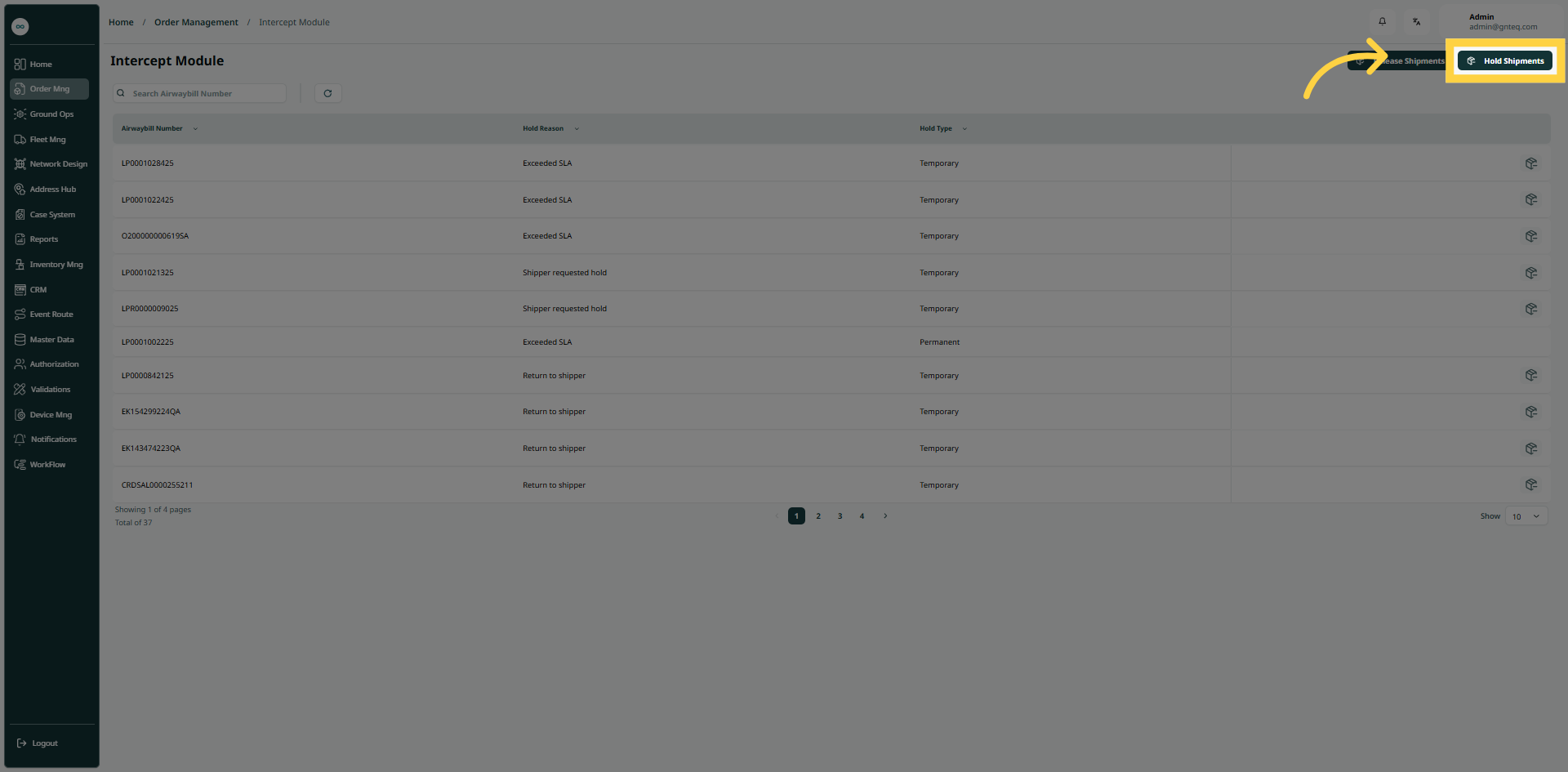
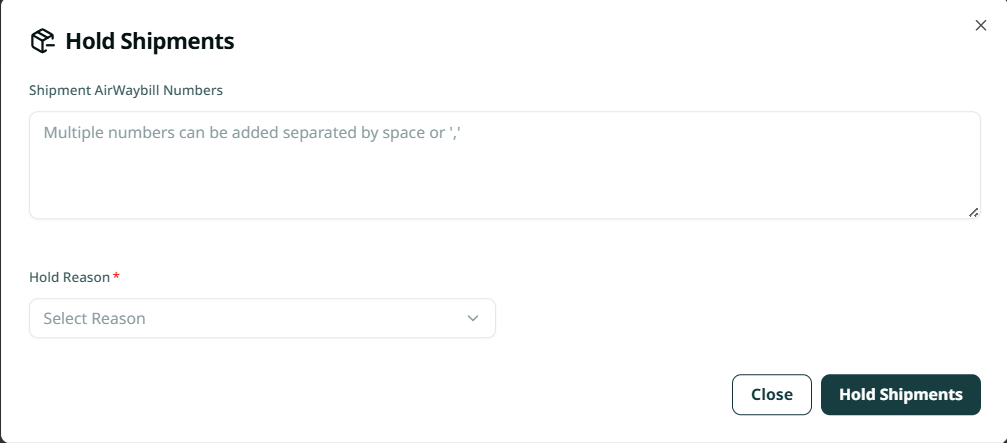
The user can hold shipments by navigating to the ‘Intercept Module’ screen via the Order Management and clicking on Hold Shipments as follows:
-
Shipments Airwaybill Number: this field represents the shipment AWB for the hold action.
-
Hold Reason: this filed represents the reason of hold for the shipment.
By clicking on “Hold Shipments”, the shipments will be held successfully.
1.3 Release shipments
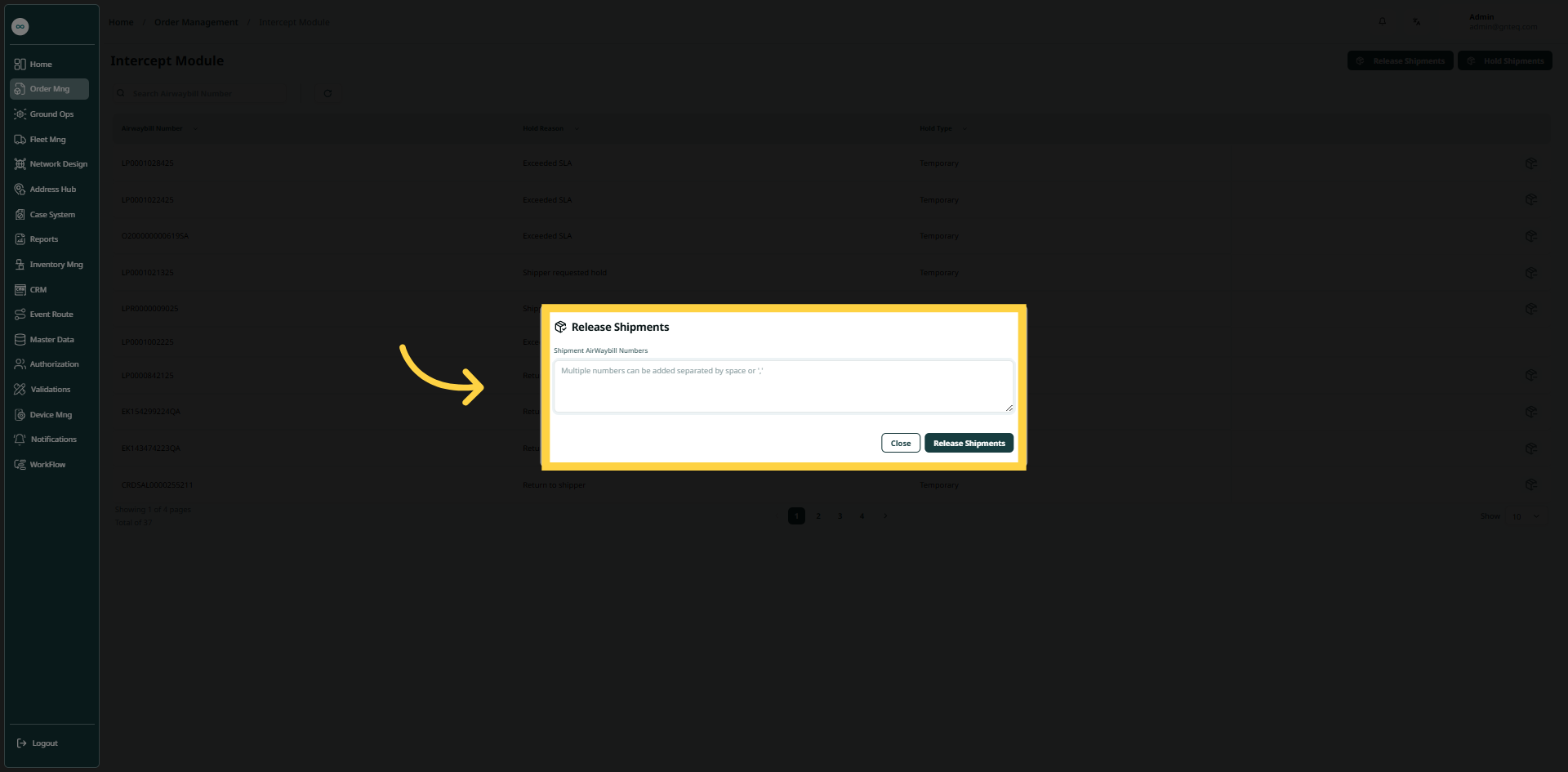
The user can release shipments by navigating to the ‘Intercept Module’ screen via the Order Management and clicking on Release Shipments as follows:
-
Shipments Airwaybill Number: this field represents the shipment AWB for the hold action.
By clicking on “Release Shipments” the shipment will be release successfully.