
|
Version |
Author |
Reviewer/Approver |
Date of Issue |
Page / Section |
Brief Description |
|---|---|---|---|---|---|
|
1.0 |
Jameel.S |
Deema.Z \ Asma.L |
25/5/2025 |
Reports |
First Version |
|
1.1 |
Deema.Z |
|
30/12/2025 |
|
Modified version |
1. Shipment
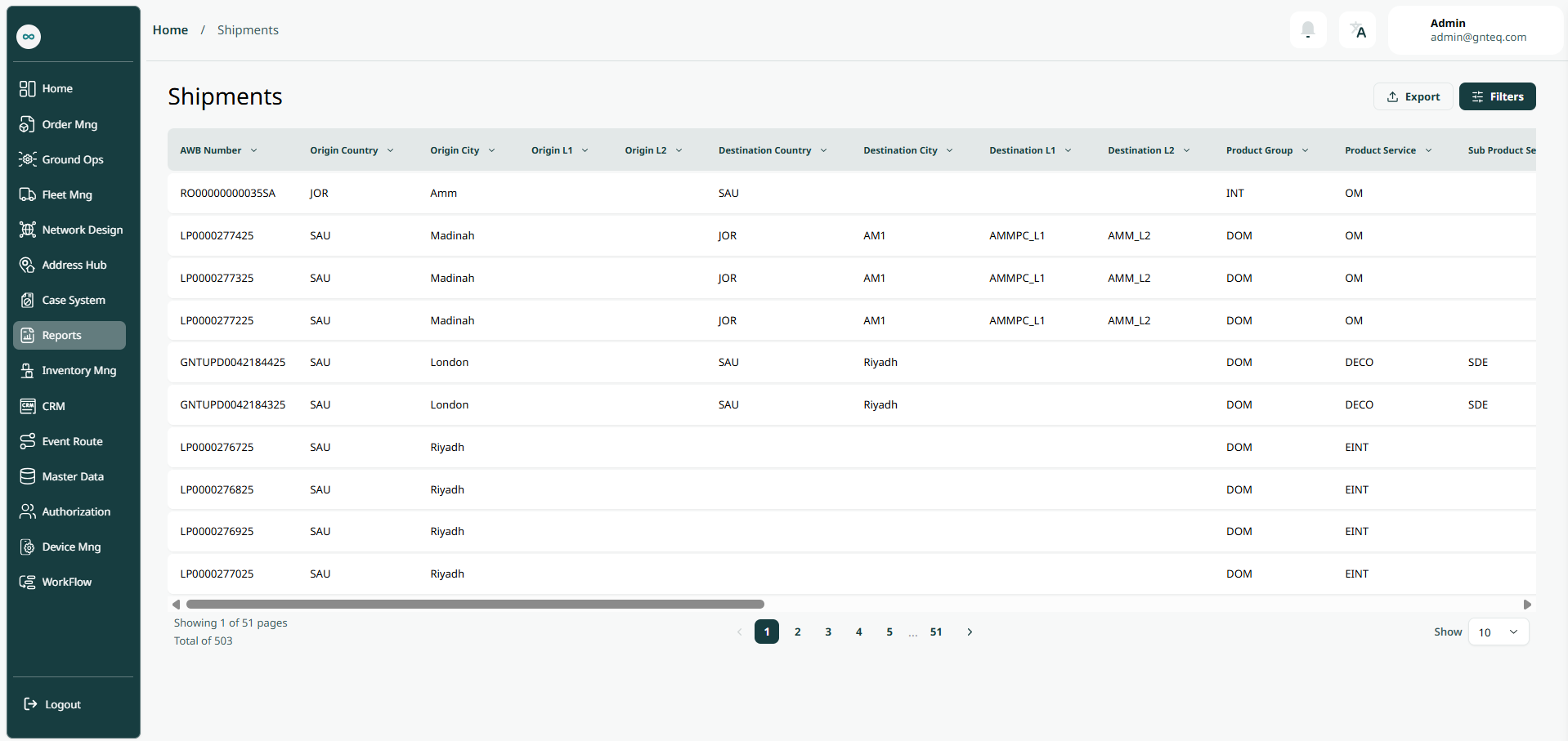
The user can view the defined shipment report in the system by navigating to the ‘Shipments’ screen in the Reports Module from the left navigation panel as follows:
-
Export: the user can export the list as an Excel file by selecting export button.
-
Filter: the user can search for the shipment by typing the origin city, origin l1, origin l2……etc.
-
Rows Per Page: the user can select the number of items to show on each page.
2. Container
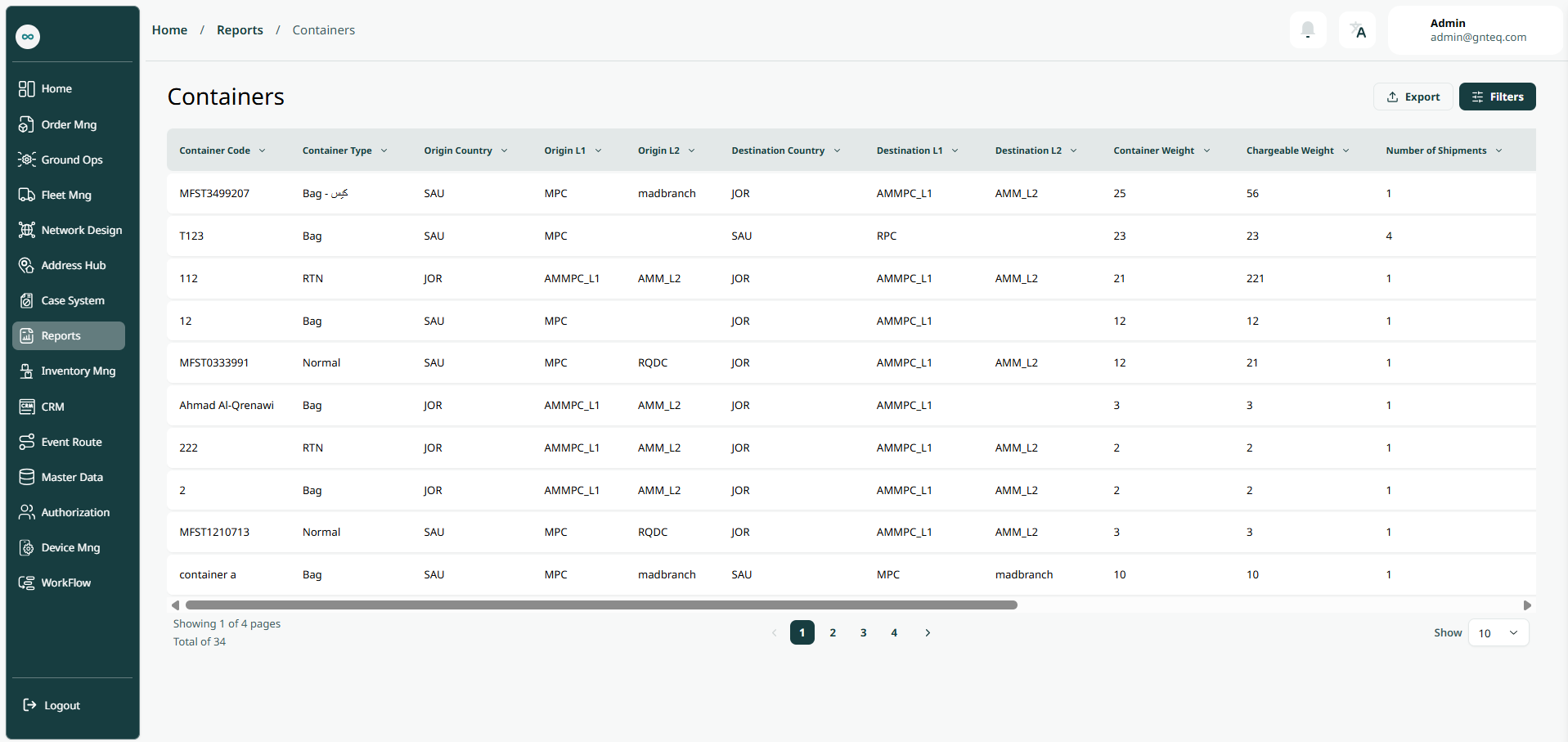
The user can view the defined container report in the system by navigating to the ‘Containers’ screen in the Reports Module from the left navigation panel as follows:
-
Export: the user can export the list as an Excel file by selecting export button.
-
Filter: the user can search for the container by typing the origin city, origin l1, origin l2……etc.
-
Rows Per Page: the user can select the number of items to show on each page.
3. Manifests
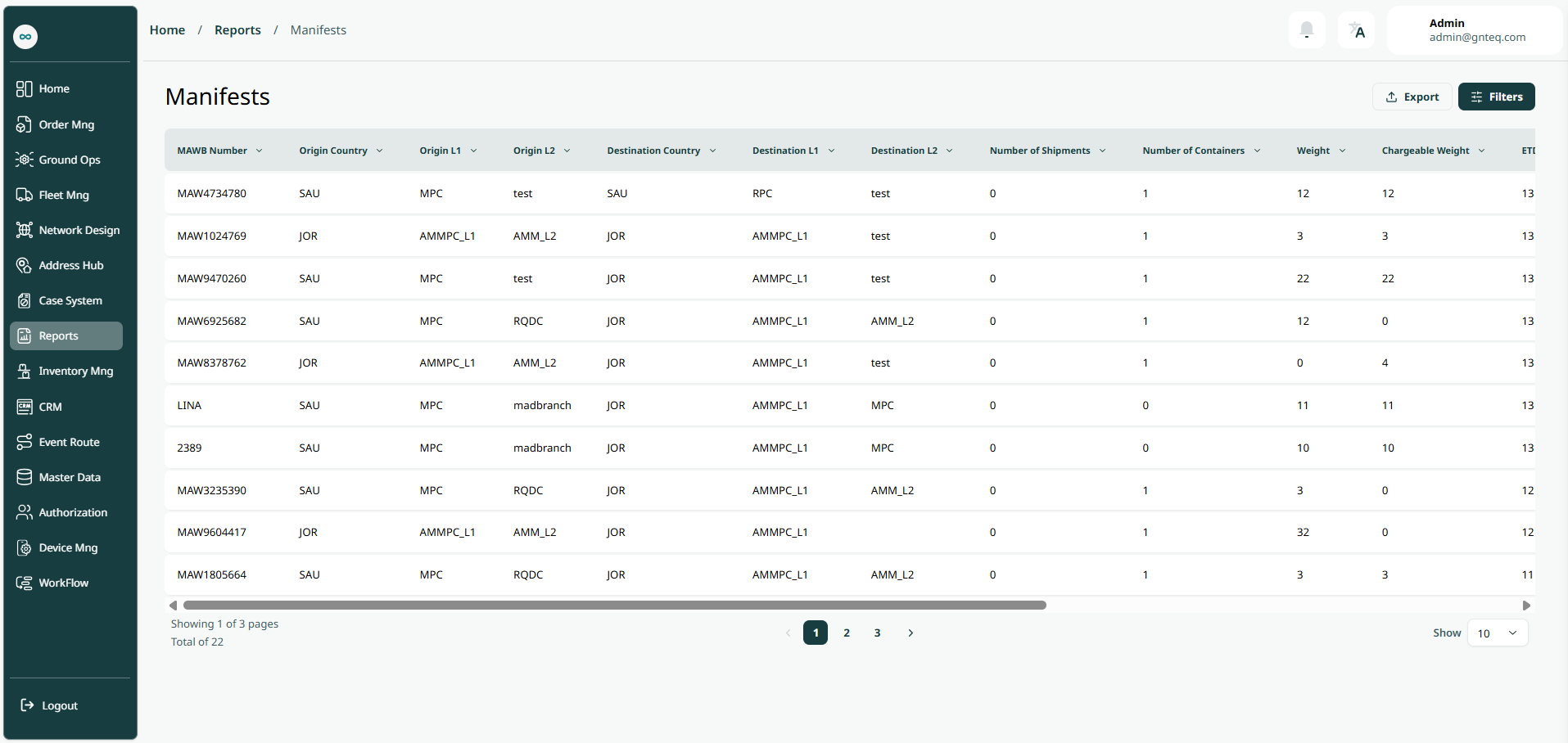
The user can view the defined manifests report in the system by navigating to the ‘Manifests’ screen in the Reports Module from the left navigation panel as follows:
-
Export: the user can export the list as an Excel file by selecting export button.
-
Filter: the user can search for the manifest by typing the origin city, origin l1, origin l2……etc.
-
Rows Per Page: the user can select the number of items to show on each page.
4. Official Mails
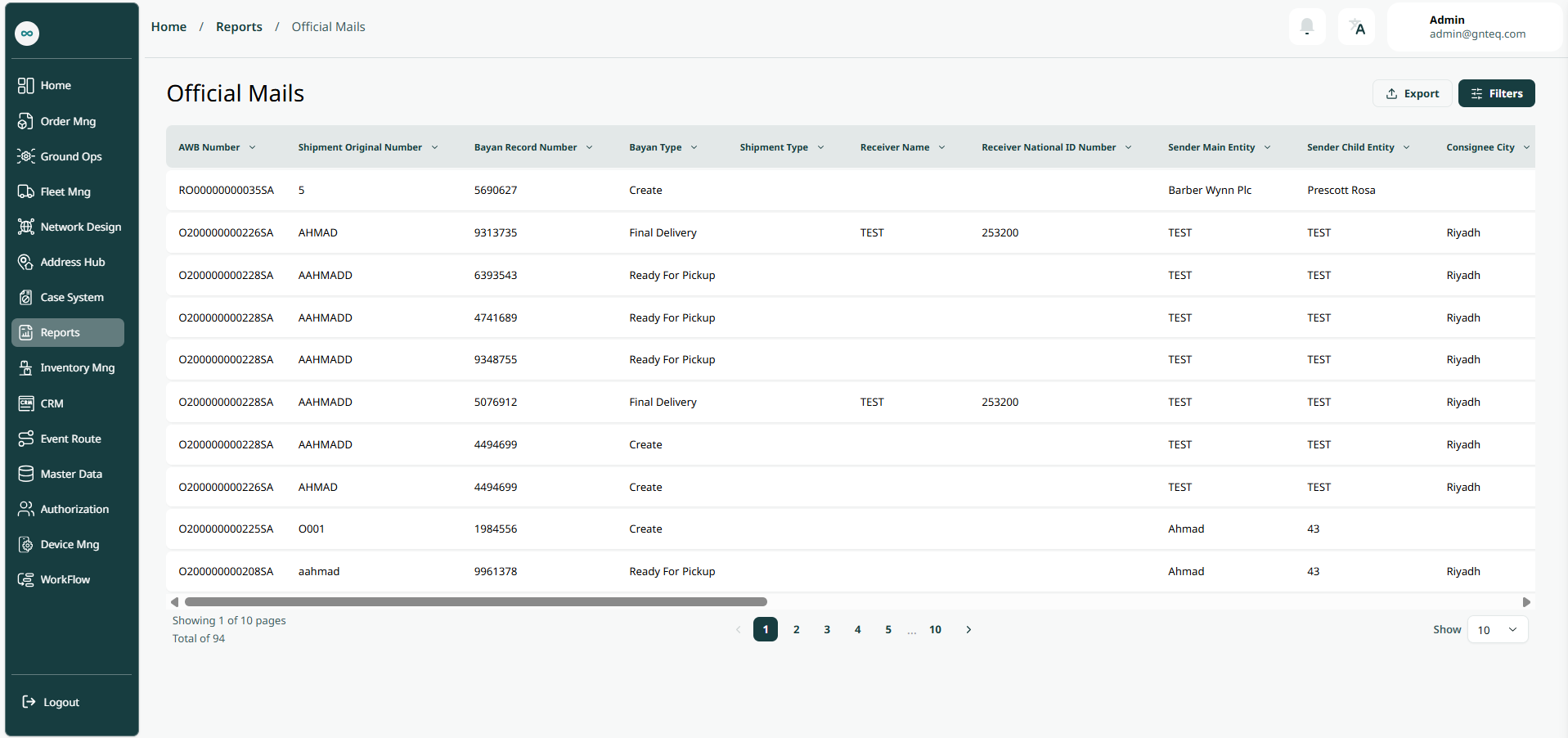
The user can view the defined official mails report in the system by navigating to the ‘Official Mails’ screen in the Reports Module from the left navigation panel as follows:
-
Export: the user can export the list as an Excel file by selecting export button.
-
Filter: the user can search for the vehicle by typing the shipment origin number, shipment type……etc.
-
Rows Per Page: the user can select the number of items to show on each page.
5. Accounting Invoices
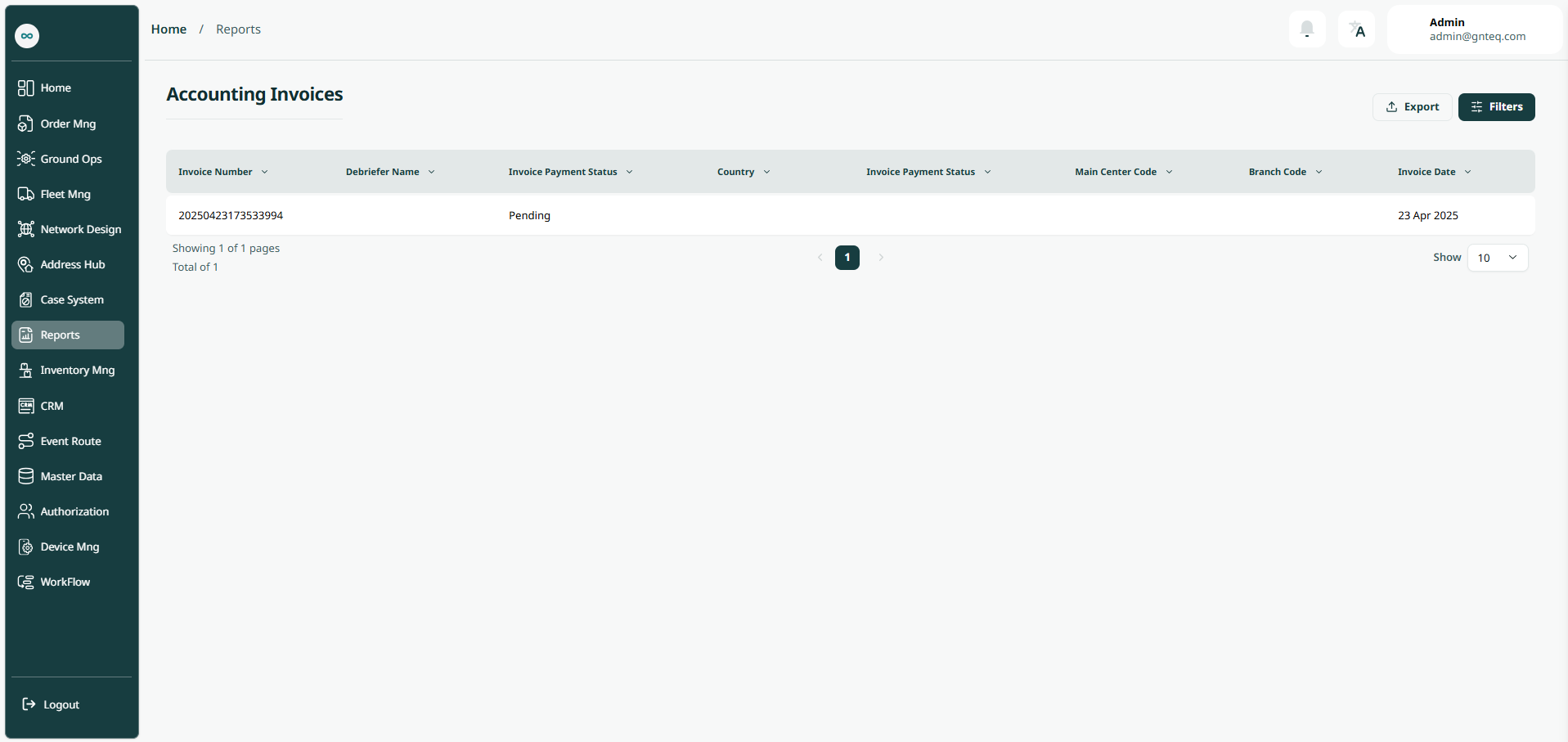
The user can view the defined accounting invoice report in the system by navigating to the ‘Accounting Invoices’ screen in the Reports Module from the left navigation panel as follows:
-
Export: the user can export the list as an Excel file by selecting export button.
-
Filter: the user can search for the accounting invoice by typing the country, city, main center……etc.
-
Rows Per Page: the user can select the number of items to show on each page.
6. Accounting Debriefing
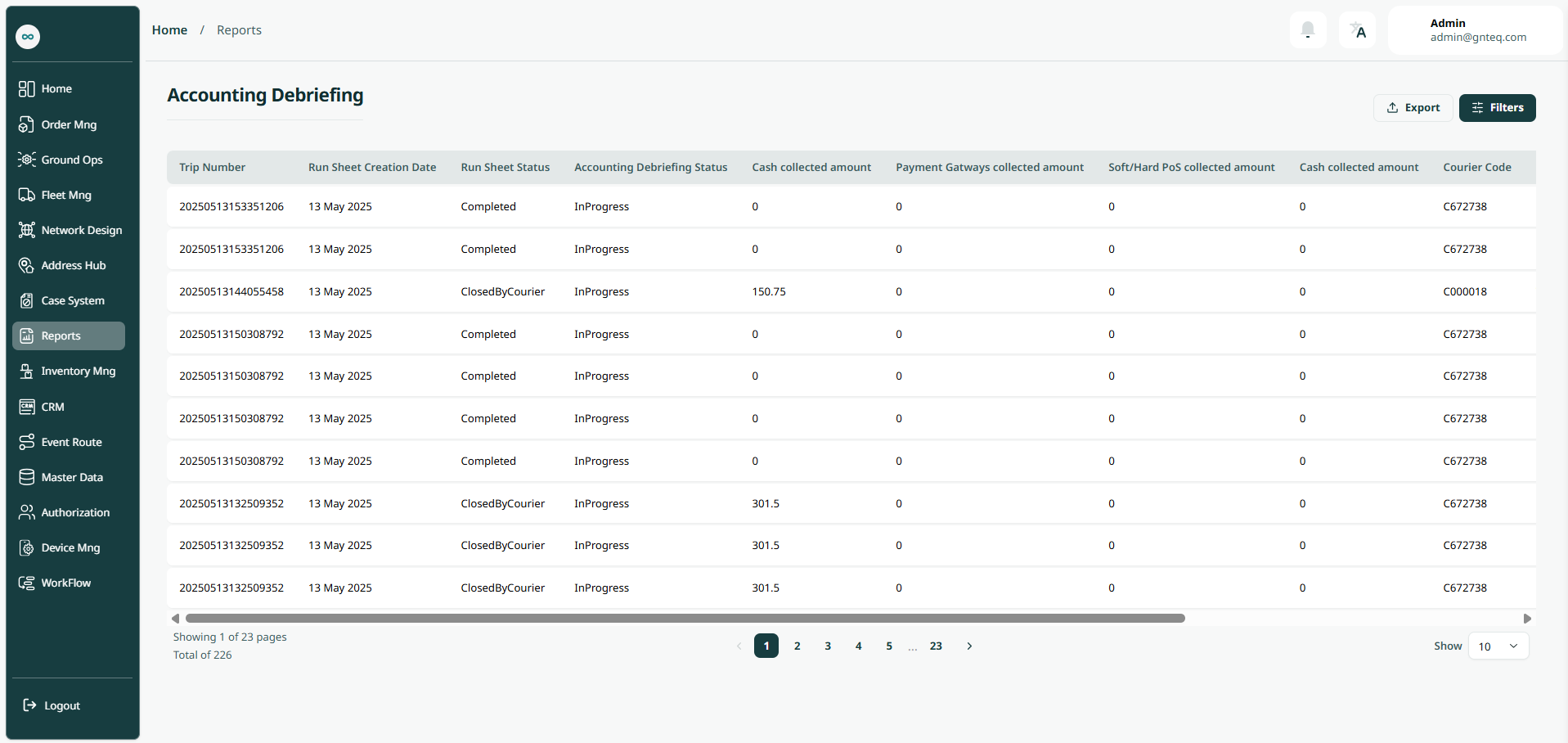
The user can view the defined accounting debriefing report in the system by navigating to the ‘Accounting Debriefing’ screen in the Reports Module from the left navigation panel as follows:
-
Export: the user can export the list as an Excel file by selecting export button.
-
Filter: the user can search for the accounting debriefing by typing the country, city, main center……etc.
-
Rows Per Page: the user can select the number of items to show on each page.
7. Operation Debriefing
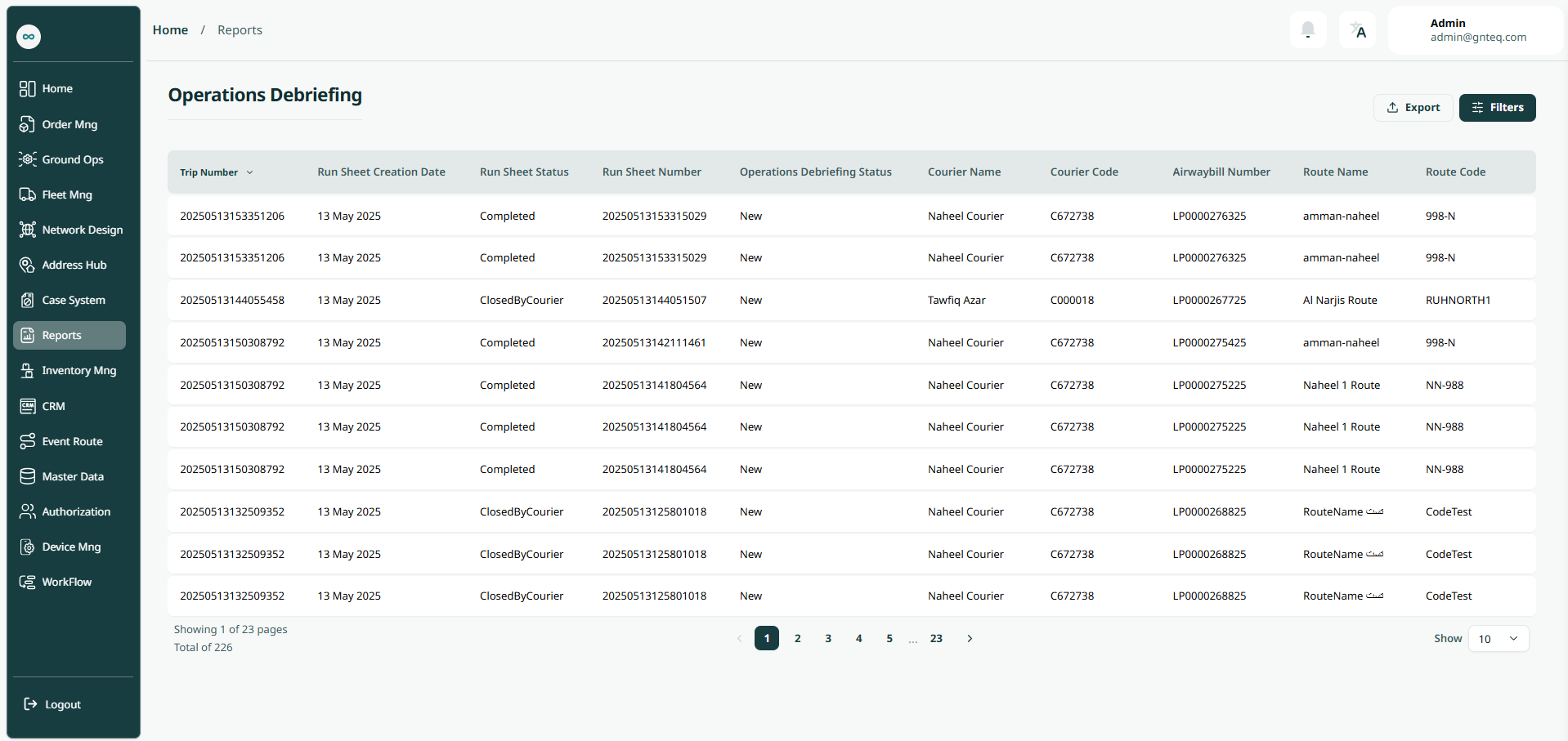
The user can view the defined operation debriefing report in the system by navigating to the ‘Operation Debriefing’ screen in the Reports Module from the left navigation panel as follows:
-
Export: the user can export the list as an Excel file by selecting export button.
-
Filter: the user can search for the operation debriefing by typing the country, city, main center……etc.
-
Rows Per Page: the user can select the number of items to show on each page.
8. Collection
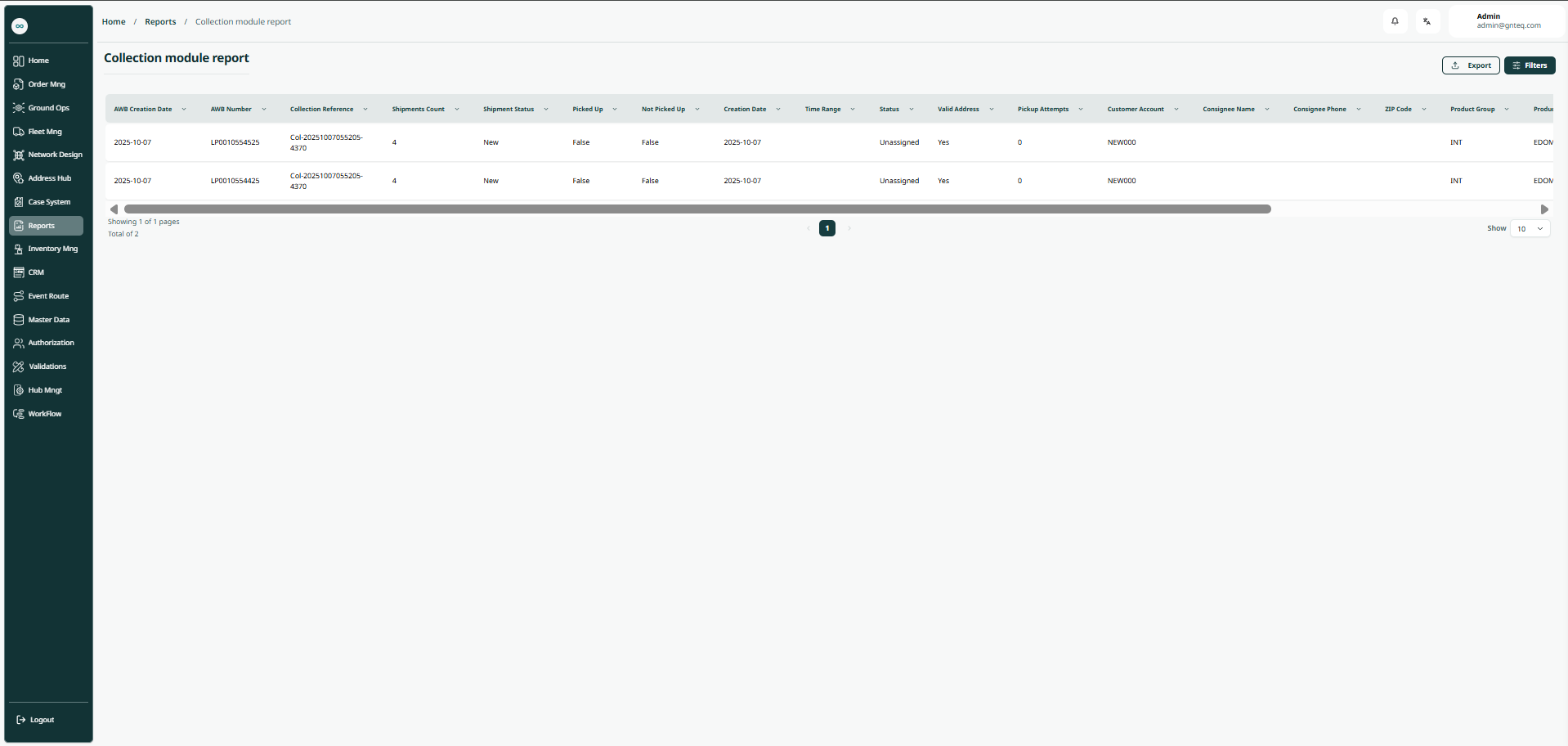
The user can view the defined collection report in the system by navigating to the ‘Collection’ screen in the Reports Module from the left navigation panel as follows:
-
Export: the user can export the list as an Excel file by selecting the export button.
-
Filter: the user can search for the collection by typing the AWB number, Zip code, product type….etc.
-
Rows Per Page: the user can select the number of items to show on each page.
9. Courier Performance
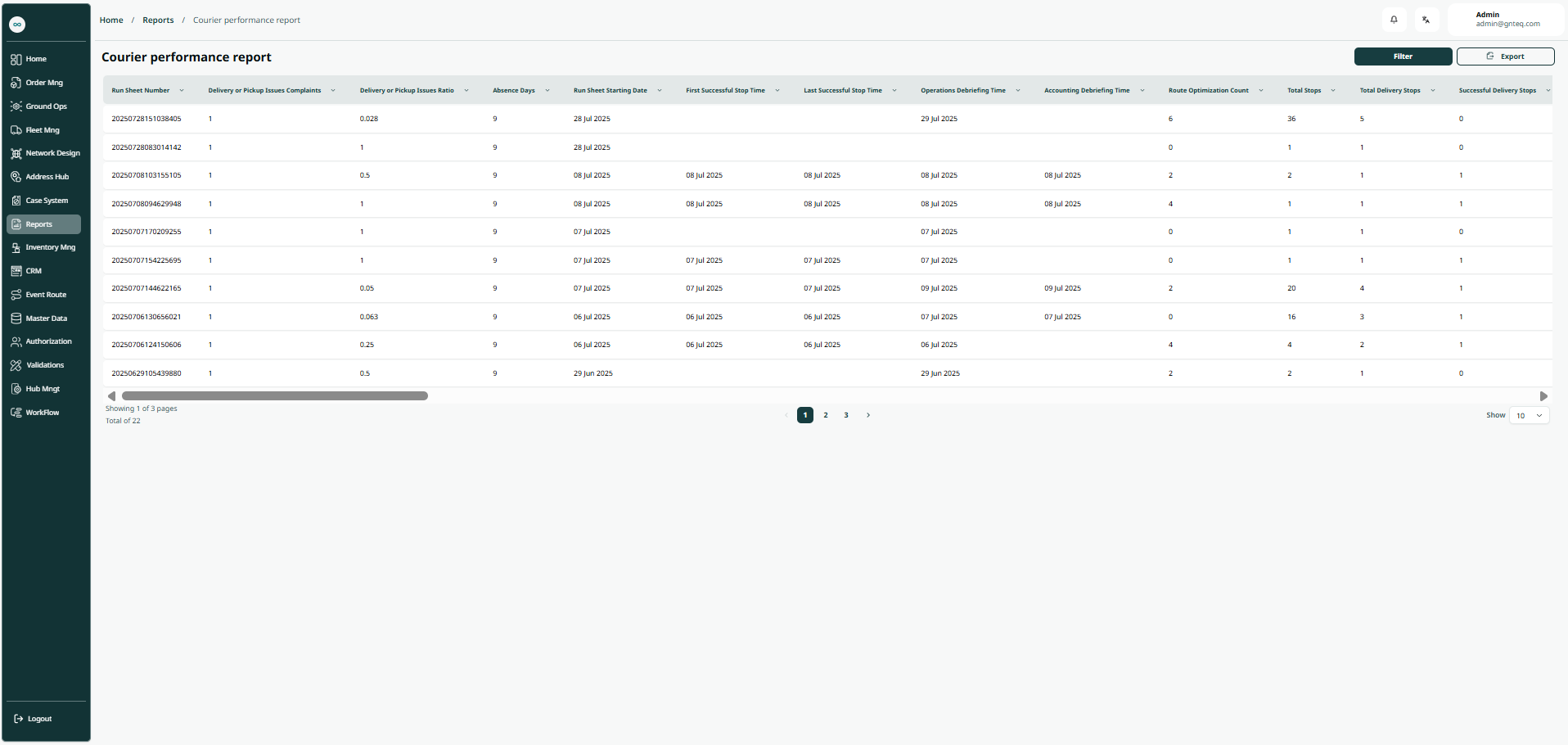
The user can view the defined courier performance report in the system by navigating to the ‘Courier Performance’ screen in the Reports Module from the left navigation panel as follows:
-
Export: the user can export the list as an Excel file by selecting the export button.
-
Filter: the user can search for the courier performance by typing the total stops, route optimization, prepaid stops….etc.
-
Rows Per Page: the user can select the number of items to show on each page
10. Inactive Units
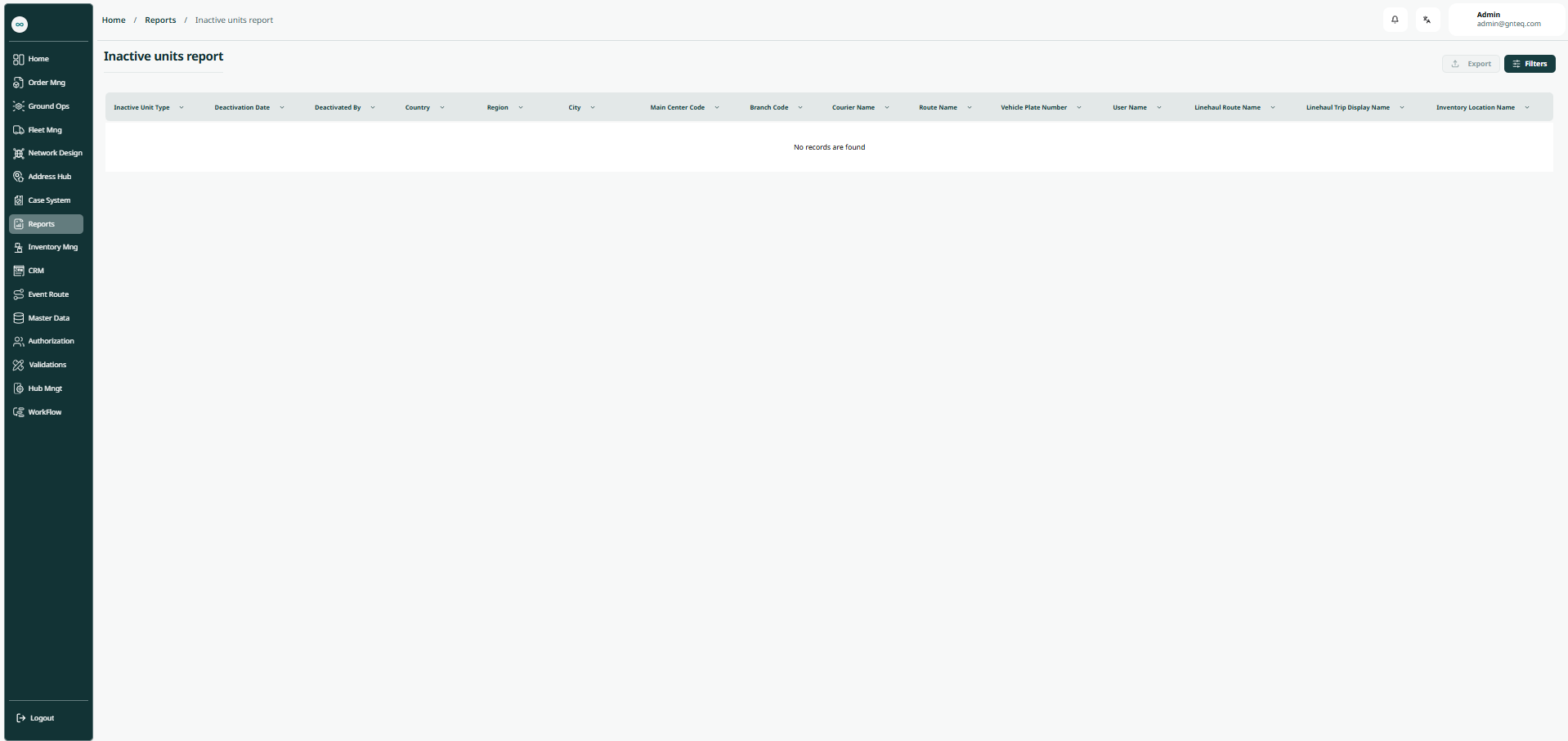
The user can view the defined inactive units report in the system by navigating to the ‘Inactive Units’ screen in the Reports Module from the left navigation panel as follows:
-
Export: the user can export the list as an Excel file by selecting the export button.
-
Filter: the user can search for the inactive units by typing the country, city, main center code….etc
-
Rows Per Page: the user can select the number of items to show on each page
11. Incentives Crowdsource
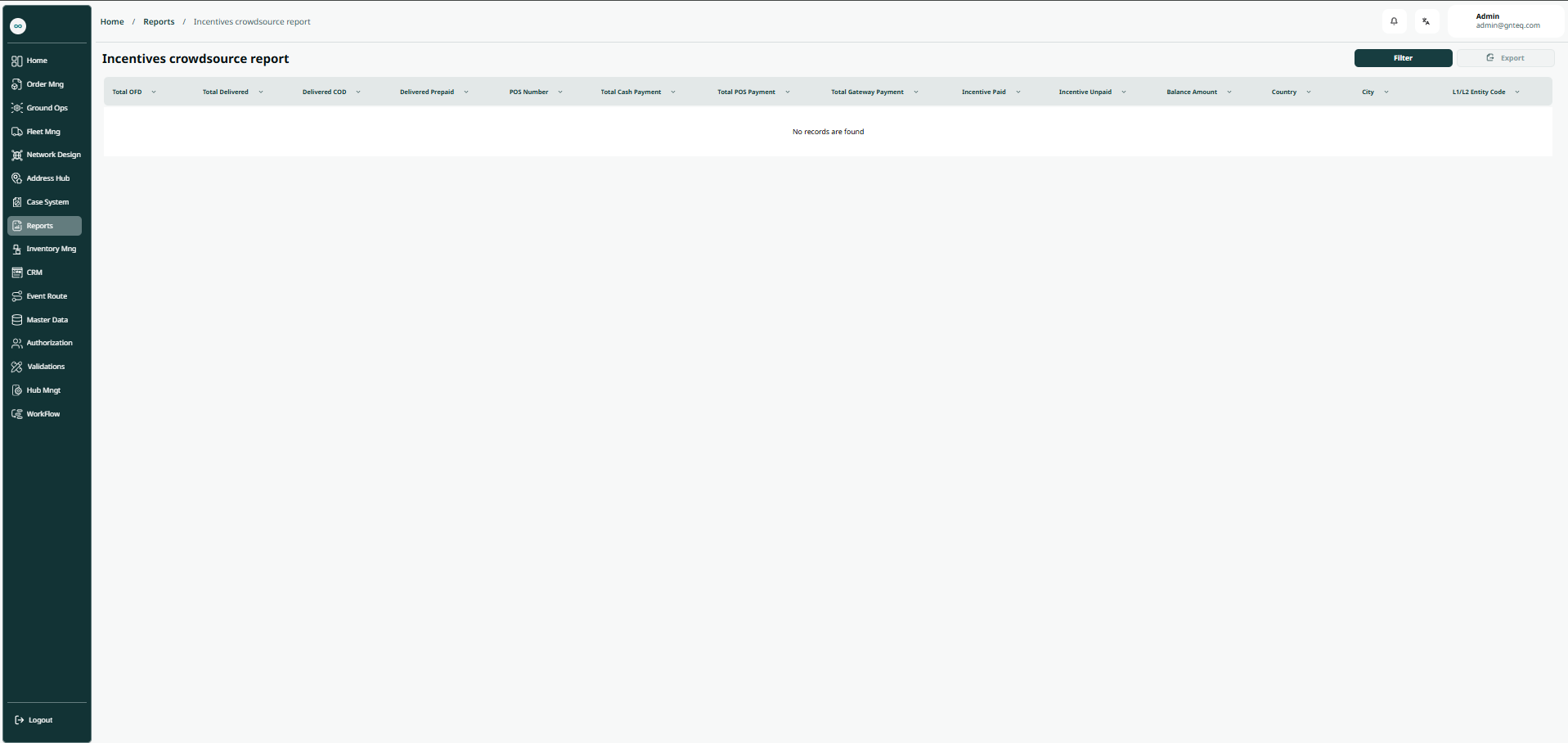
The user can view the defined incentives crowdsource report in the system by navigating to the ‘Incentives Crowdsource’ screen in the Reports Module from the left navigation panel as follows:
-
Export: the user can export the list as an Excel file by selecting the export button.
-
Filter: the user can search for the inactive units by typing the country, city, total delivered ….etc
-
Rows Per Page: the user can select the number of items to show on each page
12. Shipment POD
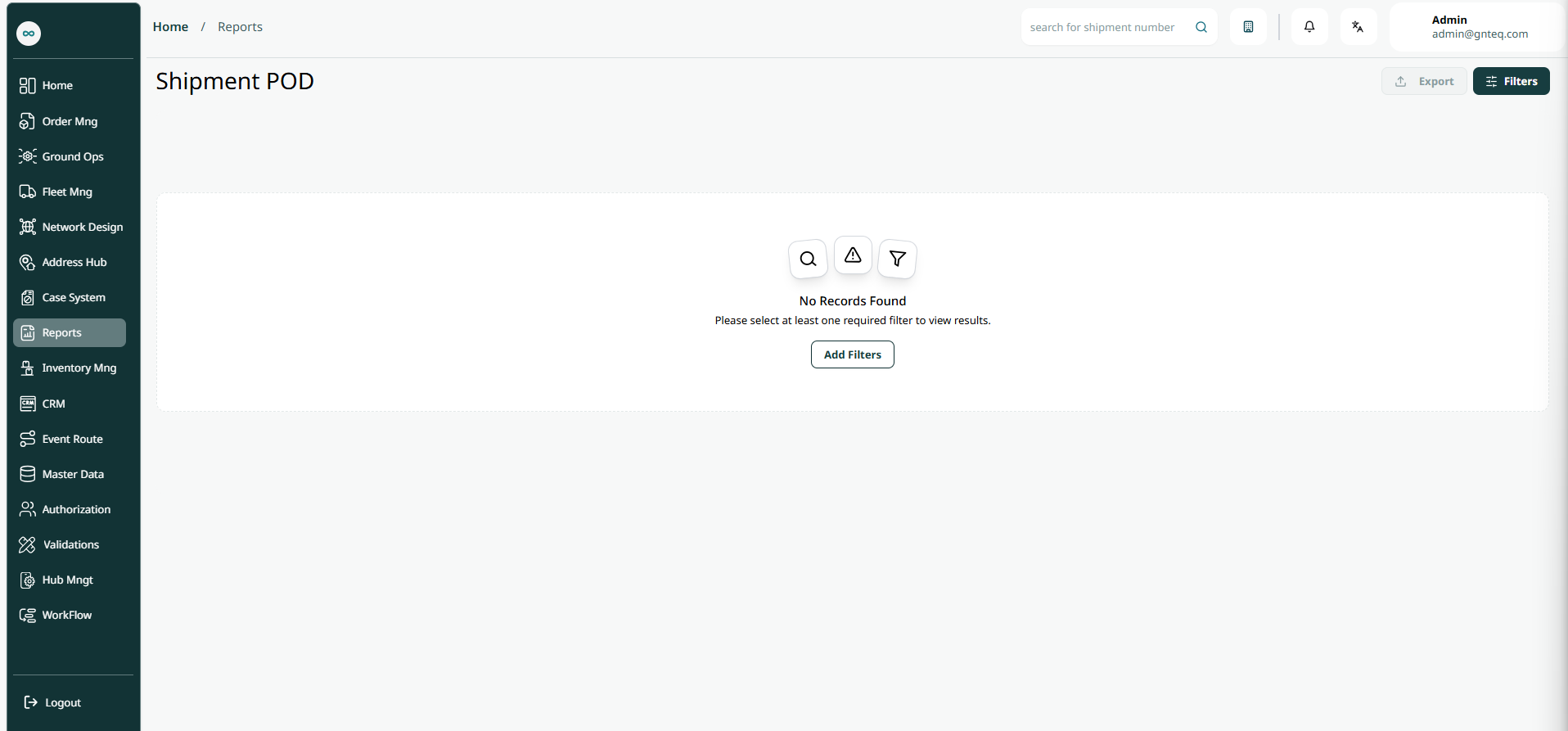
The user can view the defined shipment POD report in the system by navigating to the ‘Shipment POD’ screen in the Reports Module from the left navigation panel as follows:
-
Export: the user can export the list as an Excel file by selecting the export button.
-
Filter: the user can search for the inactive units by typing the shipper name, shipper account ….etc
-
Rows Per Page: the user can select the number of items to show on each page
13. Address Hub
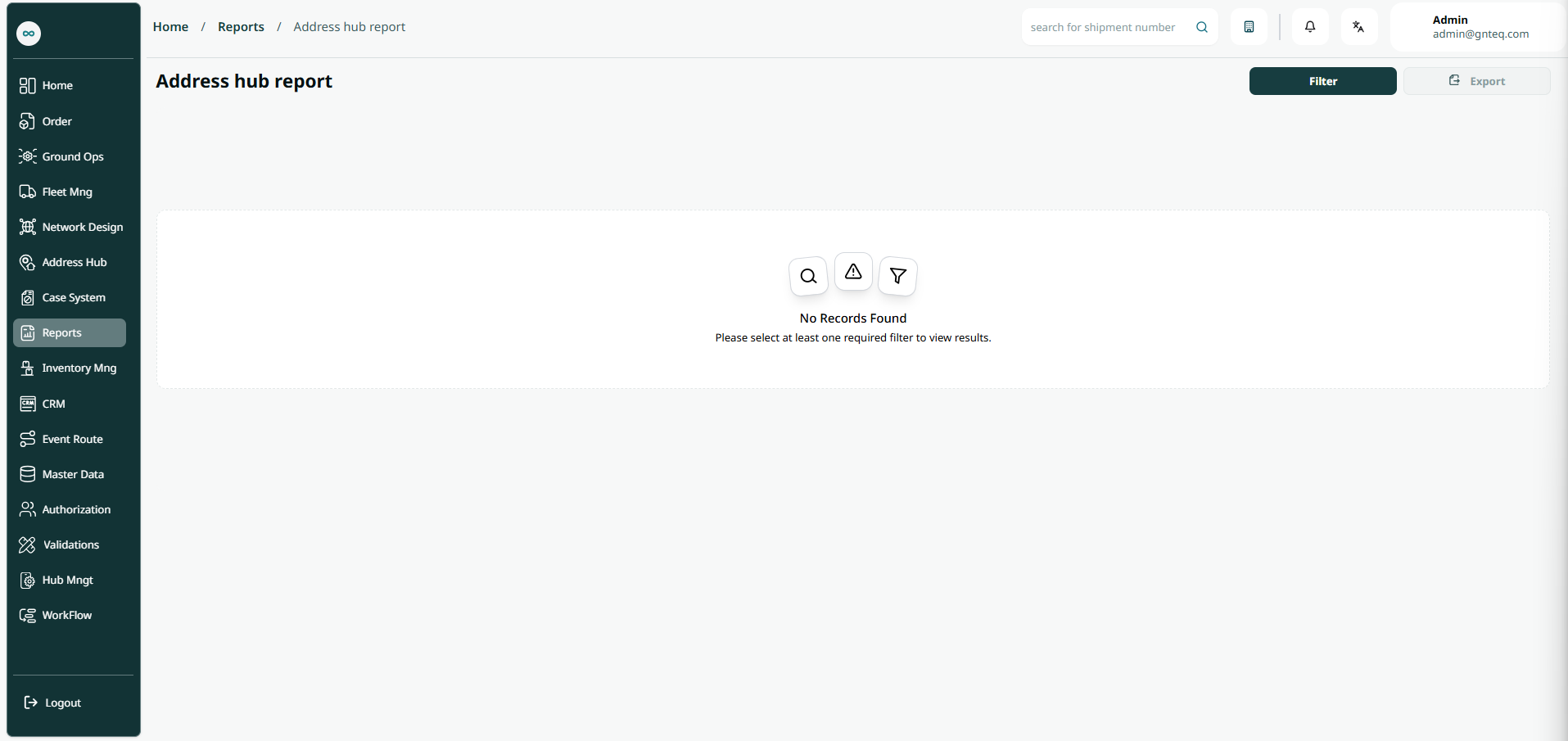
The user can view the defined address hub report in the system by navigating to the ‘Address Hub Report’ screen in the Reports Module from the left navigation panel as follows:
-
Export: the user can export the list as an Excel file by selecting the export button.
-
Filter: the user can search for the address hub by typing the destination country, destination city, destination main center, destination branch ….etc
-
Rows Per Page: the user can select the number of items to show on each page