
1. Pre-Book Manifests
1.1 Dashboard
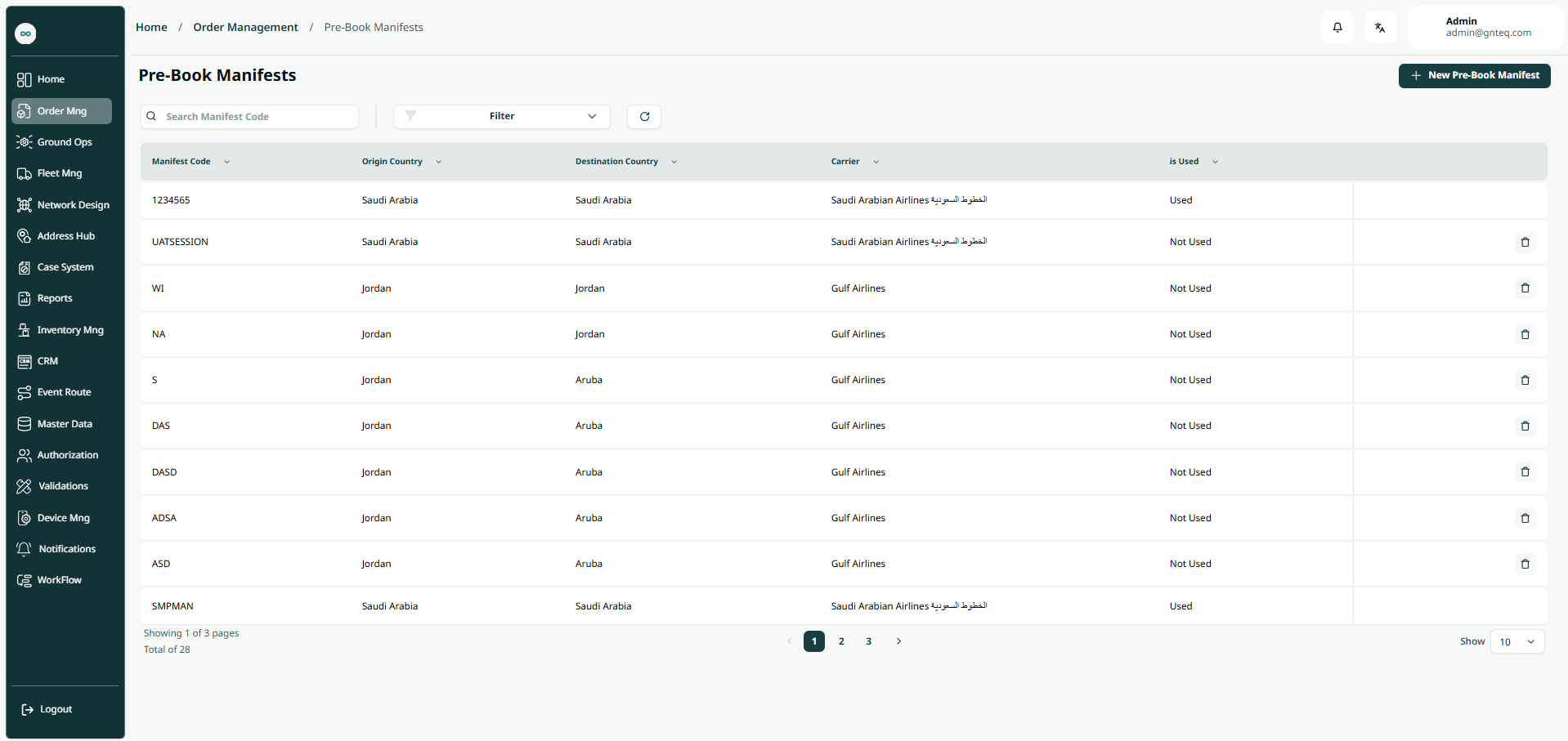
The users can view the defined prebooked manifests in the system by navigating to the ‘Prebook Manifests’ screen in the operations Module from the left navigation panel as follows:
-
New Pre-book Manifests: the user can add new pre-book manifests by clicking on “New Prebook Manifests”.
-
Search: the user can search for the pre-book manifests by entering the manifests code.
-
Filters: the user can search for the manifests by the origin country, destination country………… etc.
-
Rows Per Page: the user can select the number of items to show on each page.
-
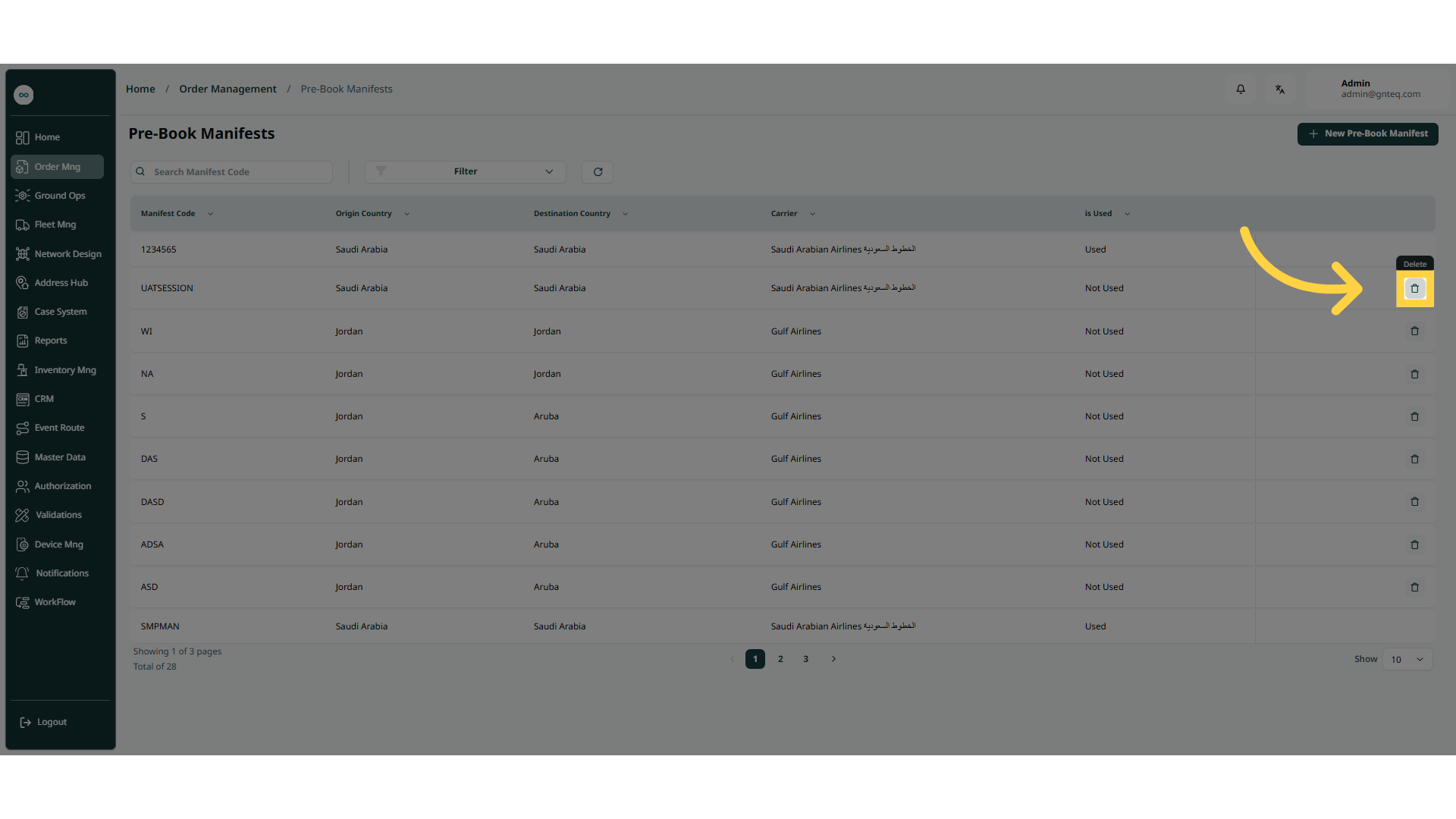
Action: by clicking on Actions, the user can delete the pre-book manifests.
1.1.1 Delete
The user can delete the pre-book manifests by clicking on Delete from Actions by navigating to the ‘Pre-book Manifests’ screen via the operations Module.
1.2 Add New Pre-book Manifests
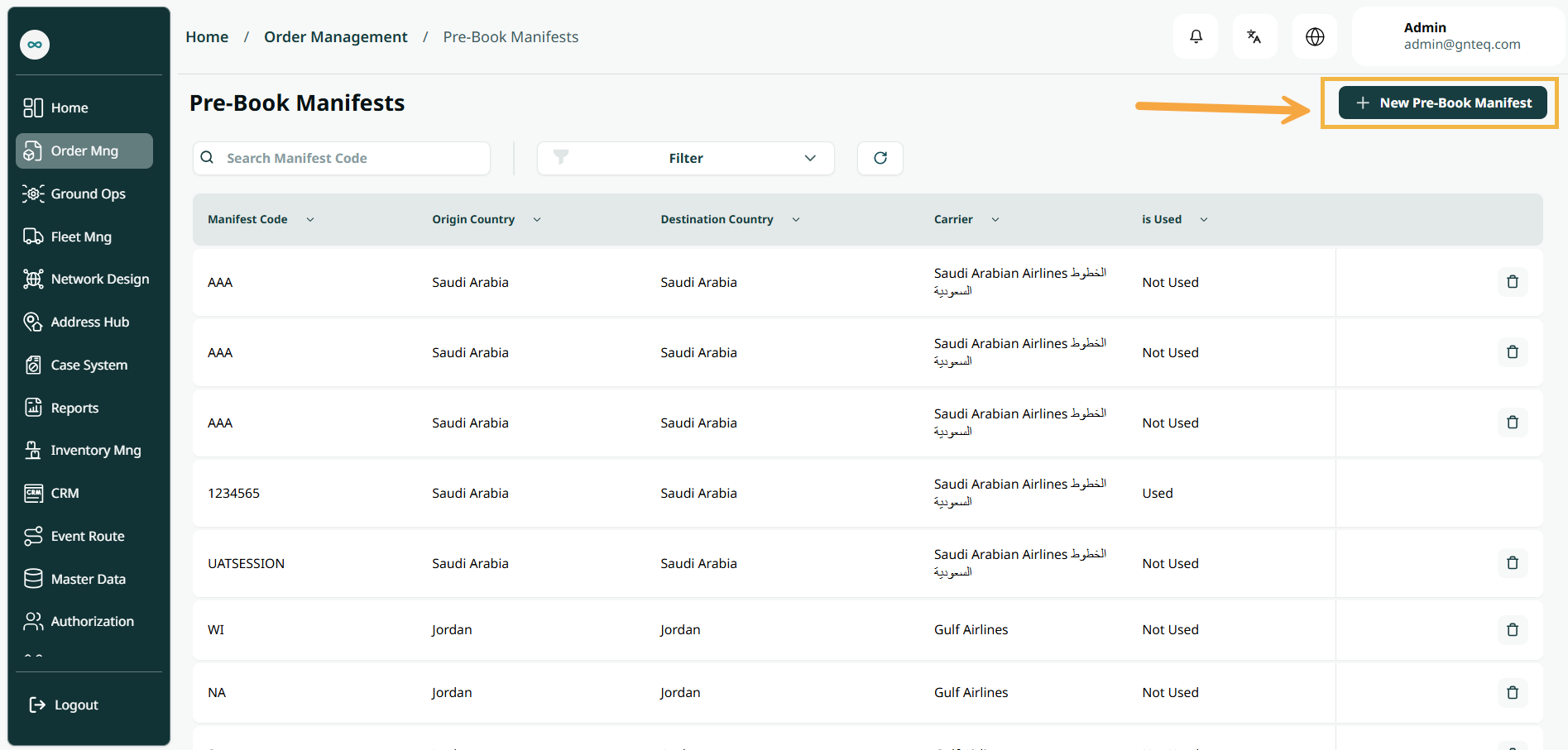
The user can add new pre-book manifests to the shipment by clicking on New Pre-book Manifests by navigating to the ‘Pre-Book Manifests’ screen via the operations Module.
-
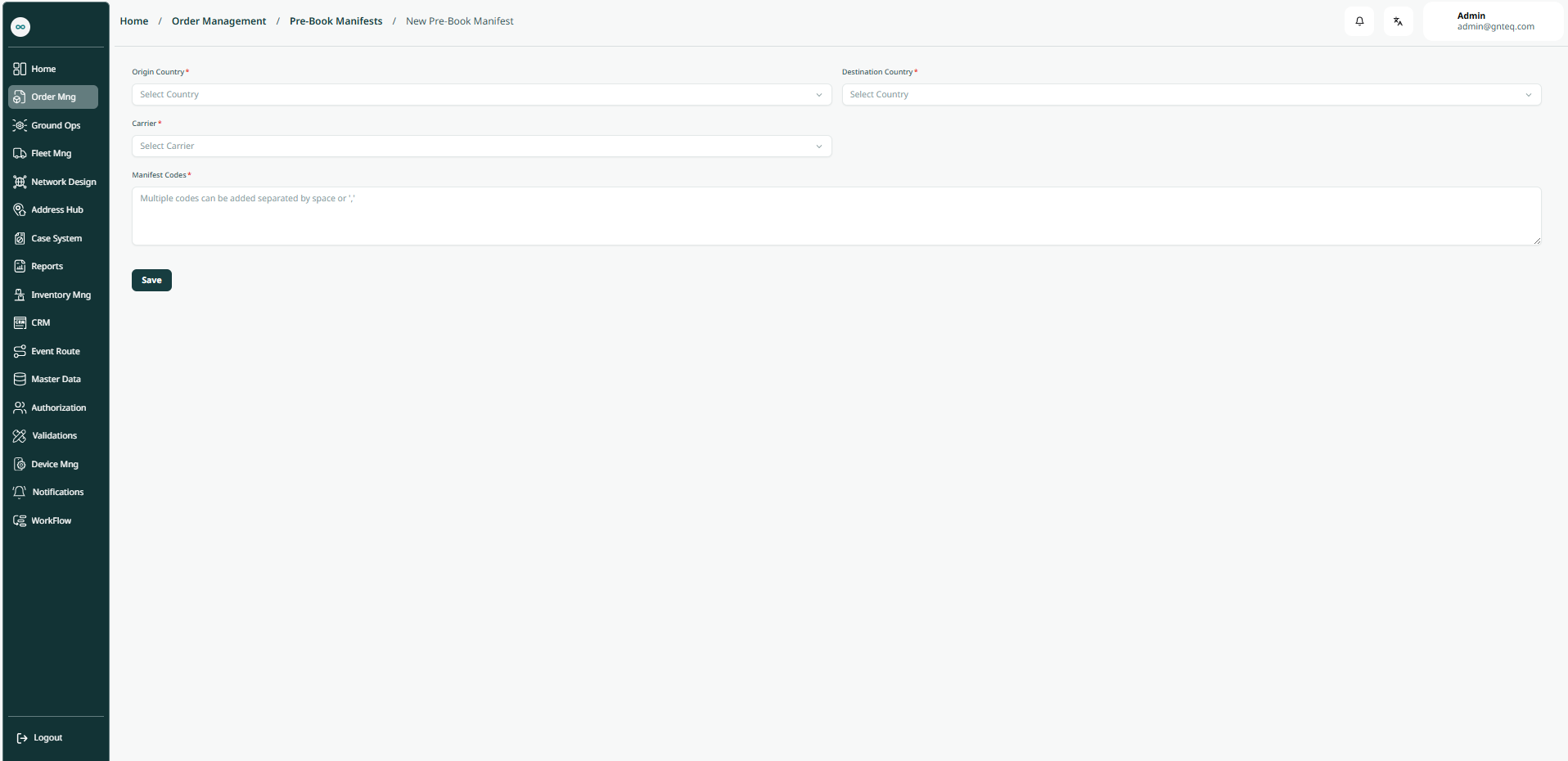
Origin Country: this field represents the container’s origin country.
-
Destination Country: this field represents the container’s arrival country.
-
Carriers: this field represents the name of the airline company.
-
Manifests codes: this field represents the MAWB codes.
By clicking on Save, the manifests will be pre-booked successfully.