
1. Validation Action
This page is dedicated to managing and creating validation actions.
Validation action is an action or process executed to verify or validate data based on specific rules.
Each possible action is associated with several rules that are applied to the data during execution.
1.1 Dashboard
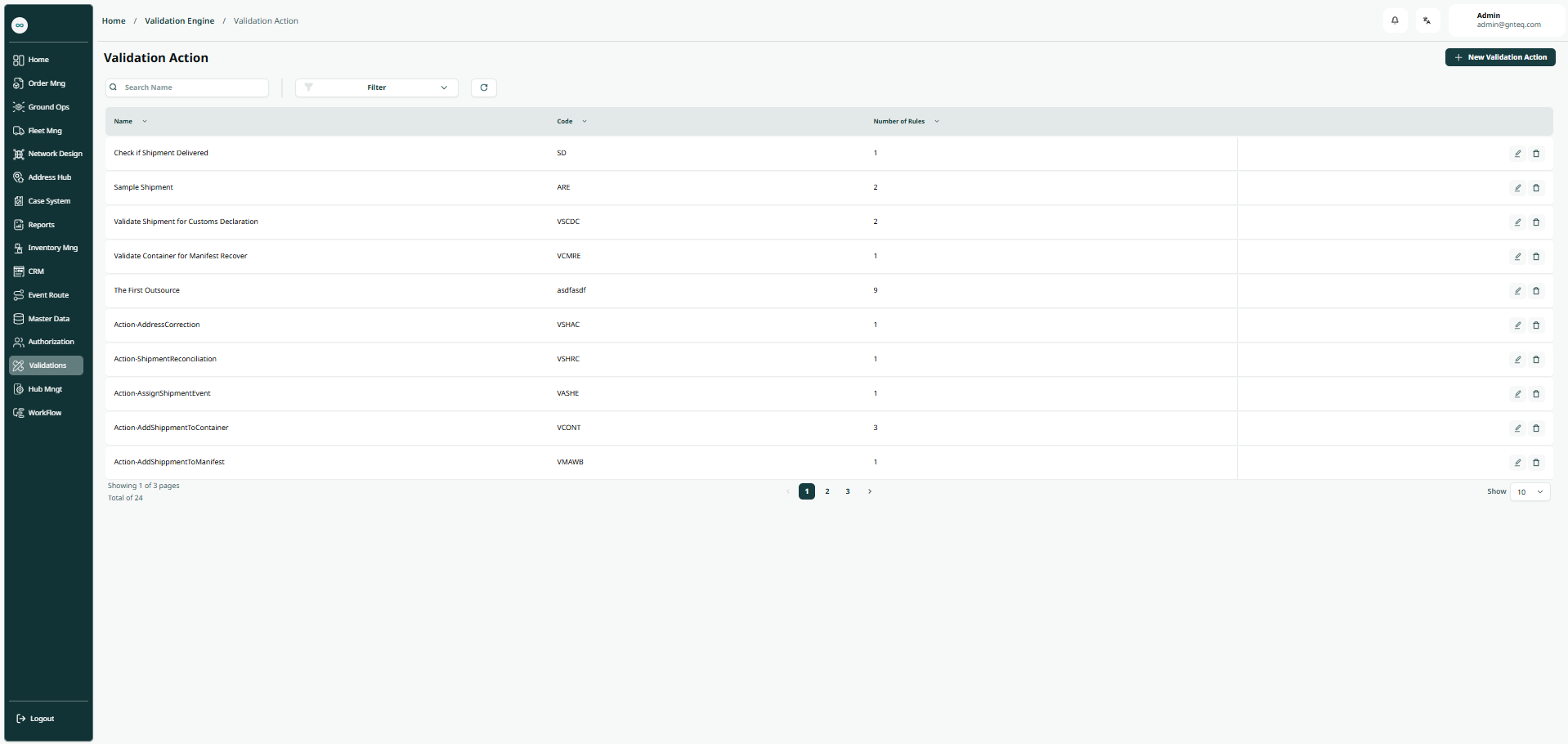
The user can view the validation action in the system by navigating to the “Validation Action” screen in the Validations module from the left navigation panel as follows:
-
New Validation Action: the user can add a new validation by clicking the "New Validation" button.
-
Filters: the user can search for a validation by its code.
-
Search: the user can search for a validation by typing its name.
-
Rows per page: the user can specify the number of items displayed per page.
-
Actions: by clicking Actions, the user can edit the validation from the edit Validation section or delete the validation.
1.1.1 Edit Information
The user can edit the existing validation action information by clicking on Edit from Actions by navigating to the "Validation Action" screen via Validation.
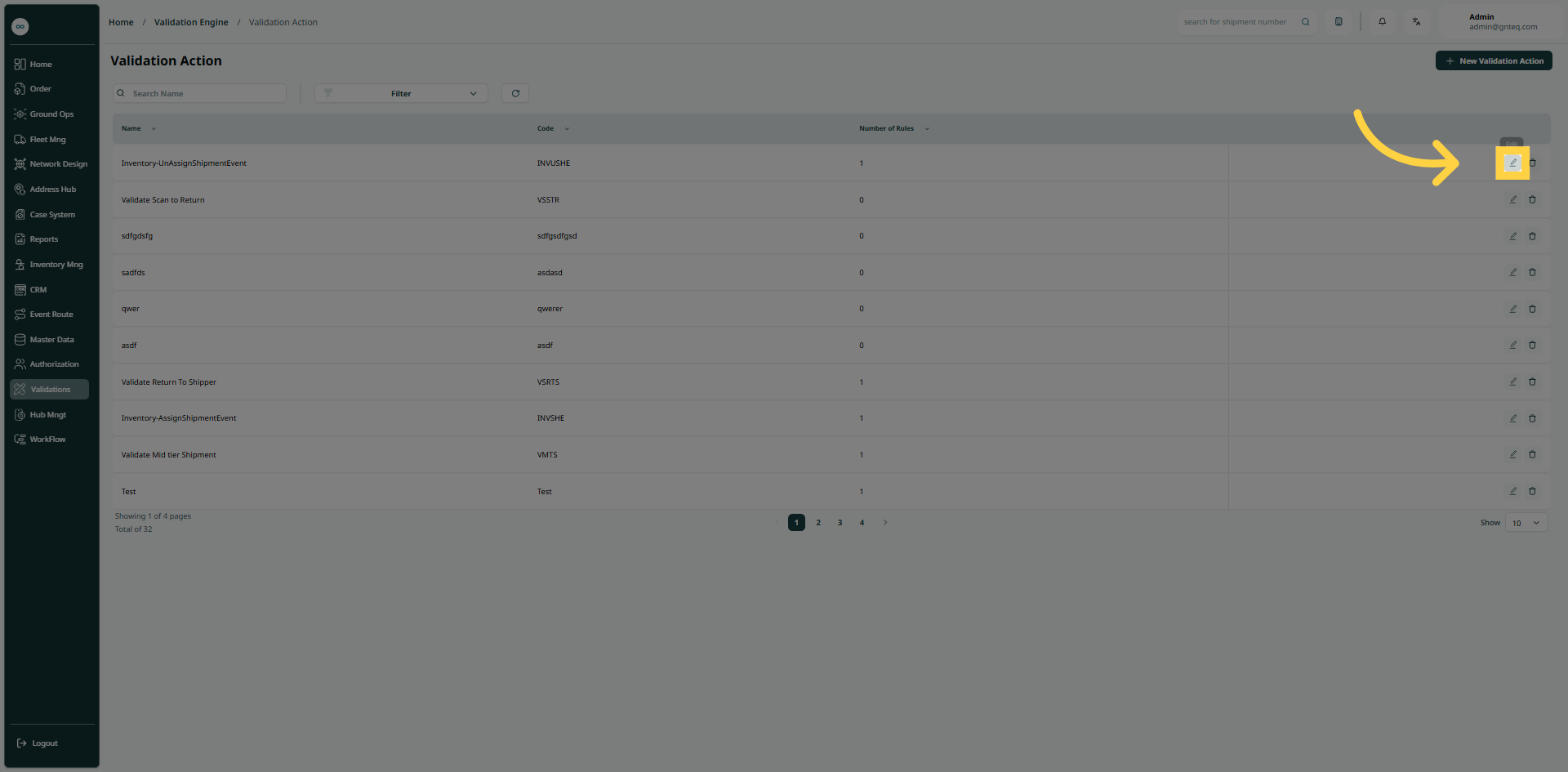
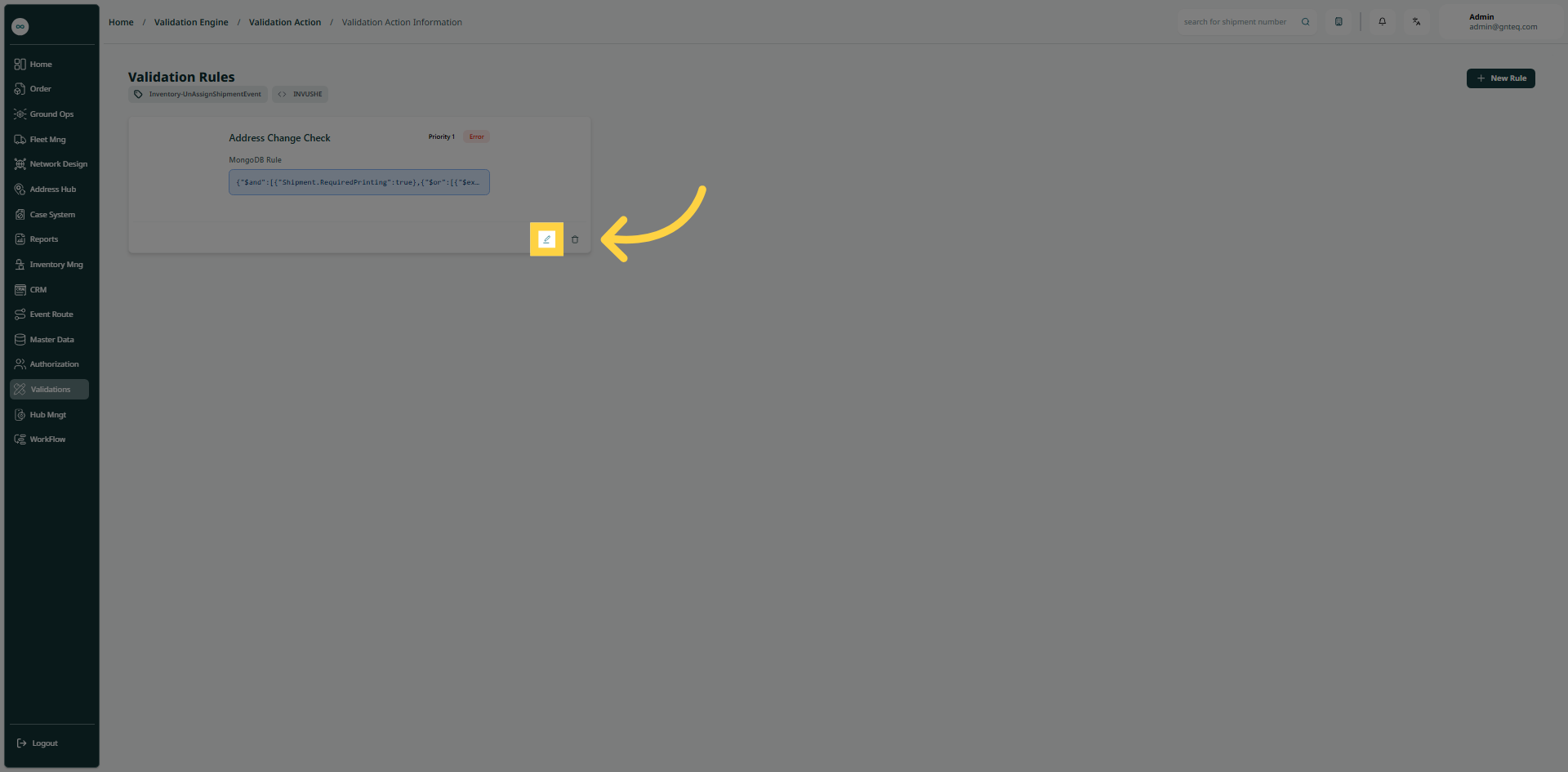
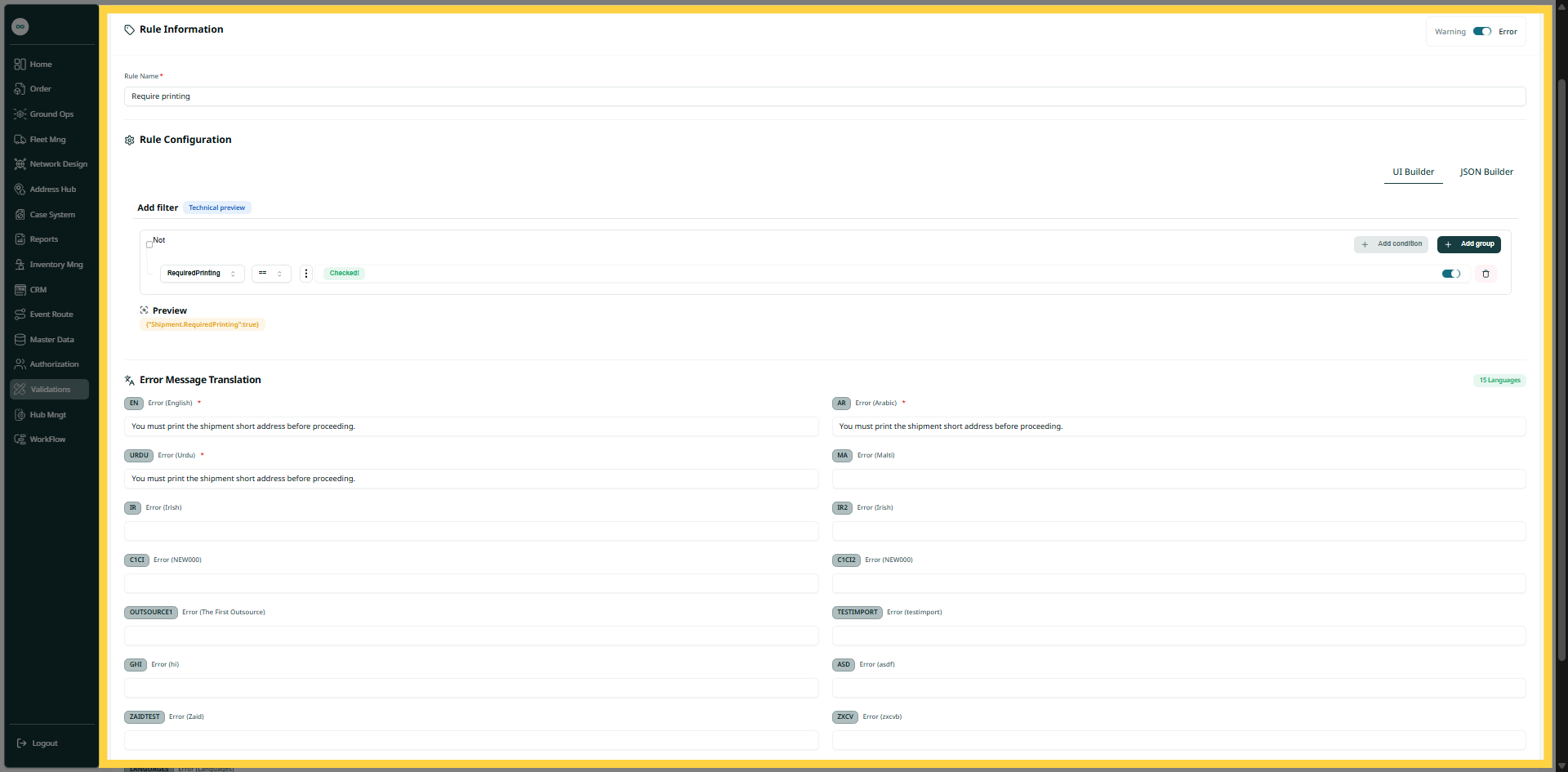
By clicking on Save Rule, the rule will be updated successfully in the system.
1.1.1.1 Add New Rule
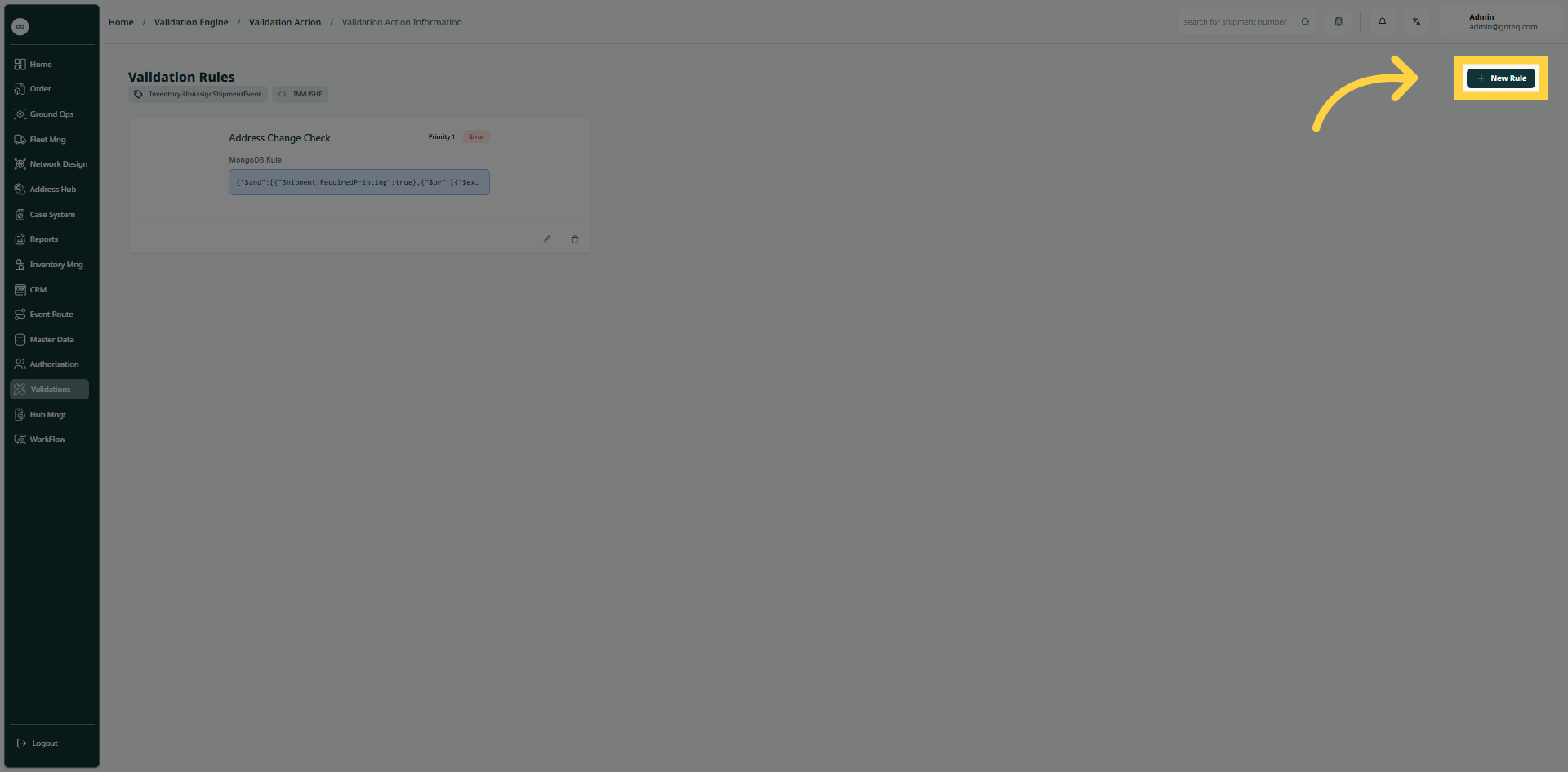
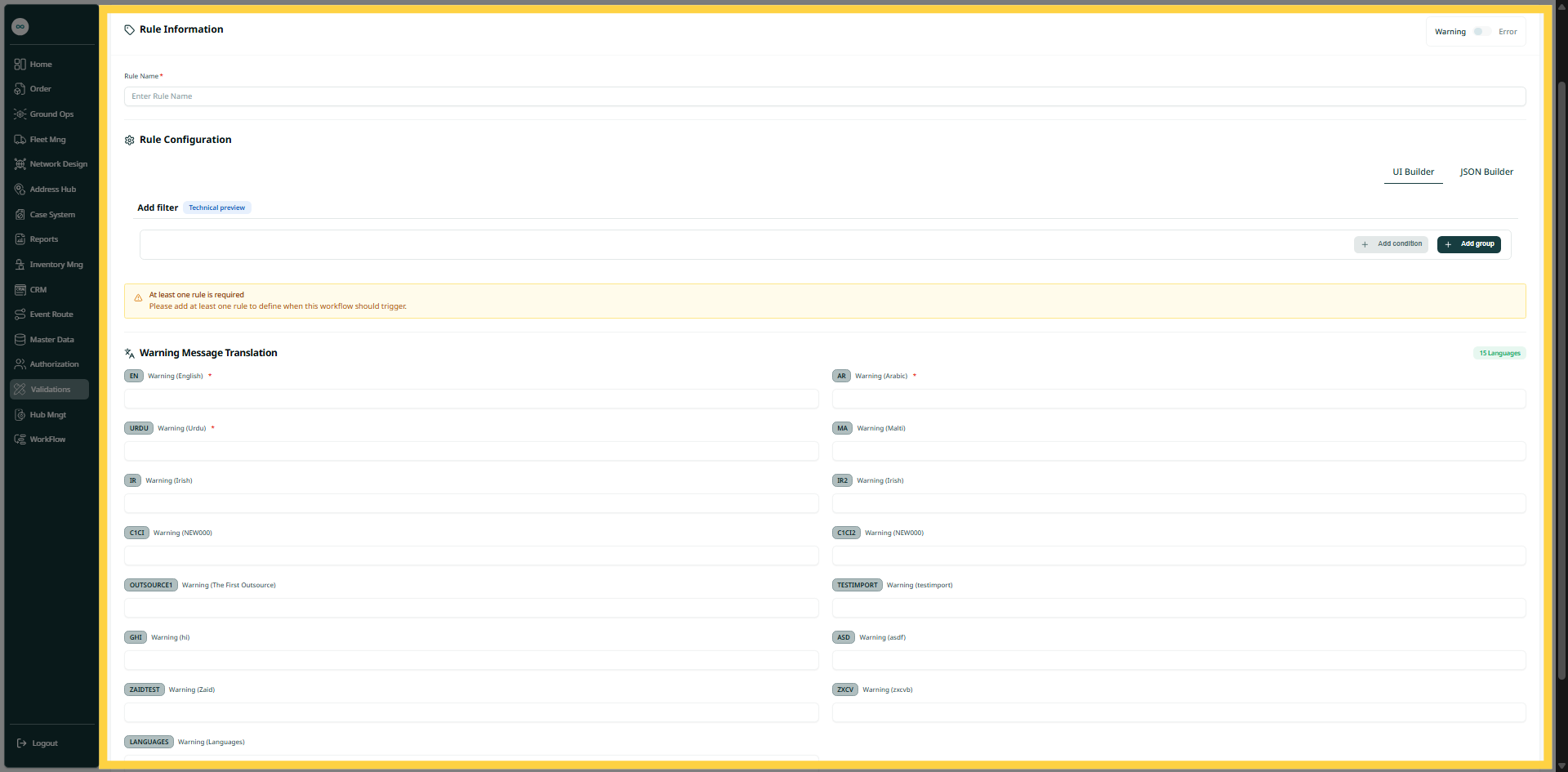
The user can create a new validation rule in the system by clicking Edit under Actions, navigating to the “Verification Payload” screen via Validations, and then clicking New Rule.
-
Rule Name: this field represents the rule name.
-
Rule Configuration: this section represents the configuration of the rule (UI Builder, JSON Builder)
-
Warning (English): this field represents the name of the warning or error in english.
-
Warning (Arabic): this field represents the name of the warning or error in arabic.
-
Warning (Urdu): this field represents the name of the warning or error in urdu.
By clicking on Save Rule, the rule will be added successfully in the system.
1.1.2 Delete Action
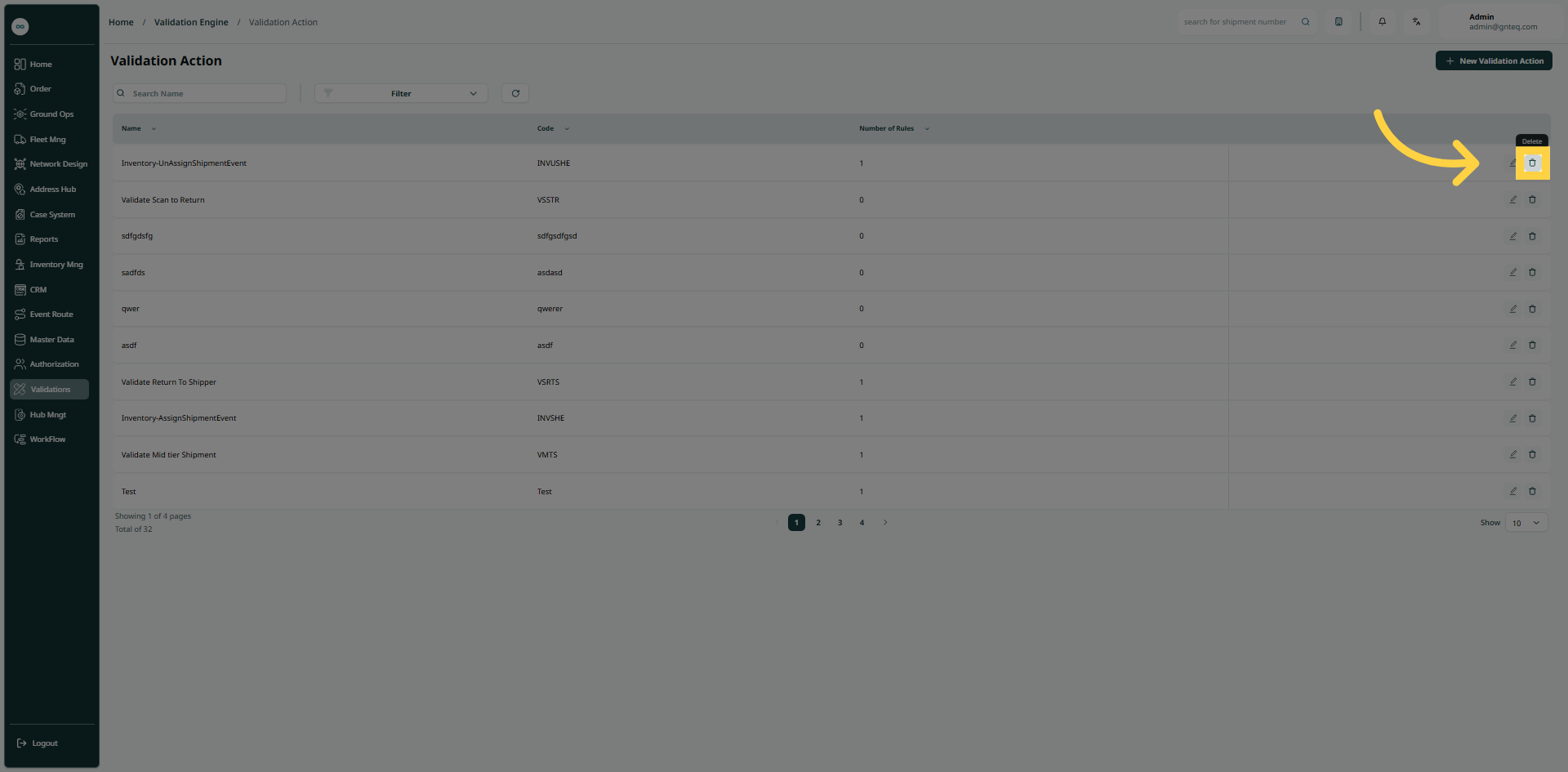
The user can delete the existing validation action information by clicking on Delete from Actions by navigating to the "Validation Action" screen via Validation.
1.2 Add New Validation Action
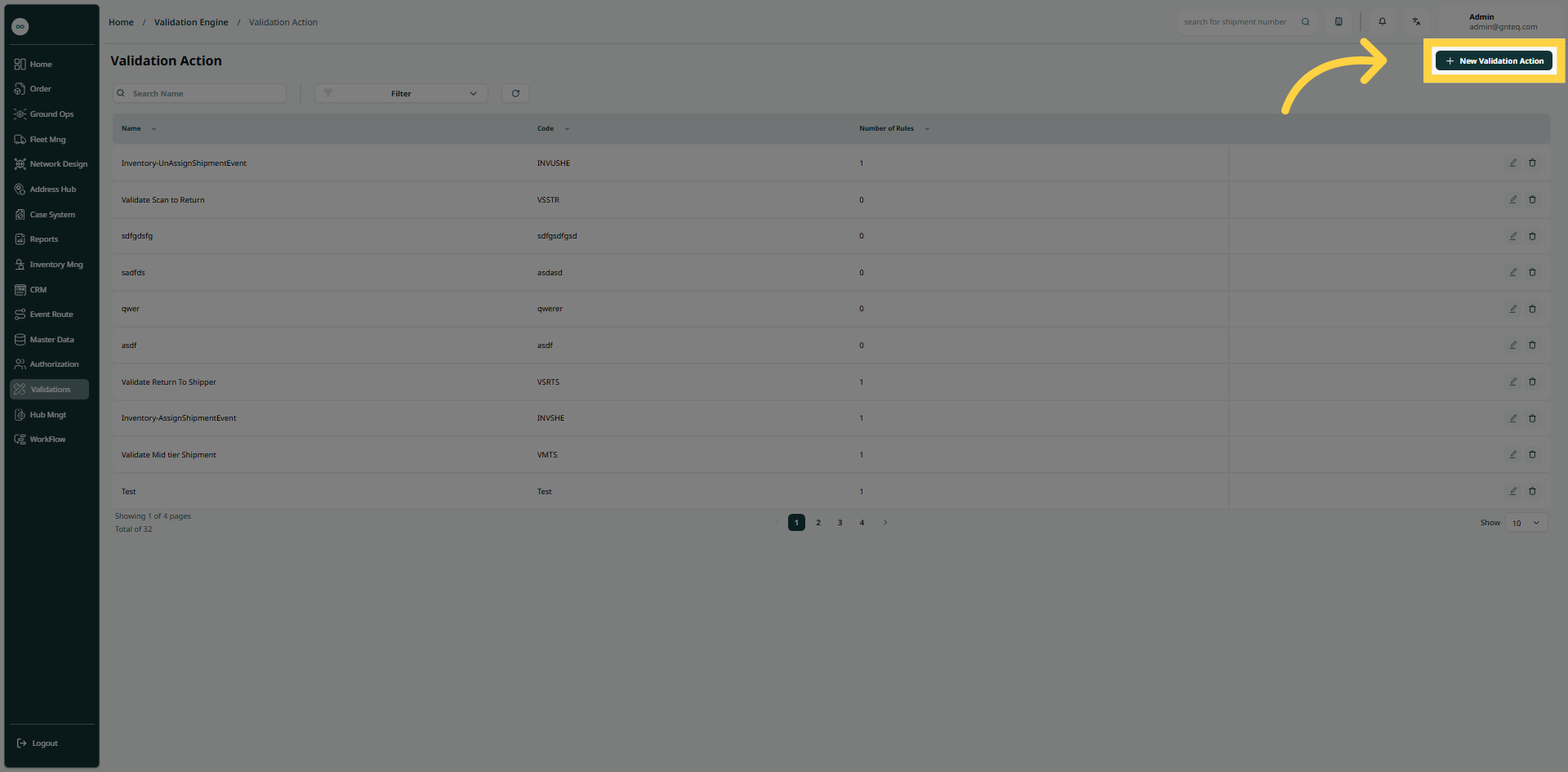
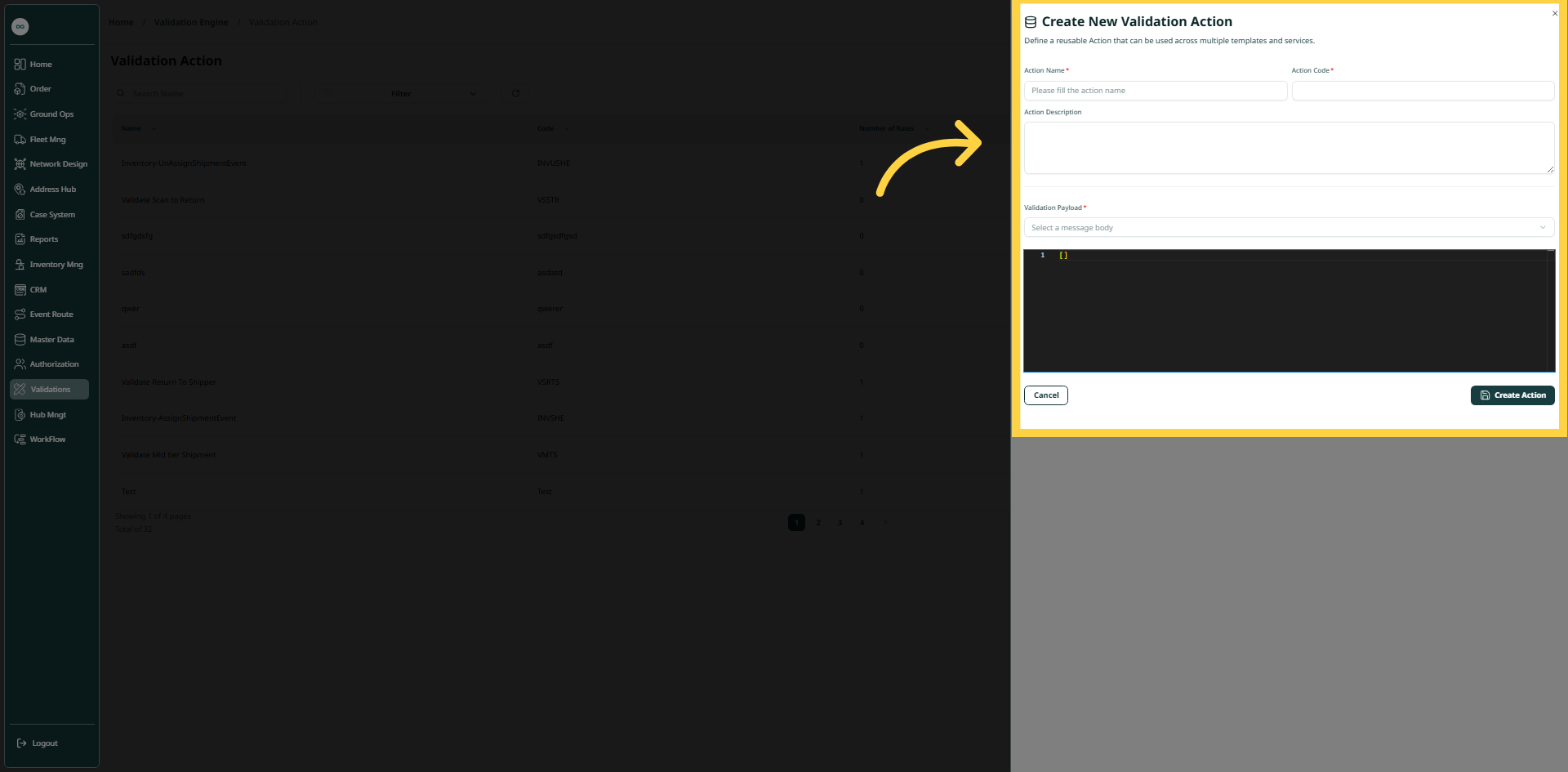
The user can create a new validation action on the system by clicking on New Validation Action button and navigating to the “Verification Action” screen via Validations.
-
Action Name: This field represents the name of the action.
-
Action Code: This field represents the code of the action.
-
Action Description: This field represents a description of the action's content.
-
Verification Payload: This field represents the name of the message text to which the action is attached.
By clicking on Create Action, the action will be added successfully in the system.