
1. Event Transitions
1.1 Dashboard
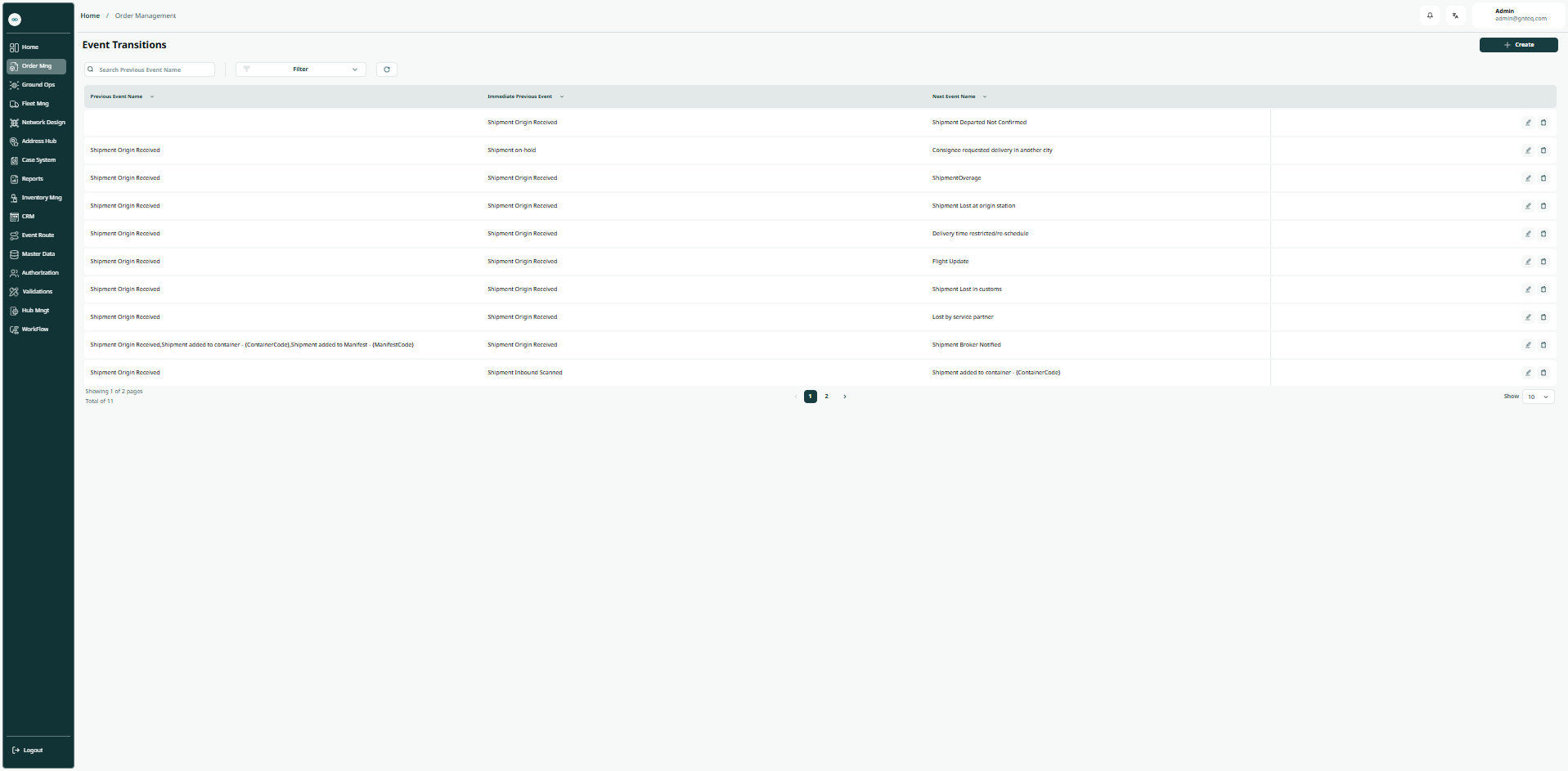
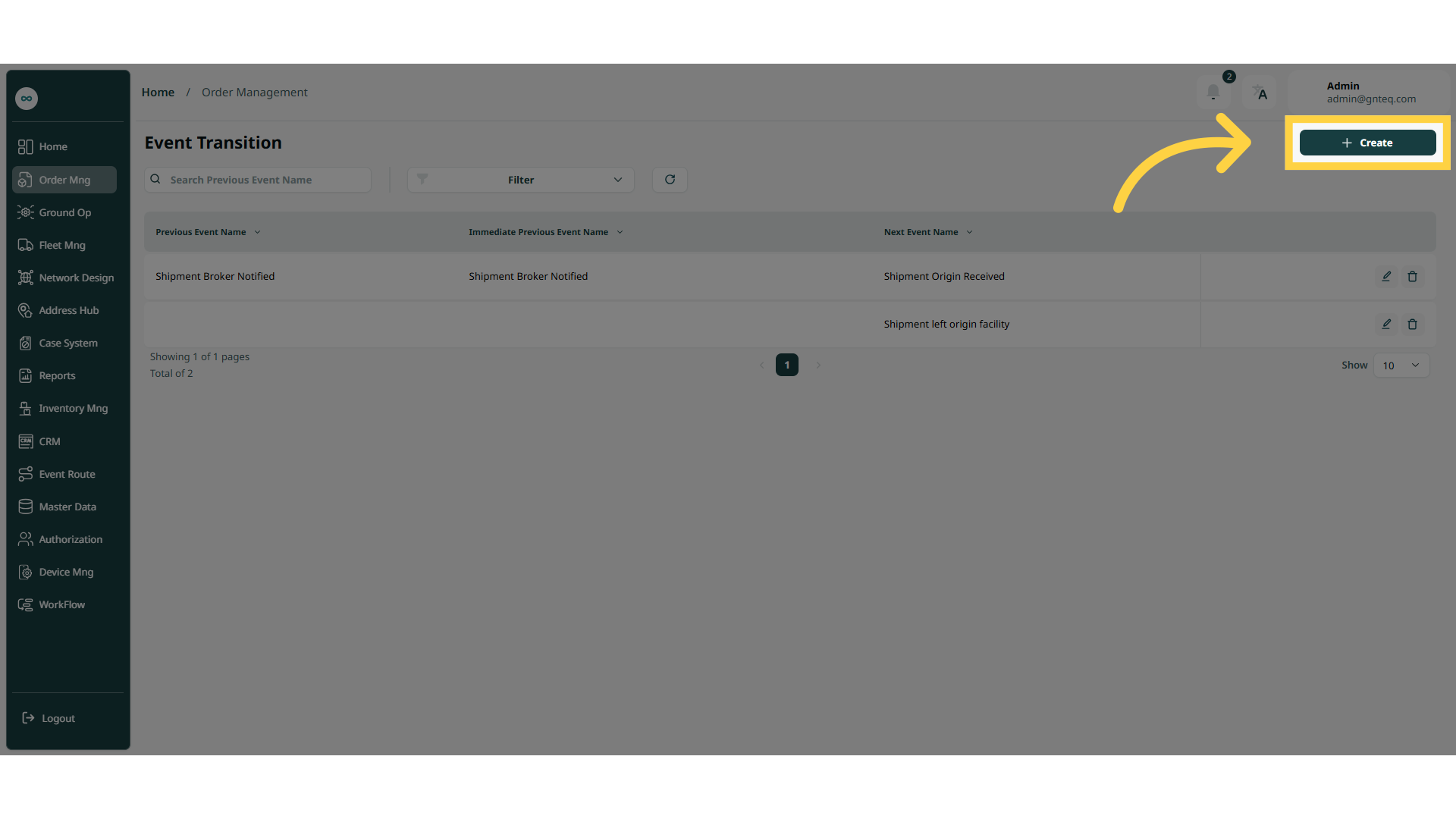
The user can transition between events by navigating to the ‘Event Transitions’ screen via the Validations Management as follows:
-
New Event Transitions: the user can add new event transition by clicking on “Create”.
-
Filters: the user can search for the event by the event name, next event name.
-
Search: the user can search for event by entering the previous event name.
-
Rows Per Page: the user can select the number of items to show on each page.
-
Actions: by clicking on Actions, the user can edit the event transition by going to the Edit event transition section, or delete the event transition.
1.1.1 Edit Event
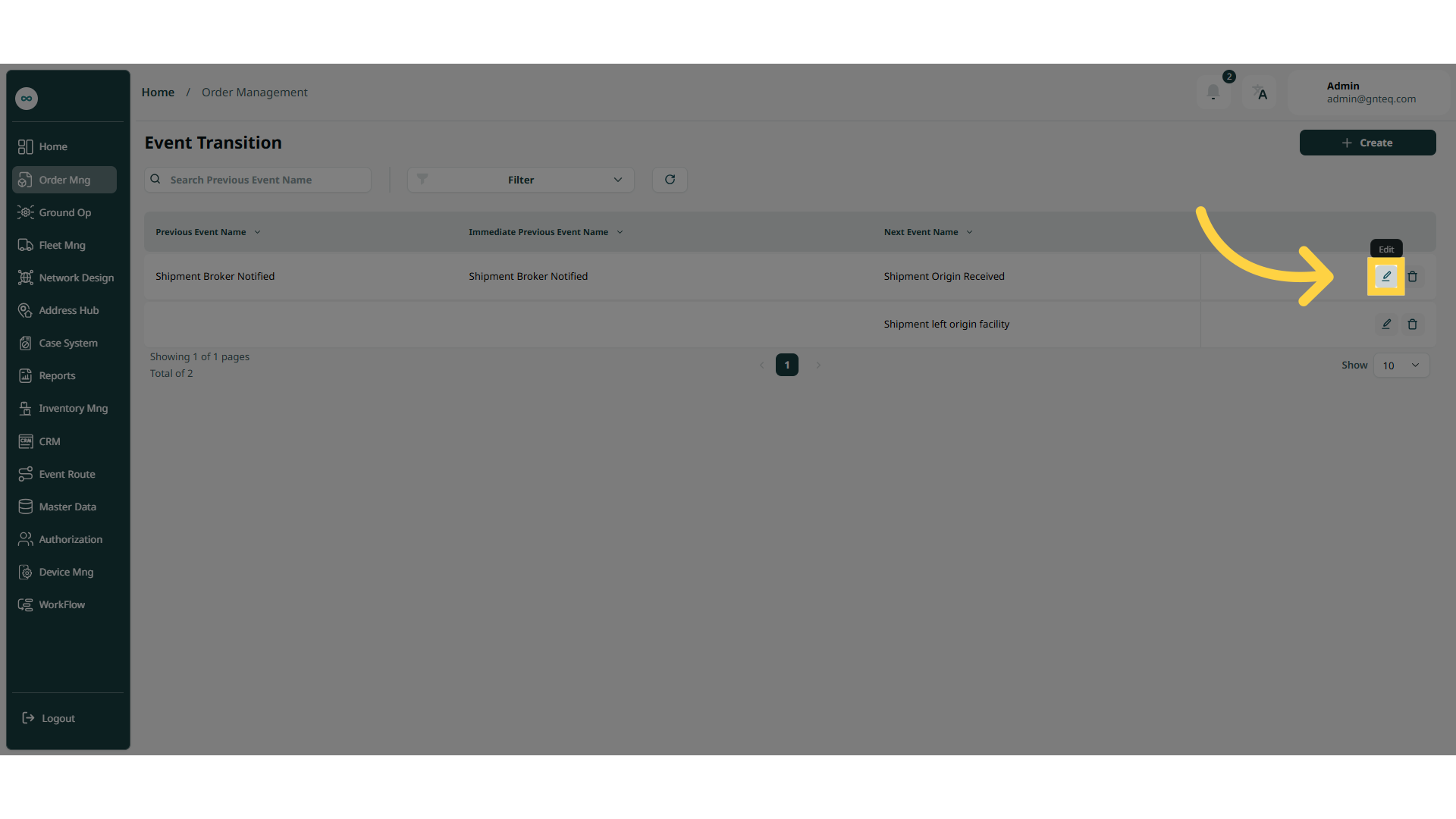
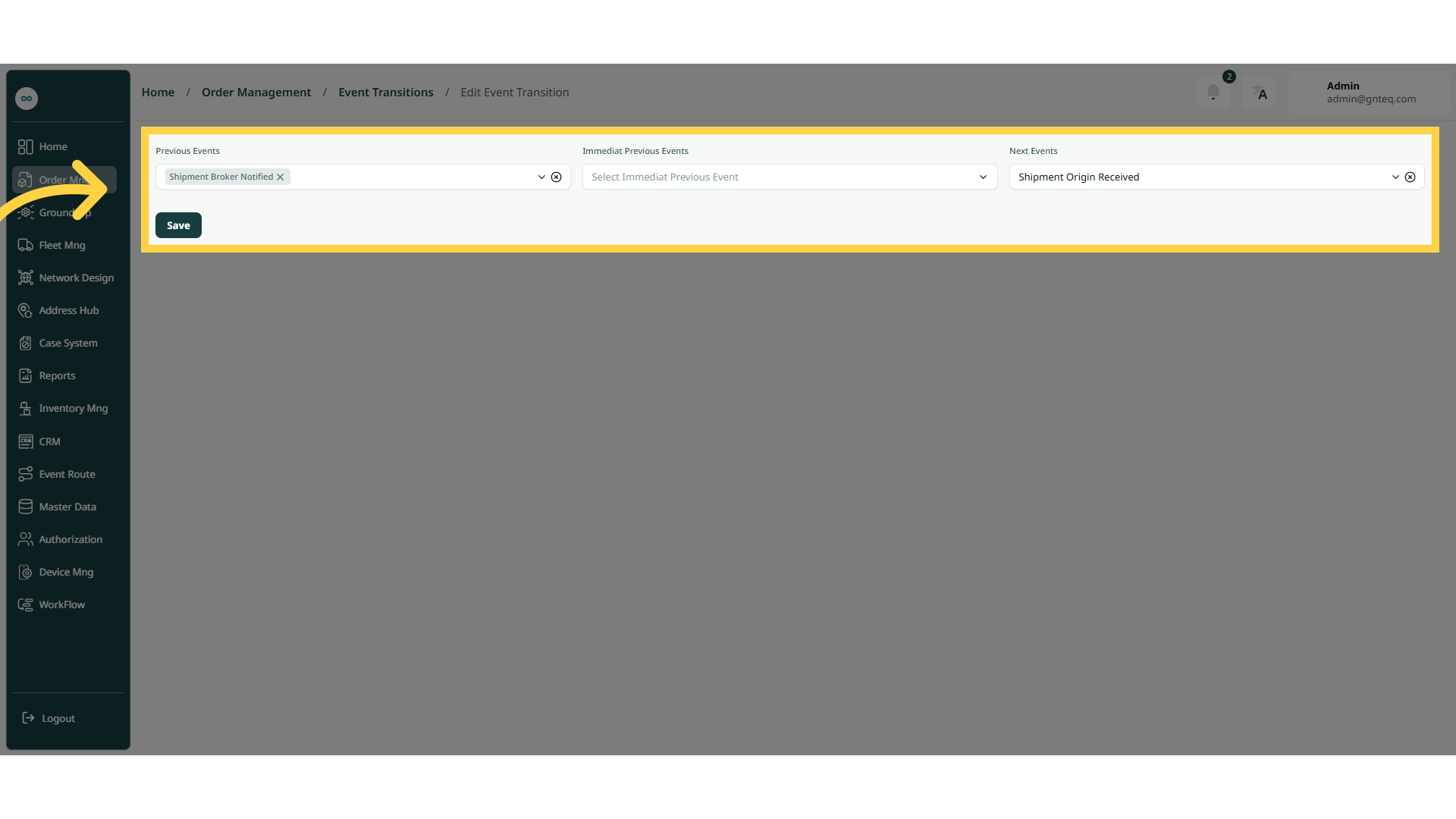
The user can edit event of an existing event by clicking on Edit Event from Actions, by navigating to the ‘Event Transitions’ screen via the Validations Management.
1.1.2 Delete Event
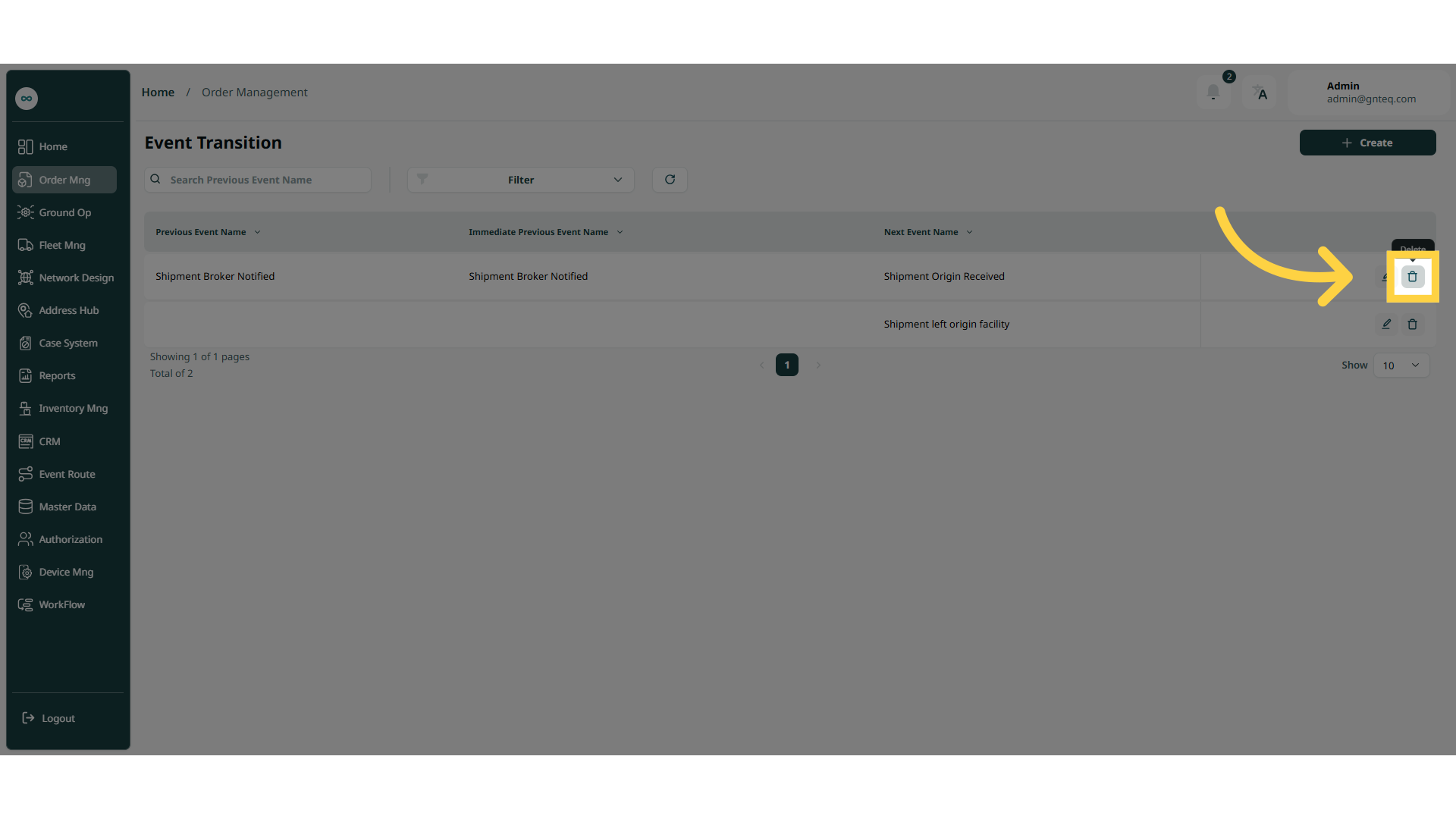
The user can delete the shipment by clicking on Delete from Actions by navigating to the ‘Event Transitions’ screen via the Validations Management.
1.2 Add New Event
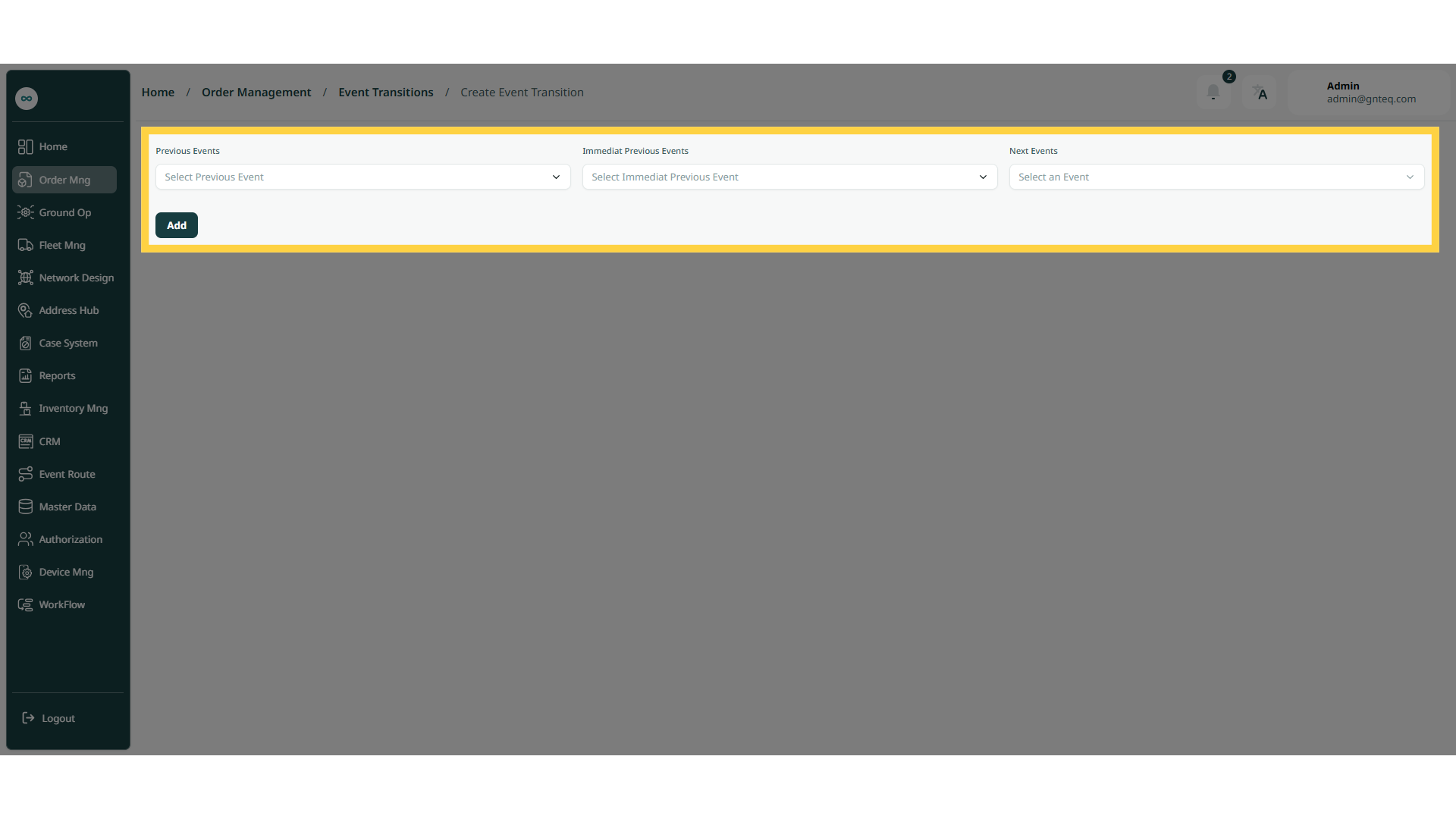
The user can add a new event by navigating to the ‘Event Transitions’ screen via the Validations Management and clicking on New Event Transitions as follows:
-
Previous Events: this field represents the previous event for the shipments.
-
Next Event: this field represents the next event for the shipments.
-
Immediate Previous Events: this field represents the exact event that must be completed before the next event occurs.
By clicking on “Add” the event will be added successfully.