
1. Uncompleted Task Reasons
1.1 Dashboard
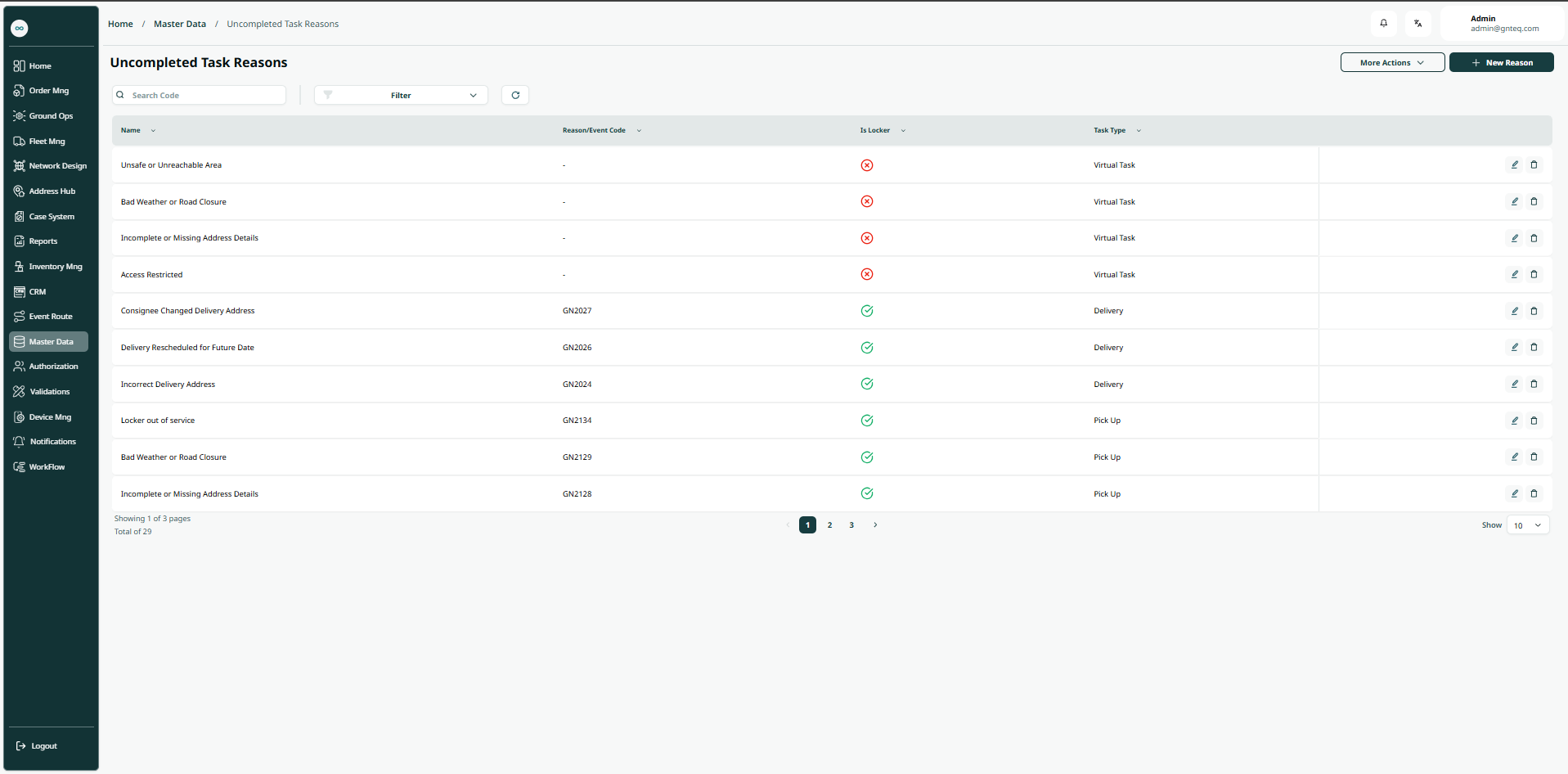
The user can view their defined uncompleted task reasons in the system by navigating to the ‘Uncompleted Task Reasons’ screen in the Master Data from the left navigation panel as follows:
-
New Reason: the user can add a new uncompleted task reason by clicking New Reason button.
-
Export: the user can export the list as an Excel file by selecting export button.
-
Import: the user can upload the list as an Excel file by selecting import button.
-
Download template: the user can click on ‘Download Template’ to download a certain detail from the dashboard.
-
Filters: the user can search for the reason by the name, code ………etc.
-
Rows Per Page: the user can select the number of items to show on each page.
-
Action: by clicking on this button the user can edit, delete.
1.1.1 Edit Information
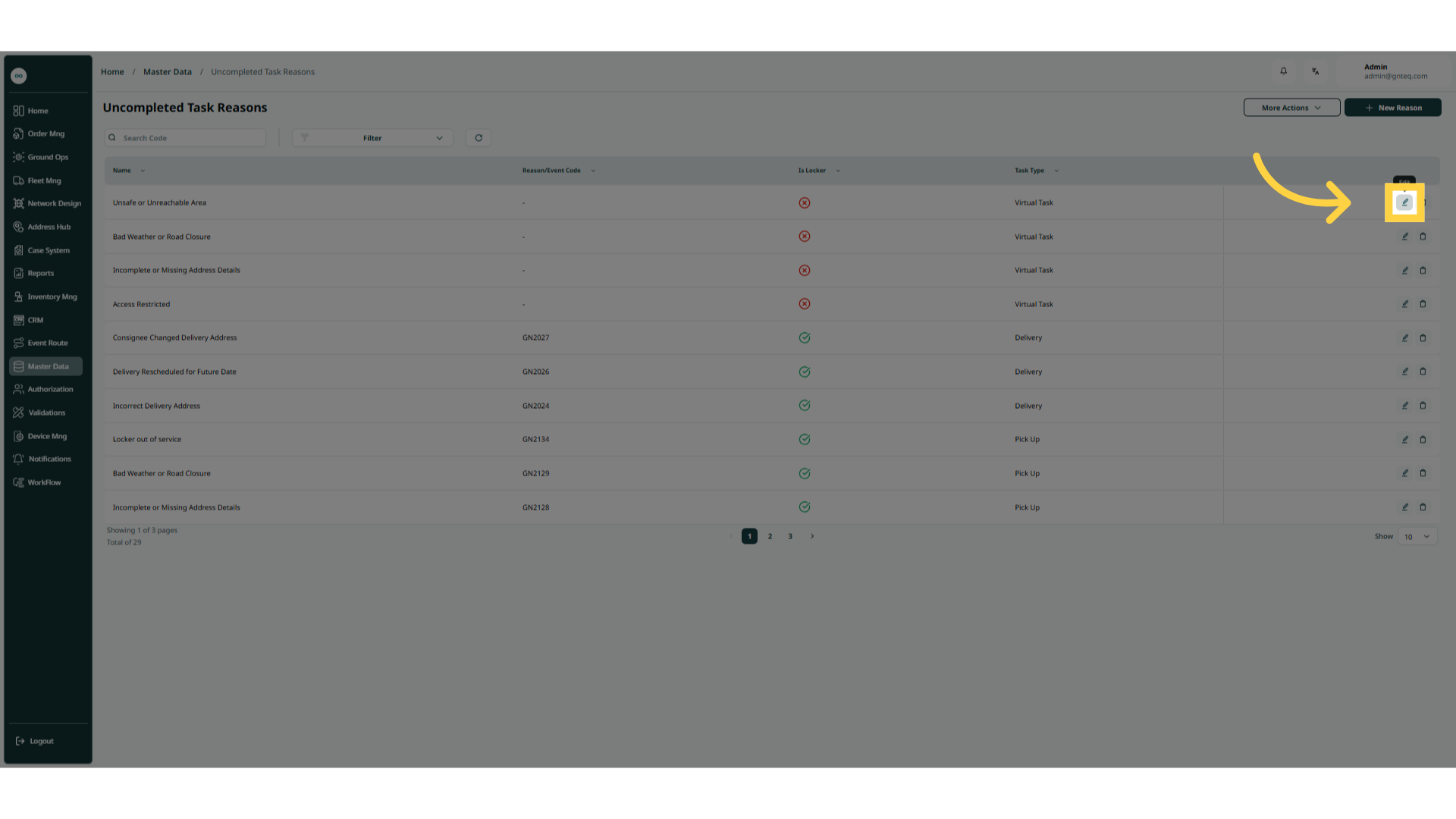
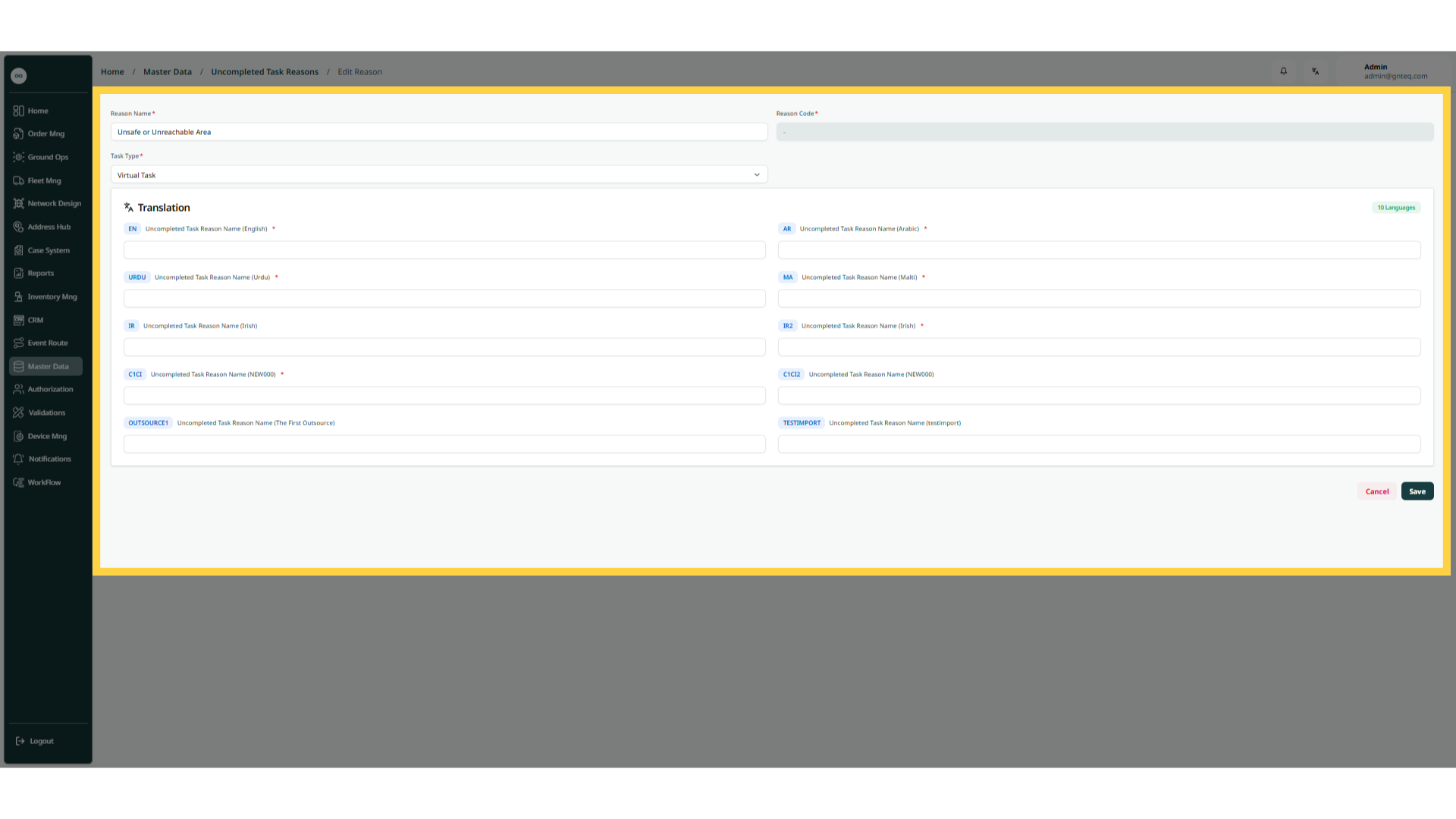
The user can edit the information of an existing reason clicking on Edit from Actions by navigating to the ‘Uncompleted Task Reason’ screen via the Master Data.
1.1.2 Delete Reason
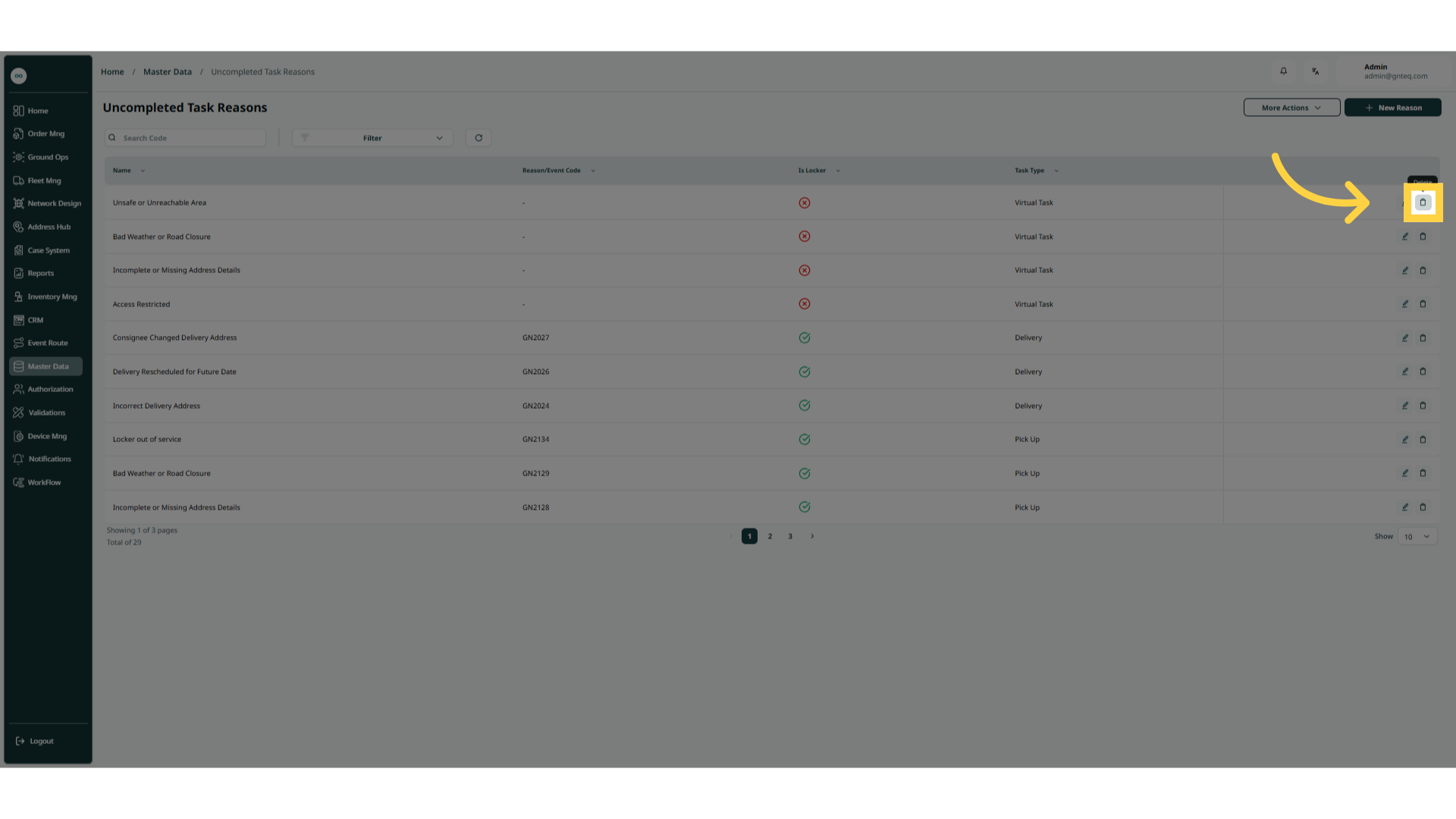
The user can delete the information of an existing reason clicking on Delete from Actions by navigating to the ‘Uncompleted Task Reason’ screen via the Master Data.
1.2 Add New Reason
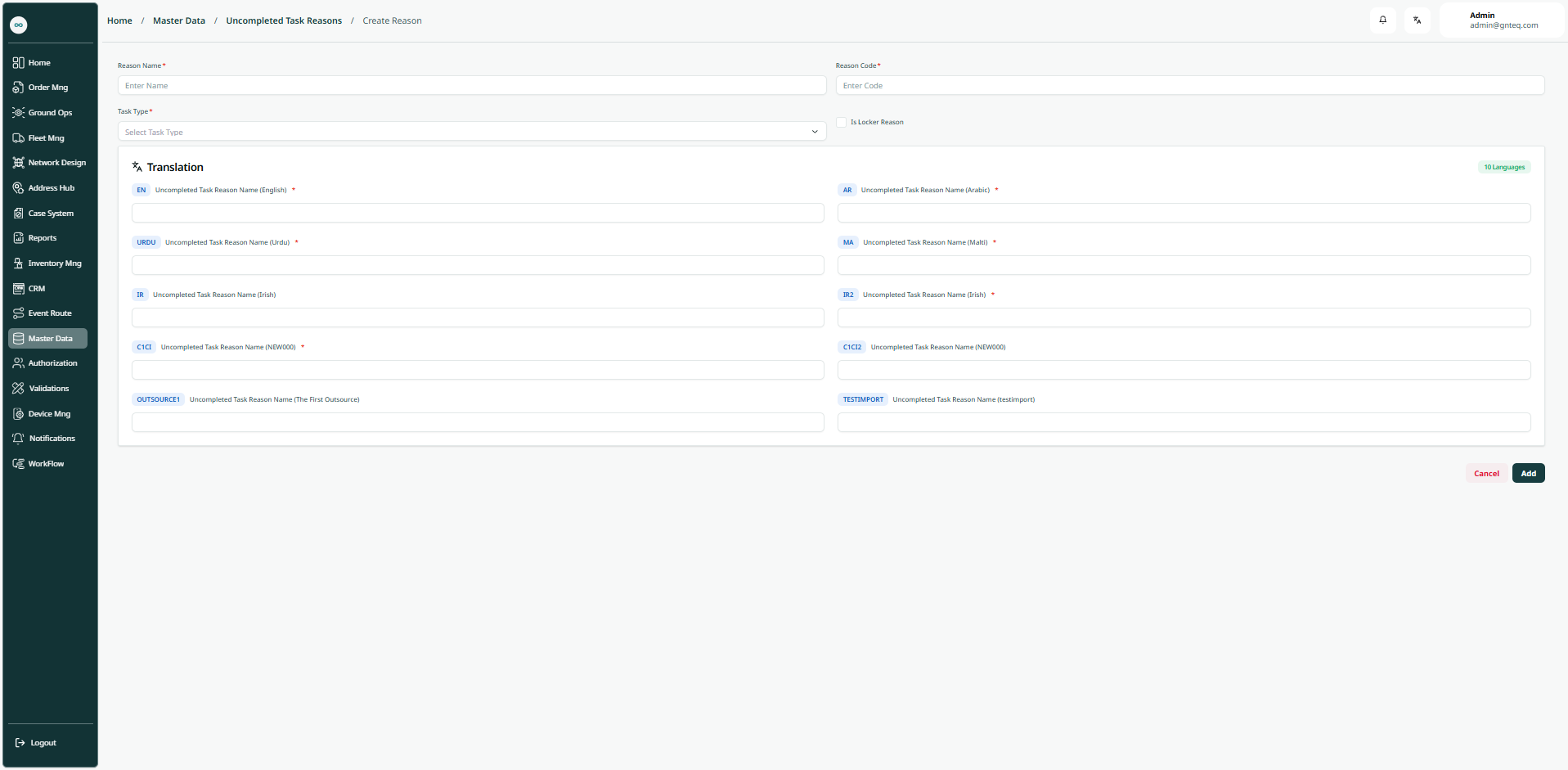
The user can create a new reason by clicking on New Reason by navigating to the ‘Uncompleted Task Reason’ screen via the Master Data.
-
Reason Name: this field represents the reason name.
-
Reason Code: this field represents the reason alphanumeric value.
-
Task Type: this field represent the type of the task ( Delivery, Pickup, Virtual Task).
-
Uncompleted Task Reason Name (English): this field represents the uncompleted task reason name in english.
-
Uncompleted Task Reason Name (Arabic): this field represents the uncompleted task reason name in arabic.
By clicking on Add, the uncompleted task reason will be added successfully.