1. Marketing Samples
1.1 Dashboard
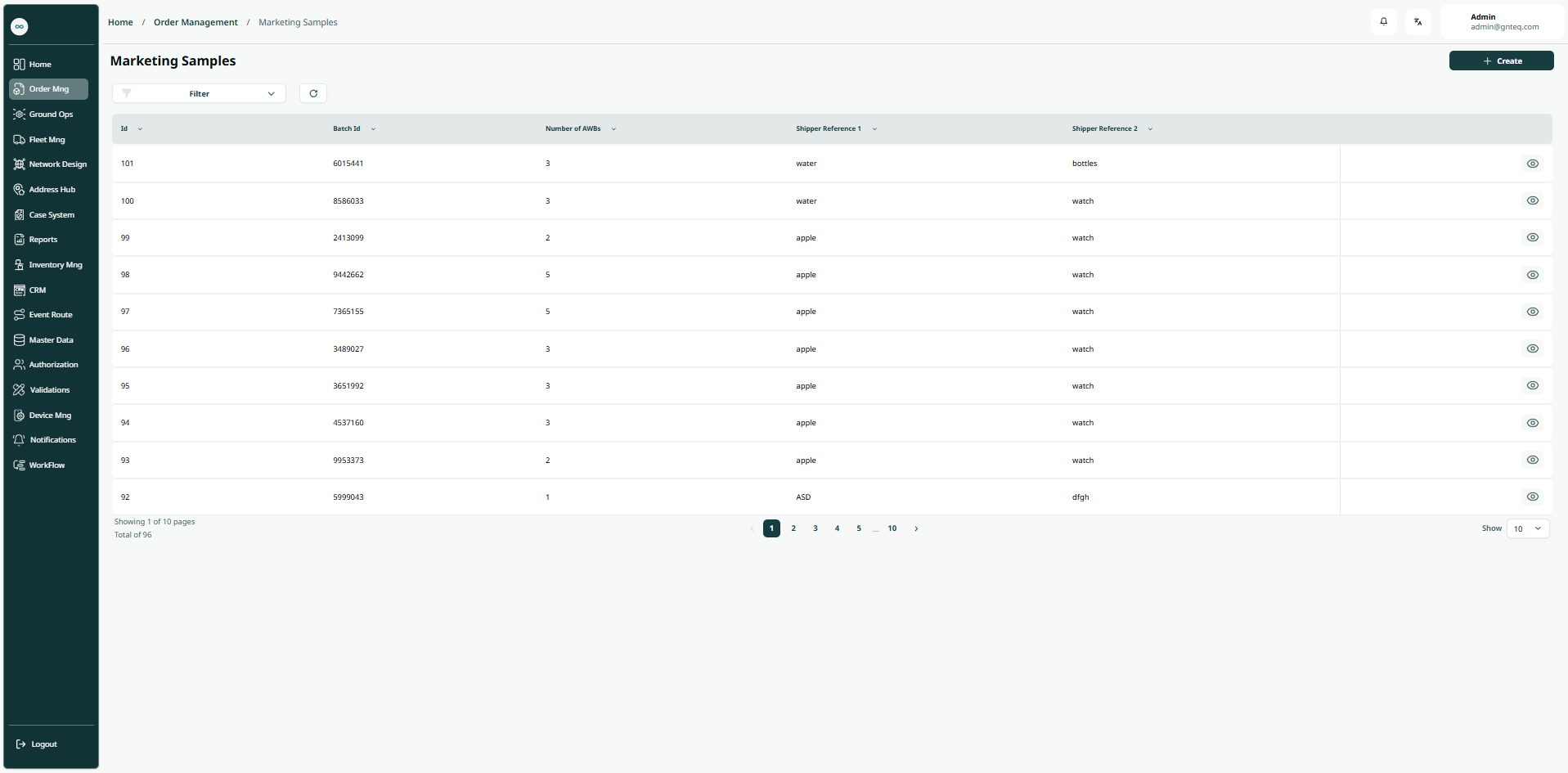
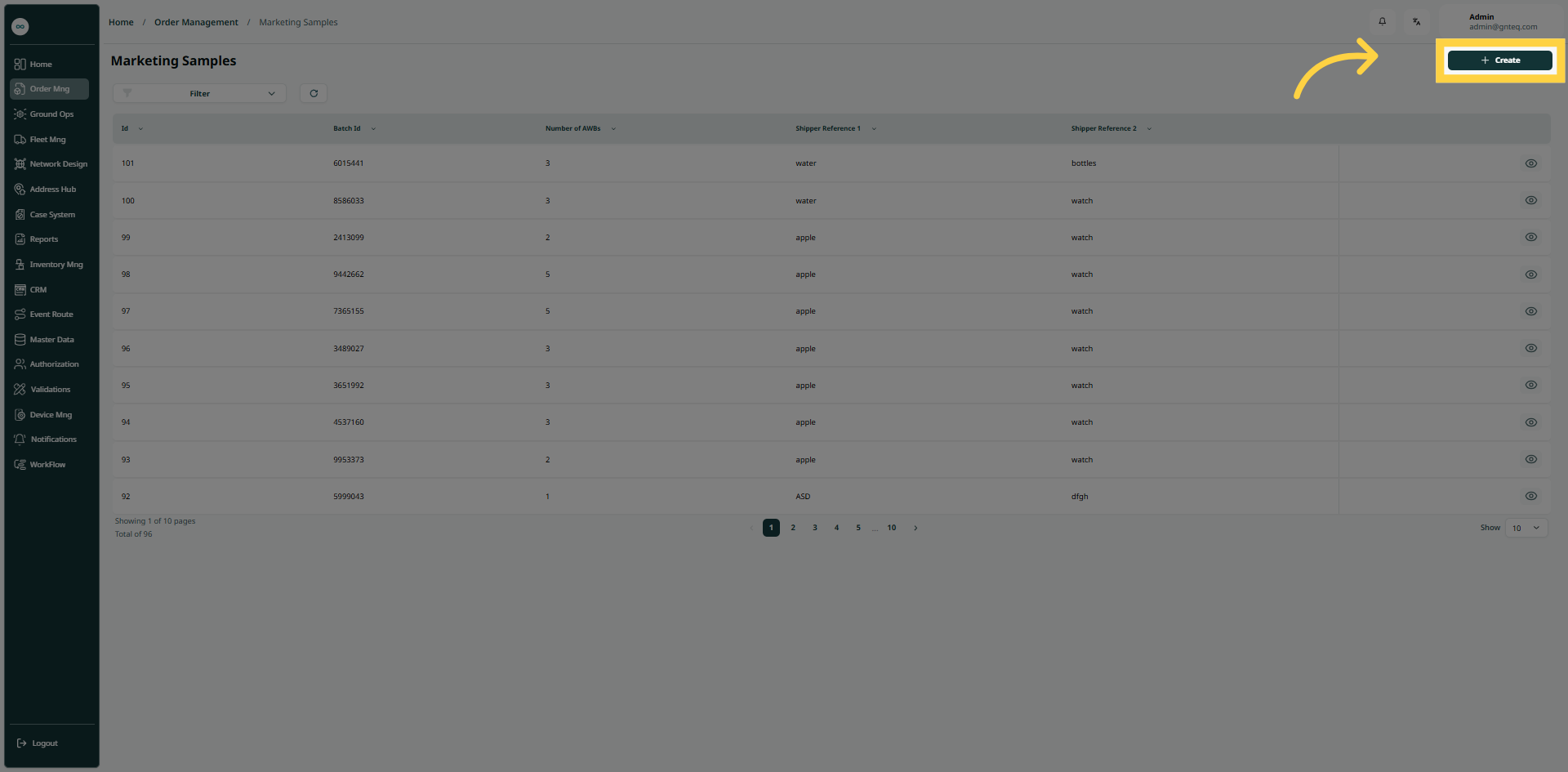
The user can create and manage marketing sample contracts with specific companies to distribute their products to a defined category of users by navigating to the “Marketing Sample” screen via Order Management as follows:
-
Create Marketing Sample: the user can create new marketing sample by clicking on “Create”.
-
Filters: the user can search for the marketing sample by the shipper reference1, the number of AWBs, shipper reference2.
-
Rows Per Page: the user can select the number of items to show on each page.
-
Action: by clicking on this button, the user can view details.
1.1.1 View Details
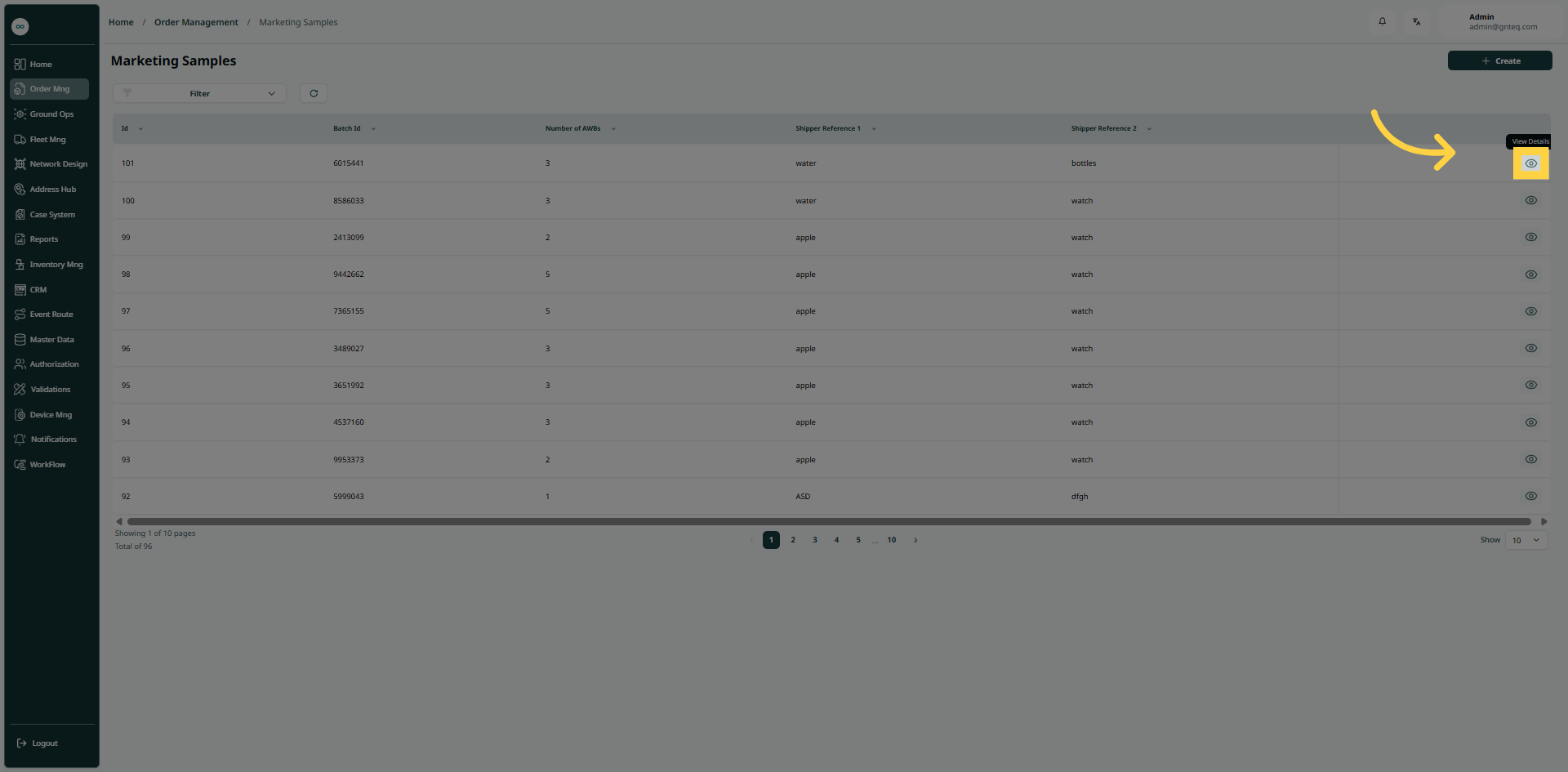
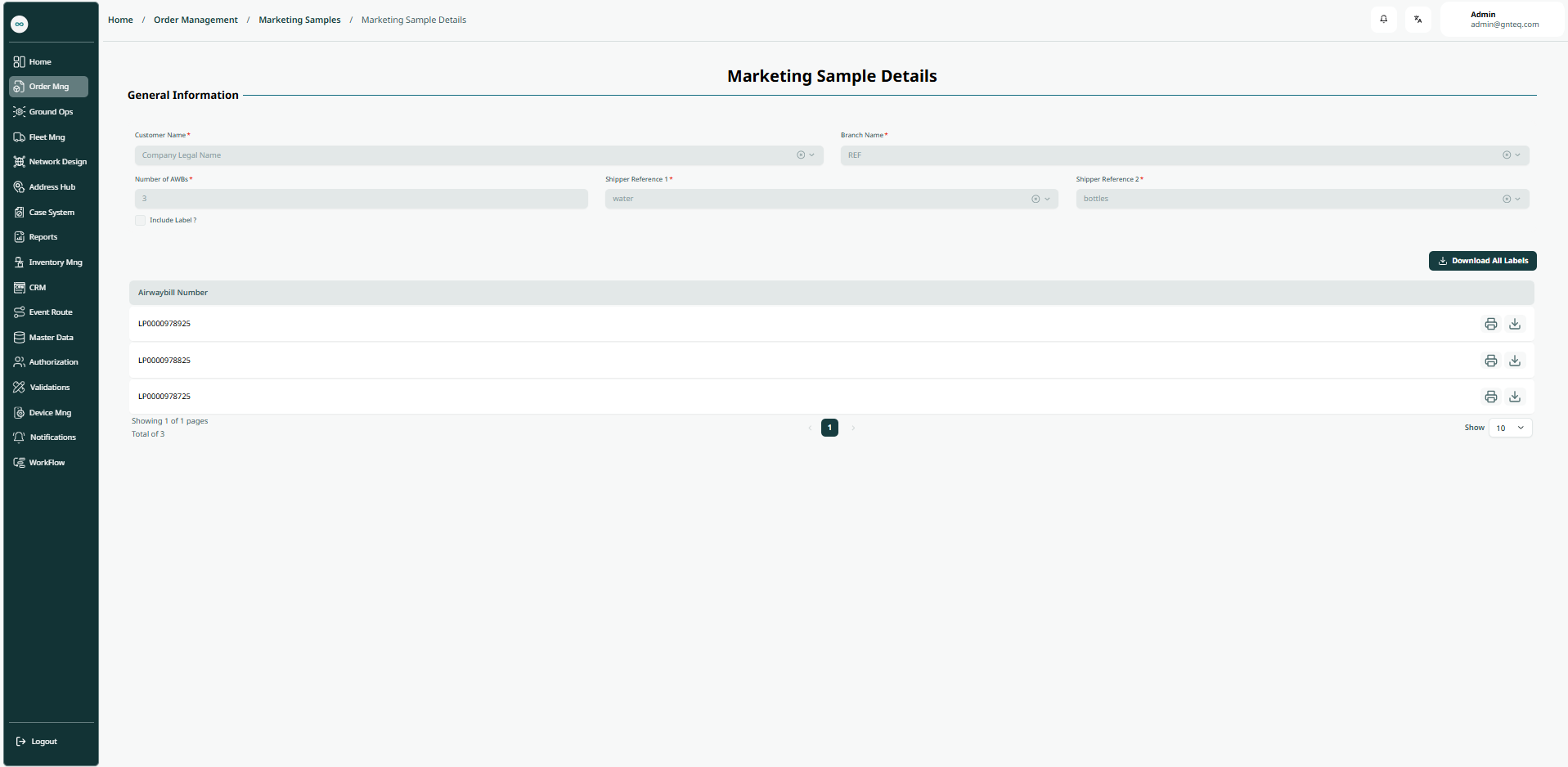
The user can view the marketing samples details by navigating to the ‘Marketing Samples’ screen via the Order Management and clicking on View Details from Actions as follows:
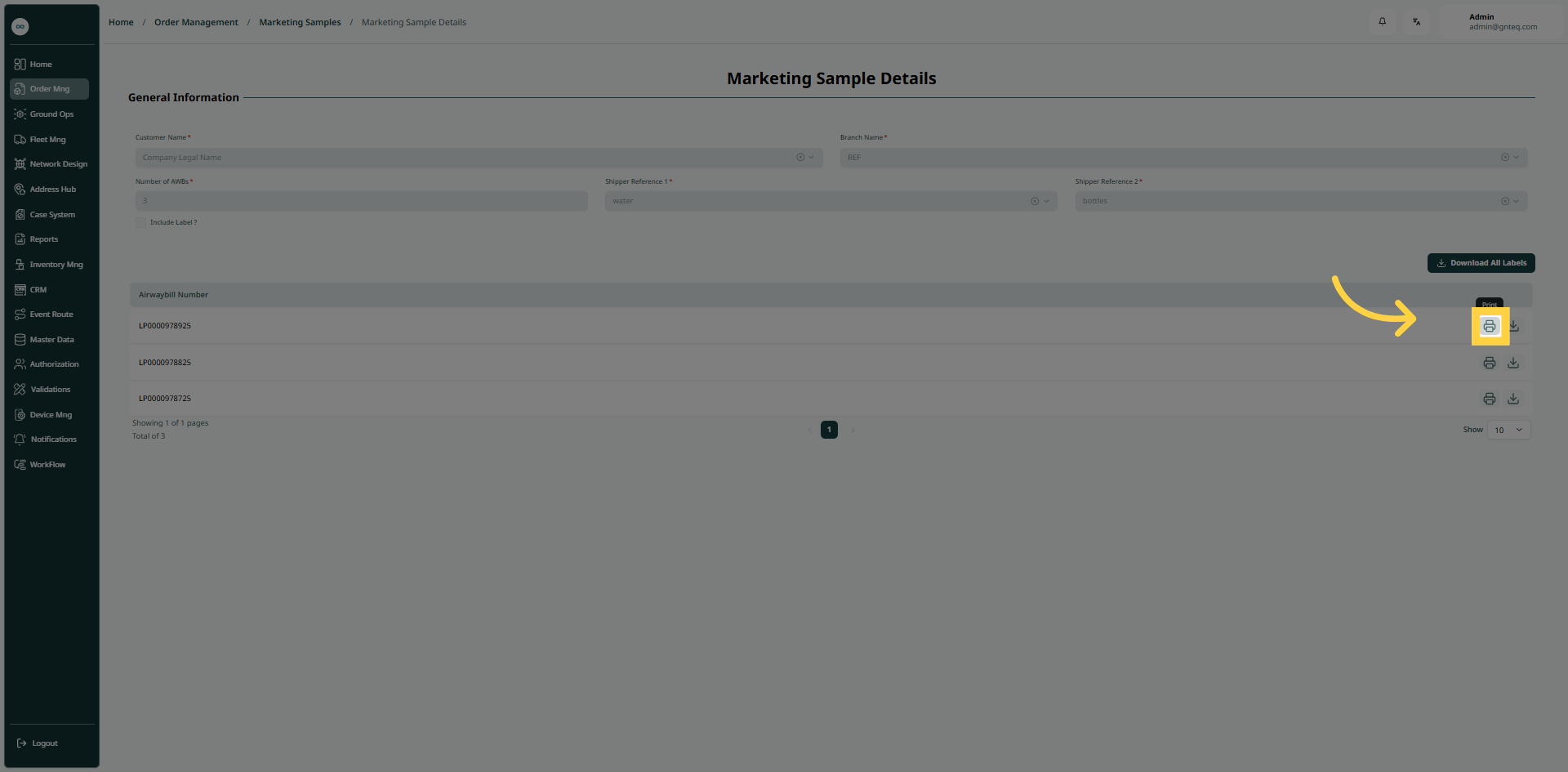
1.1.1.1 Print Label
The user can print the label of the shipment by navigating to the ‘Marketing Sample’ screen via the Order Management and clicking on View Details from Actions, then clicking on Print as follows:
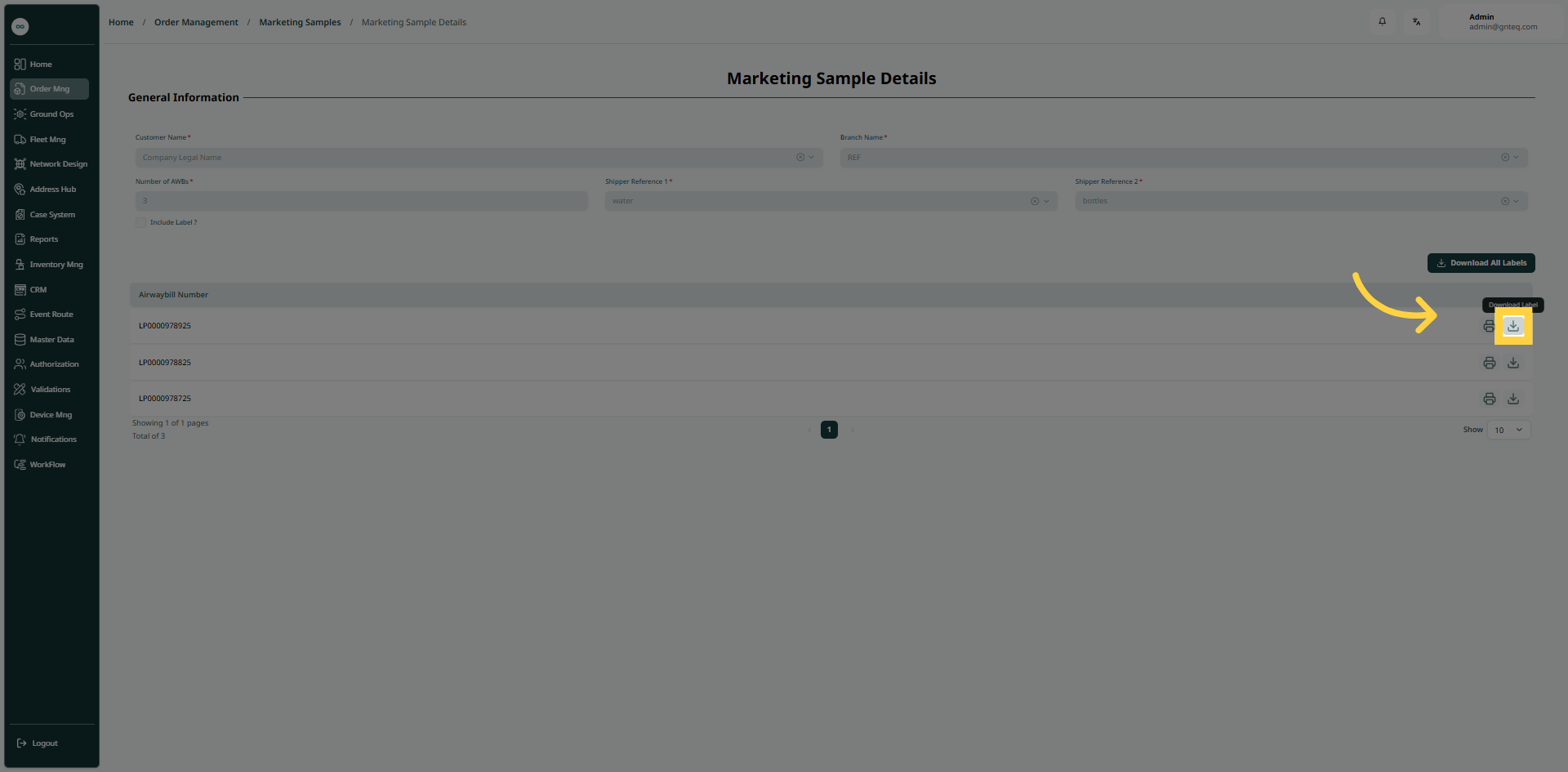
1.1.1.2 Download Label
The user can download the label of shipment by navigating to the ‘Marketing Sample’ screen via the Order Management and clicking on View Details from Actions, then clicking on Download Label as follows:
1.2 Add New Marketing Samples
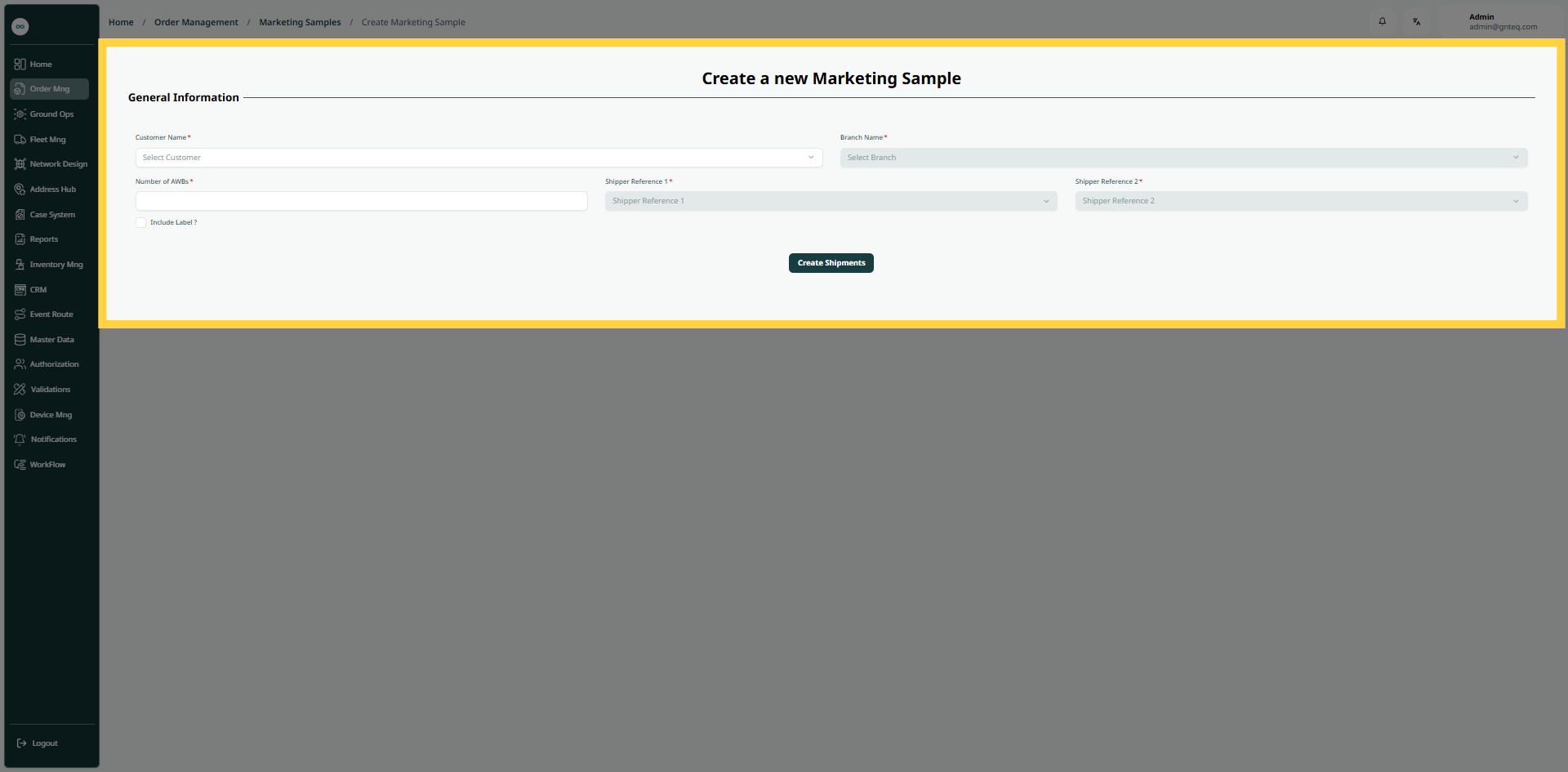
The user can create new marketing samples by navigating to the ‘Marketing Samples’ screen via the Order Management and clicking on Create as follows:
-
Customer Name: this field represents the customer’s full name.
-
Branch Name: this fields represents the branch name.
-
Number of AWBs: this fields represents the number of airwaybills.
-
Project: this field represents the project associated with the marketing sample.
-
Product: this field represents the product associated with the marketing sample.
-
Include Label checkbox: this field indicates whether the marketing samples include a label.
By clicking on Create Shipments, the shipment will be created successfully.