
1. Bulk Upload Shipments
1.1 Dashboard
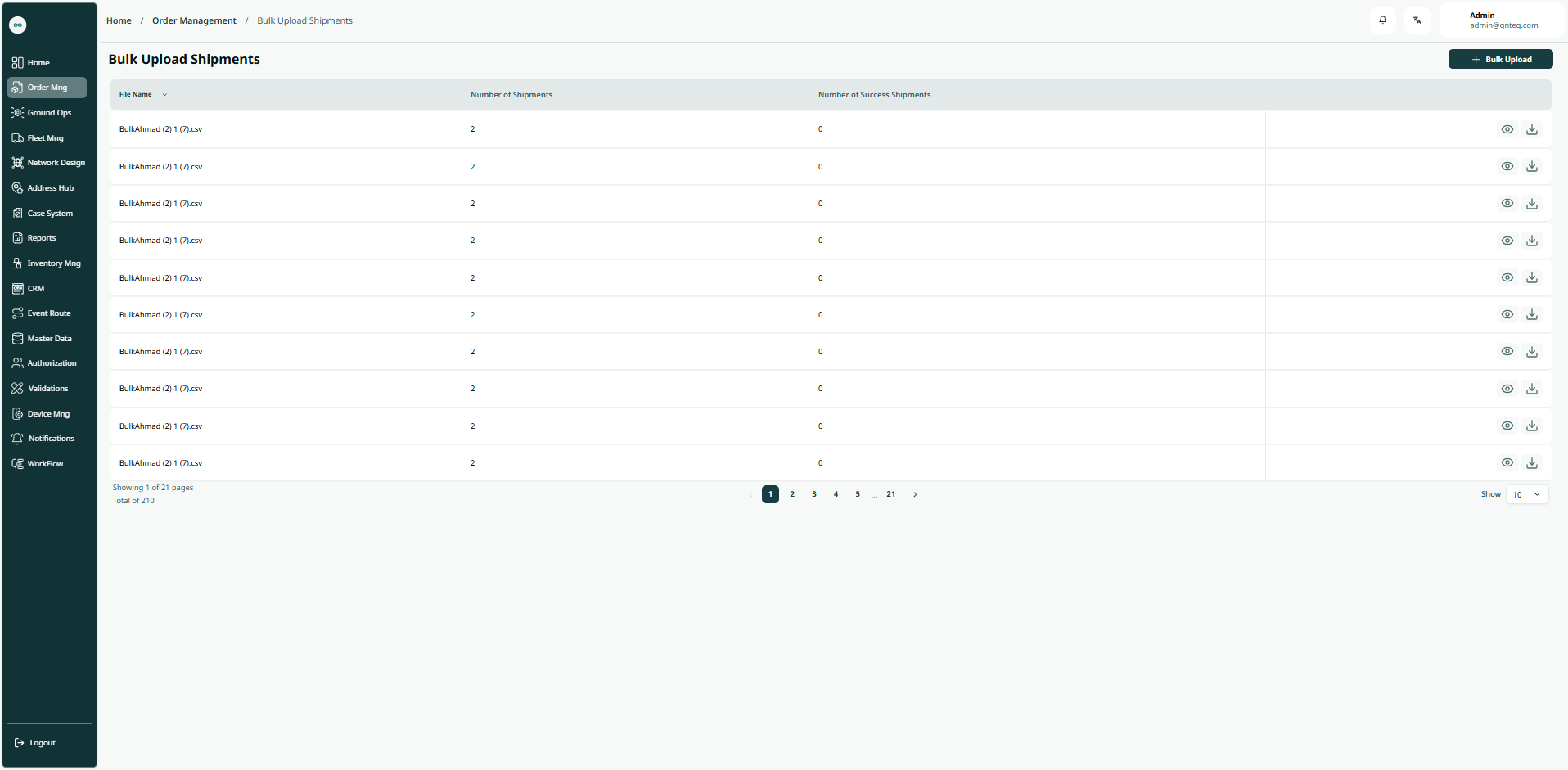
The user can view and upload bulk shipments by filling in the shipment template by navigating to the ‘Bulk Upload Shipments’ screen via the Order Management as follows:
-
Bulk Upload Shipment: the user can add new bulk upload by clicking on “Bulk Upload ”.
-
Rows Per Page: the user can select the number of items to show on each page.
-
Actions: By clicking on Actions, the user can edit the bulk upload by going to the Edit bulk upload section, or delete the bulk upload.
1.1.1 View Details
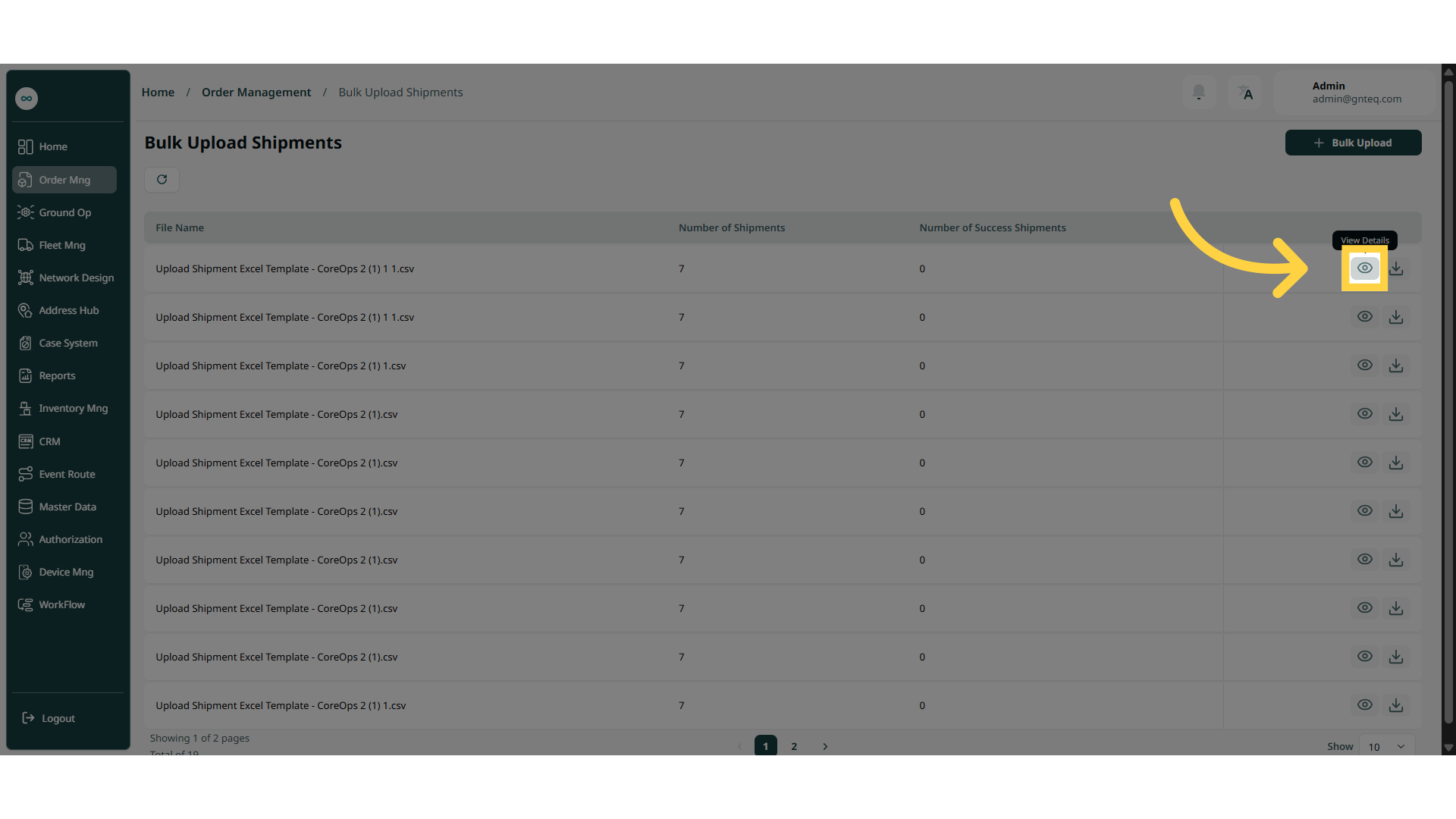
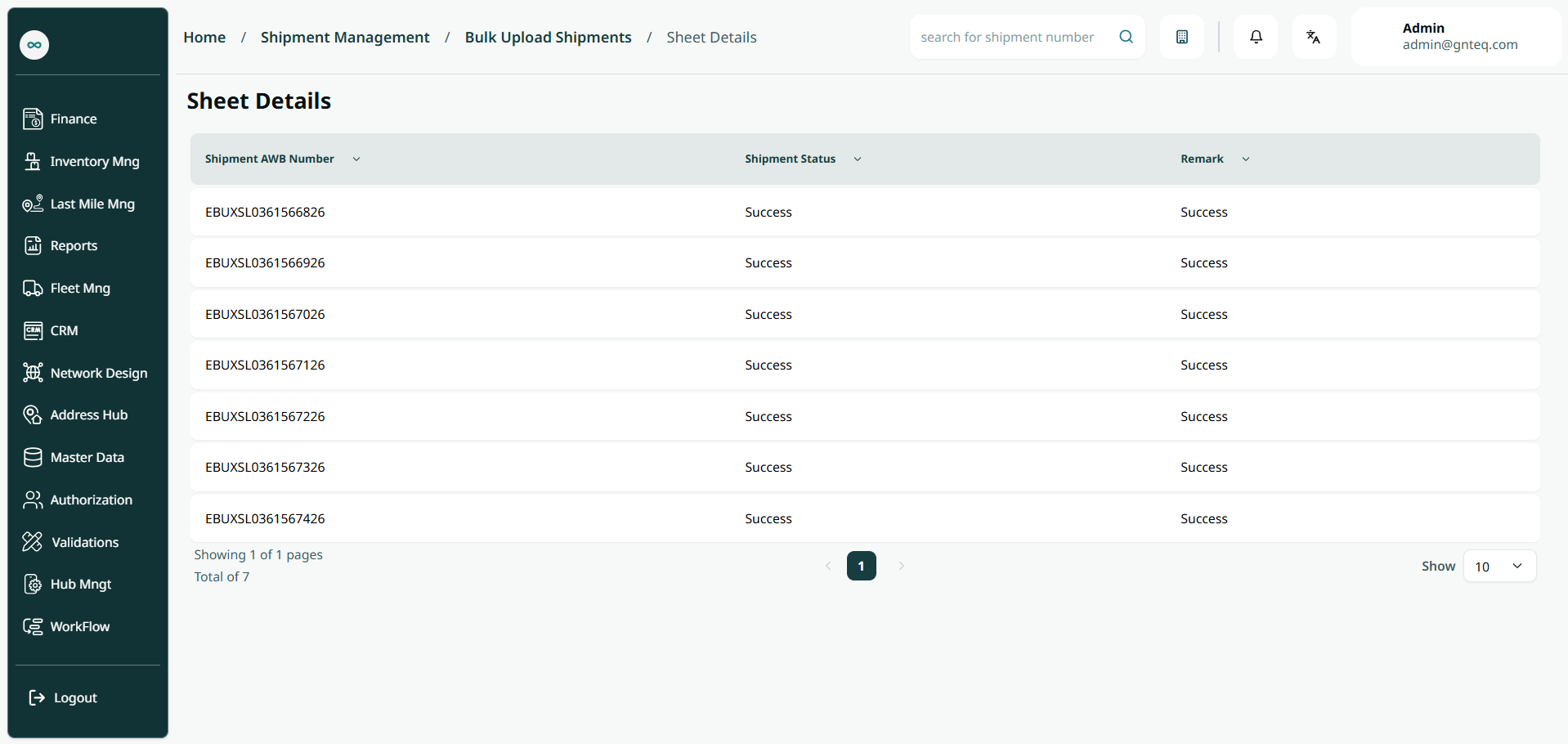
The user can view the sheet details by navigating to the ‘Bulk Upload Shipments’ screen via the Order Management and clicking on View Details from Actions as follows:
1.1.2 Download Sheet
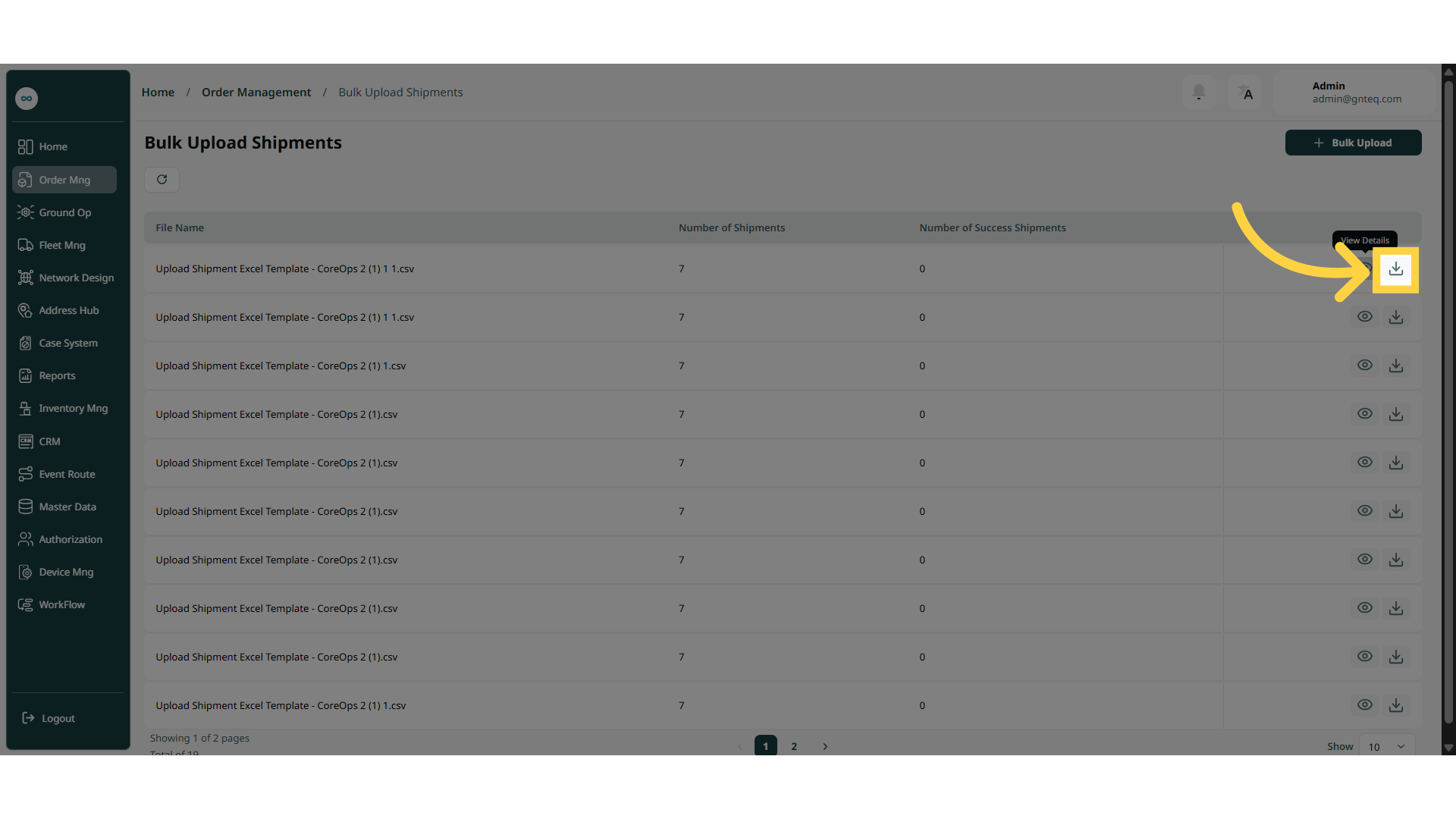
The user can view the sheet details by navigating to the ‘Shipment Sheets’ screen via the Order Management and clicking on Download Sheet from Actions as follows:
1.2 Add New Bulk Upload Shipment
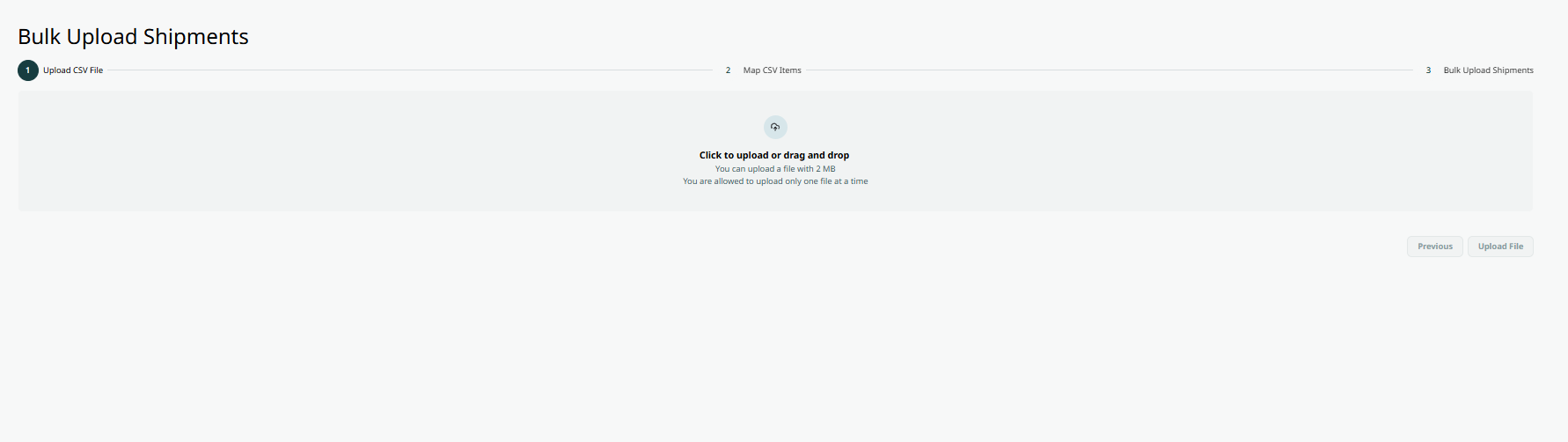
The user can add a new shipment sheet by navigating to the ‘Shipment Sheets’ screen via the Order Management and clicking on Bulk Upload Shipment as follows:
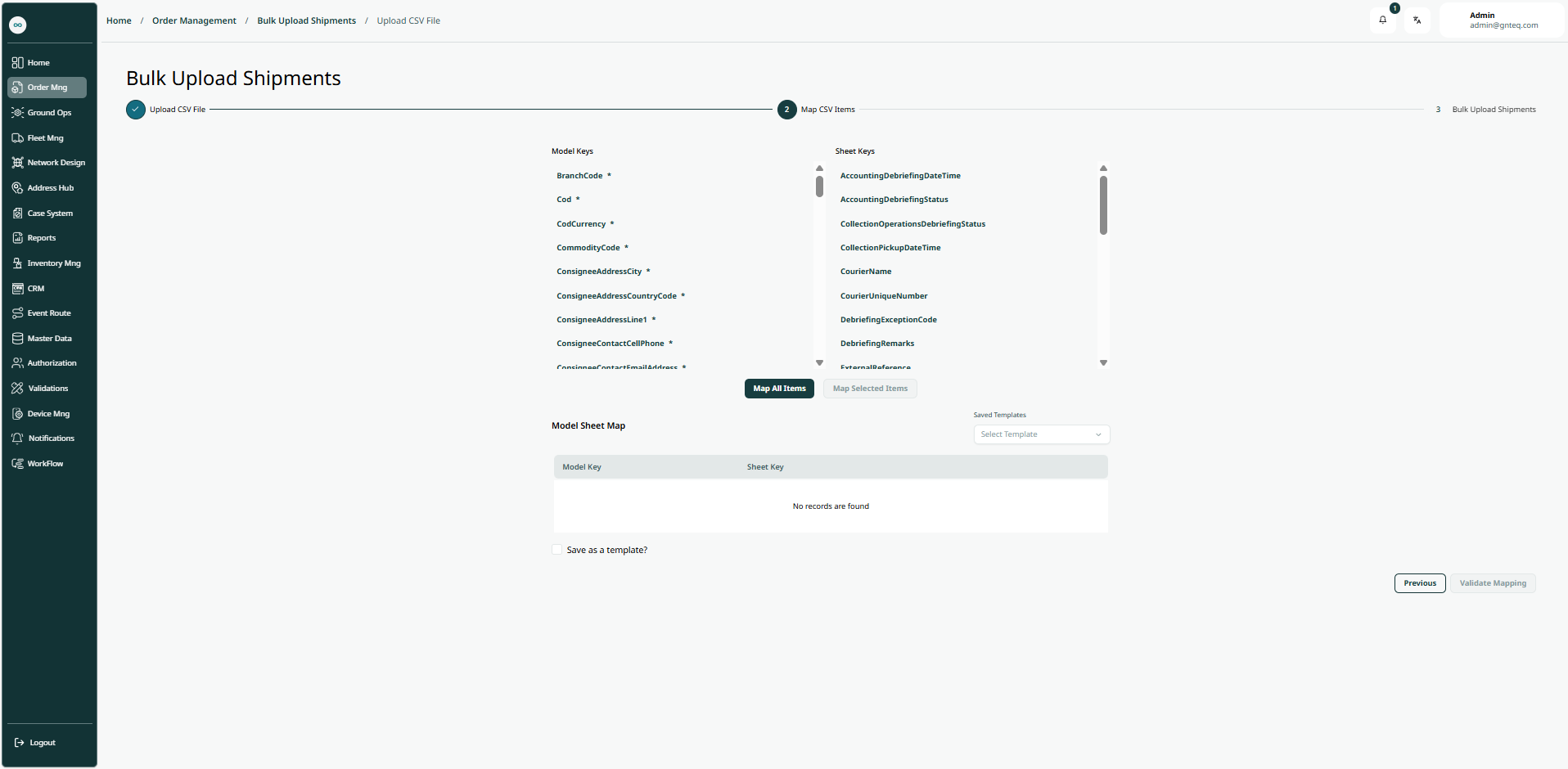
By clicking 'Map All Items' the system will create the shipment and redirect the user to the shipment creation page.
By clicking “Validate Mapping” the mapping will be validated successfully.
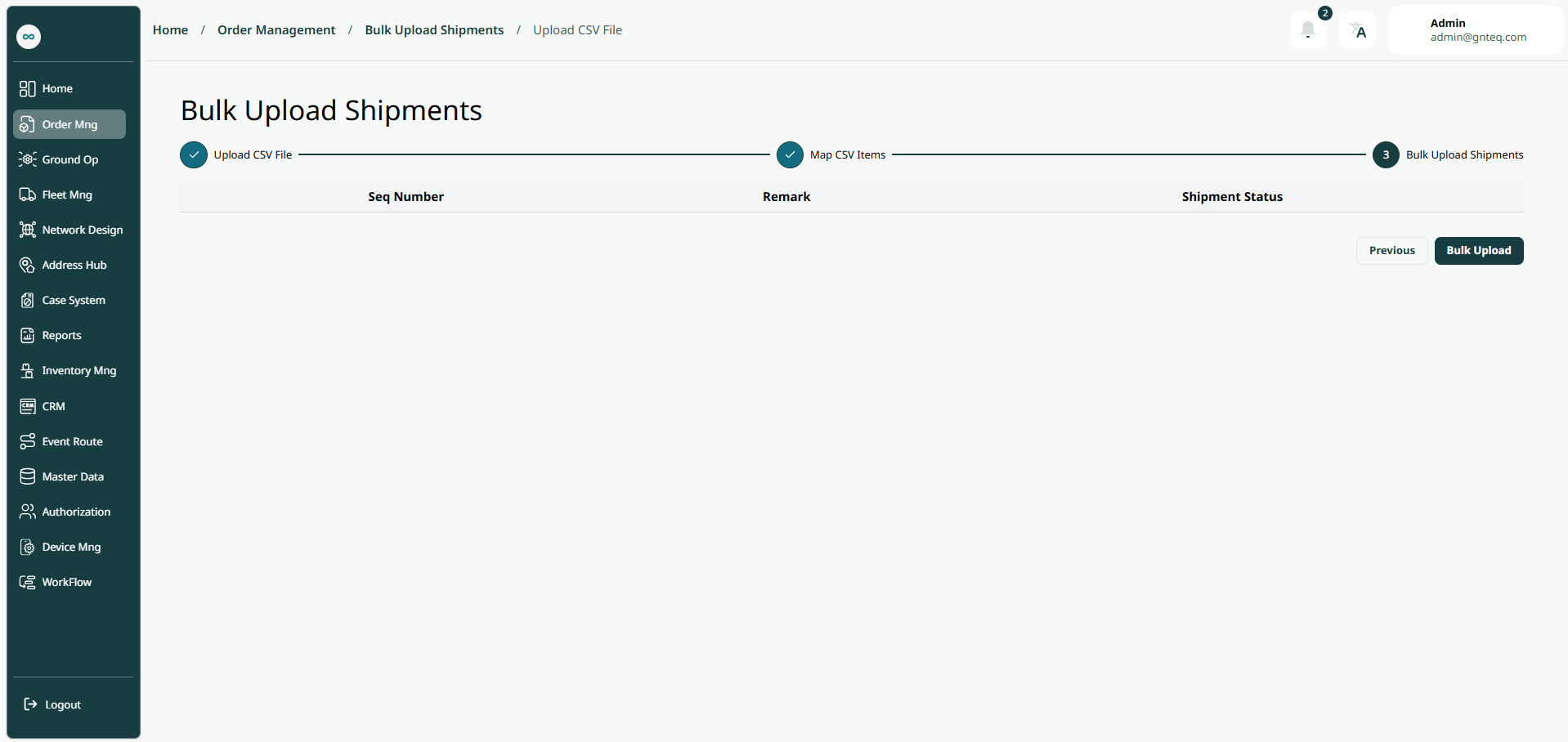
By clicking “Bulk Upload” the bulk upload for the shipments will be added successfully.