
1. Service Source
1.1 Dashboard
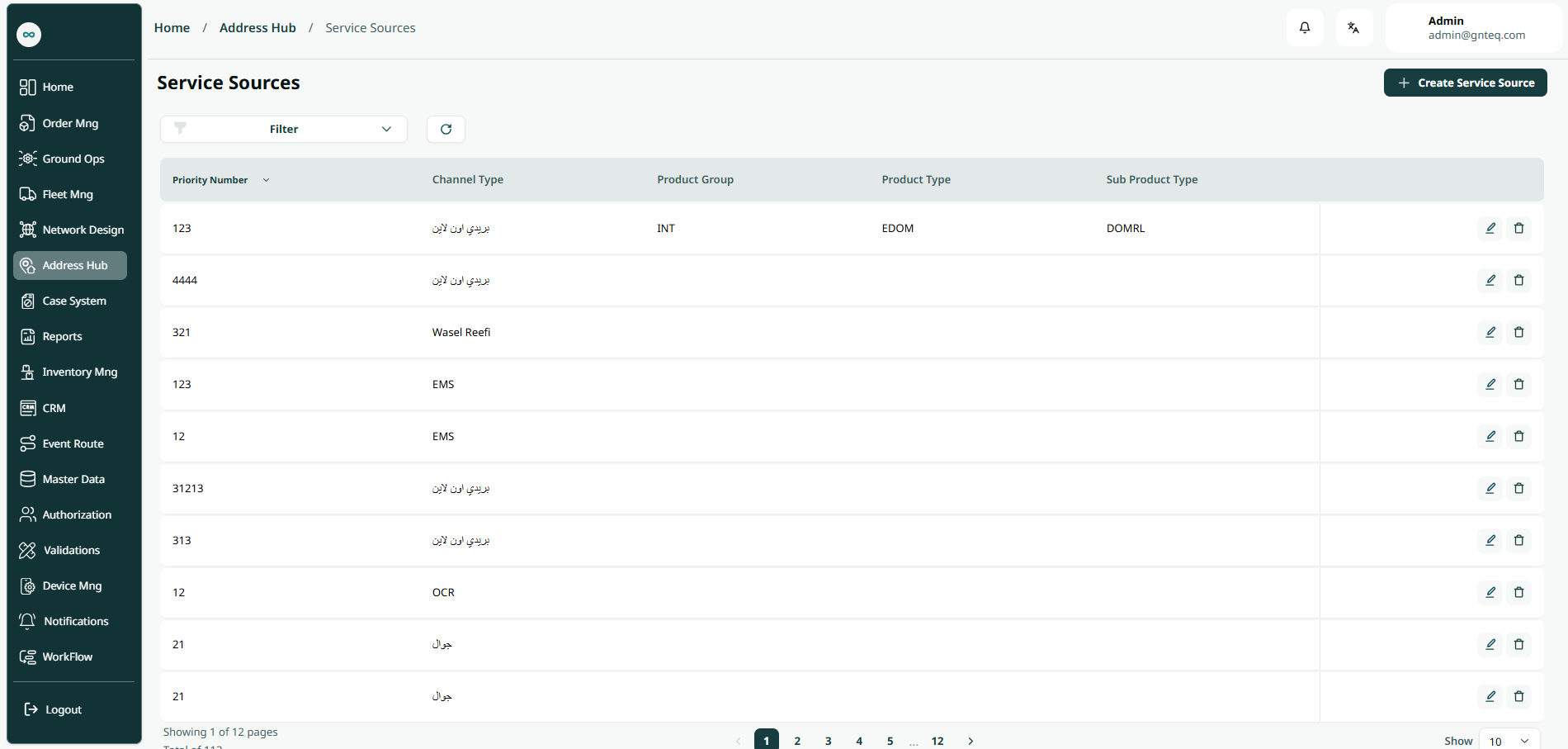
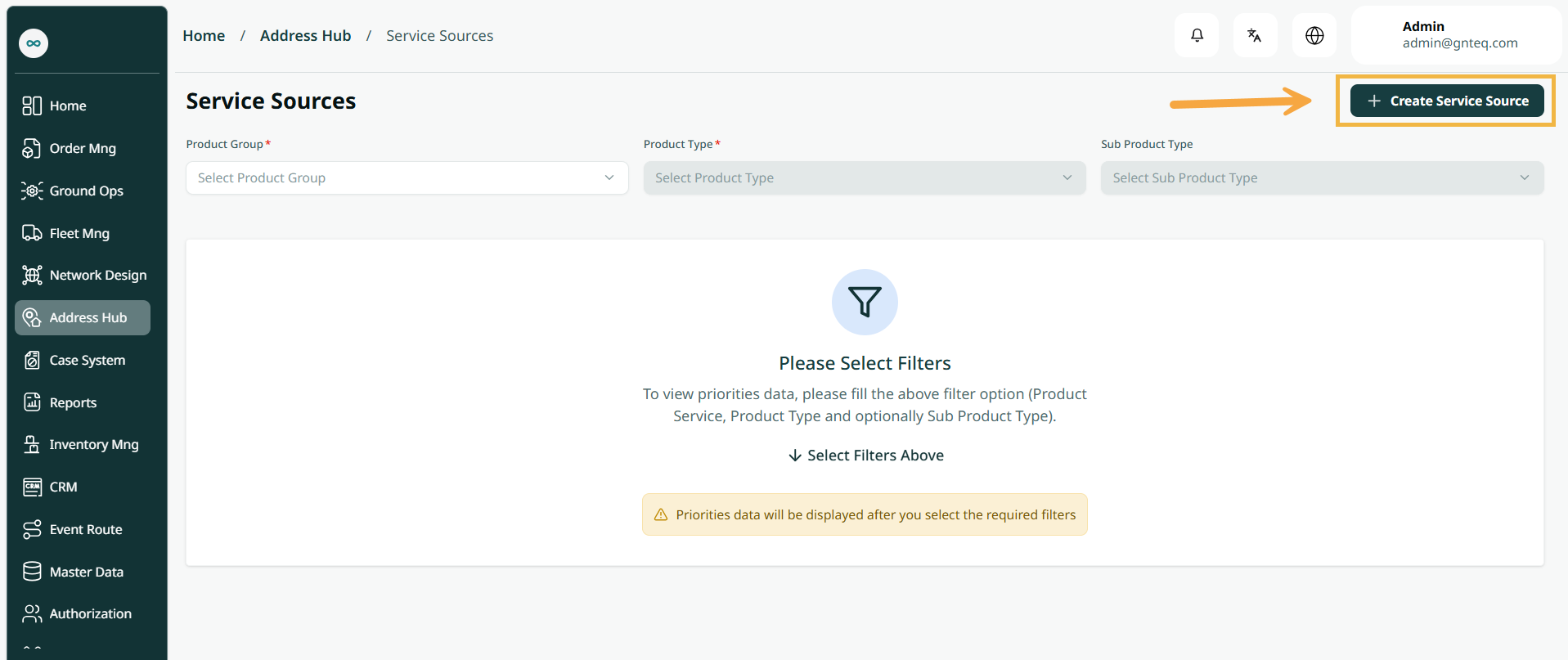
The user can view the defined service source in the system by navigating to the ‘Service Source’ screen in the Address Hub module from the left navigation panel as follows:
-
Create Service Source: the user can add new service source by clicking on “Create Service Source” button.
-
Filters: the user can search for the service by channel id, sub service id,…….etc.
-
Action: by clicking on this button the user can edit, delete the address.
1.1.1 Edit Service Source
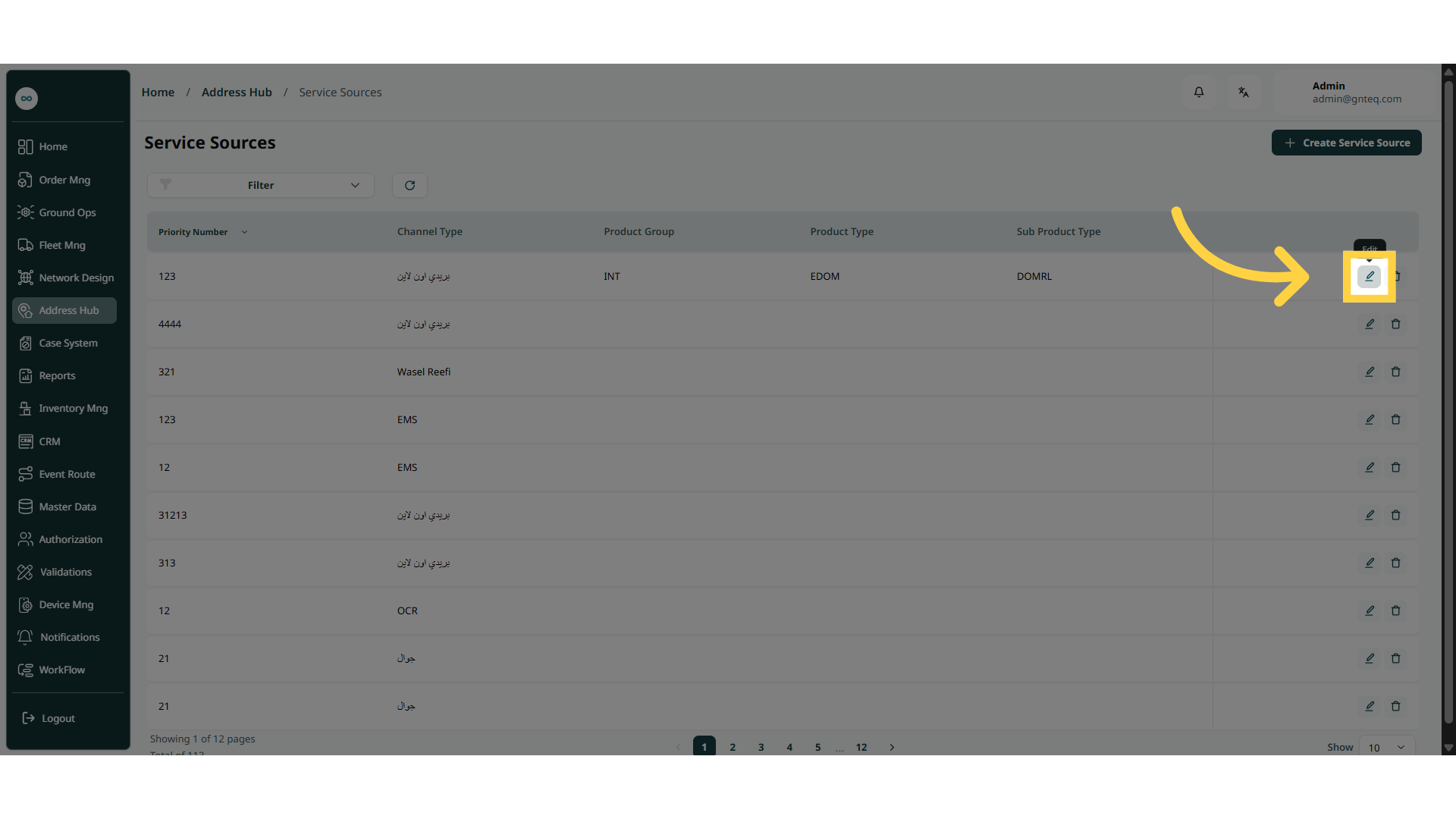
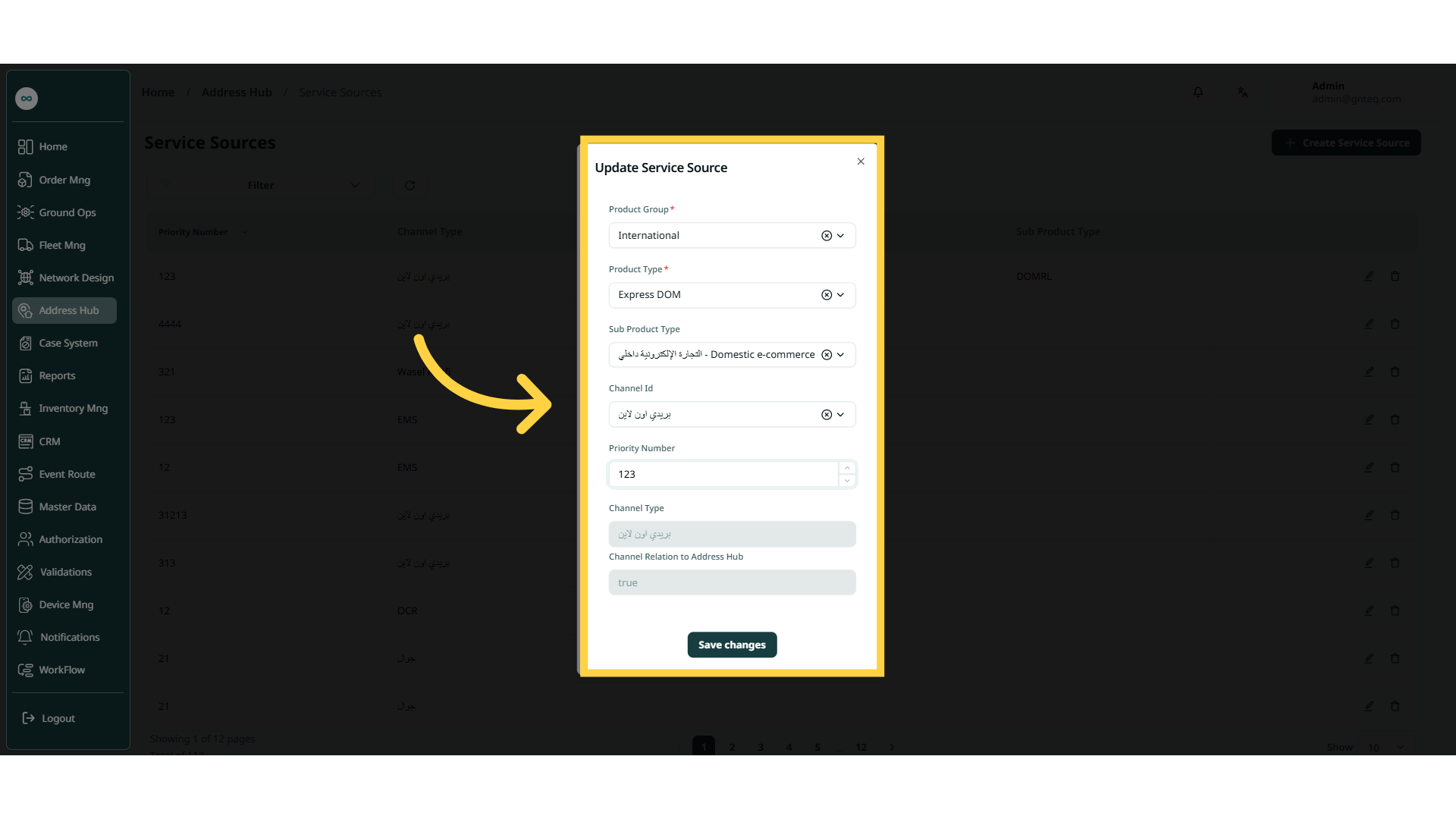
The user can edit an existing service address by clicking on Edit from Actions by navigating to the ‘Service Addresses’ screen via the Address Hub module.
1.1.2 Delete Service Source
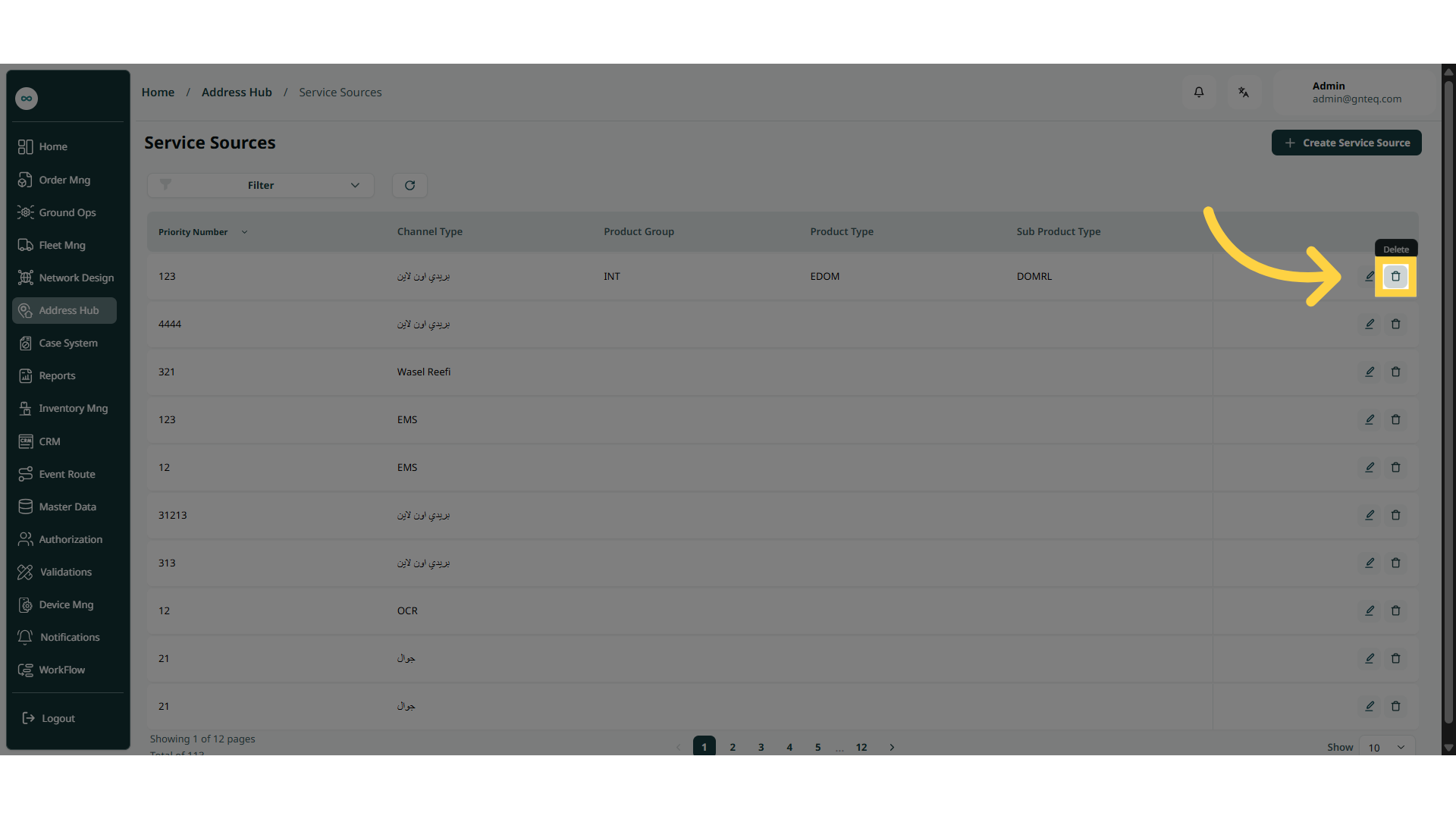
The user can delete an existing service source by clicking on Delete from Actions by navigating to the ‘Service Source’ screen via the Address Hub module.
1.2 Add new Service Source
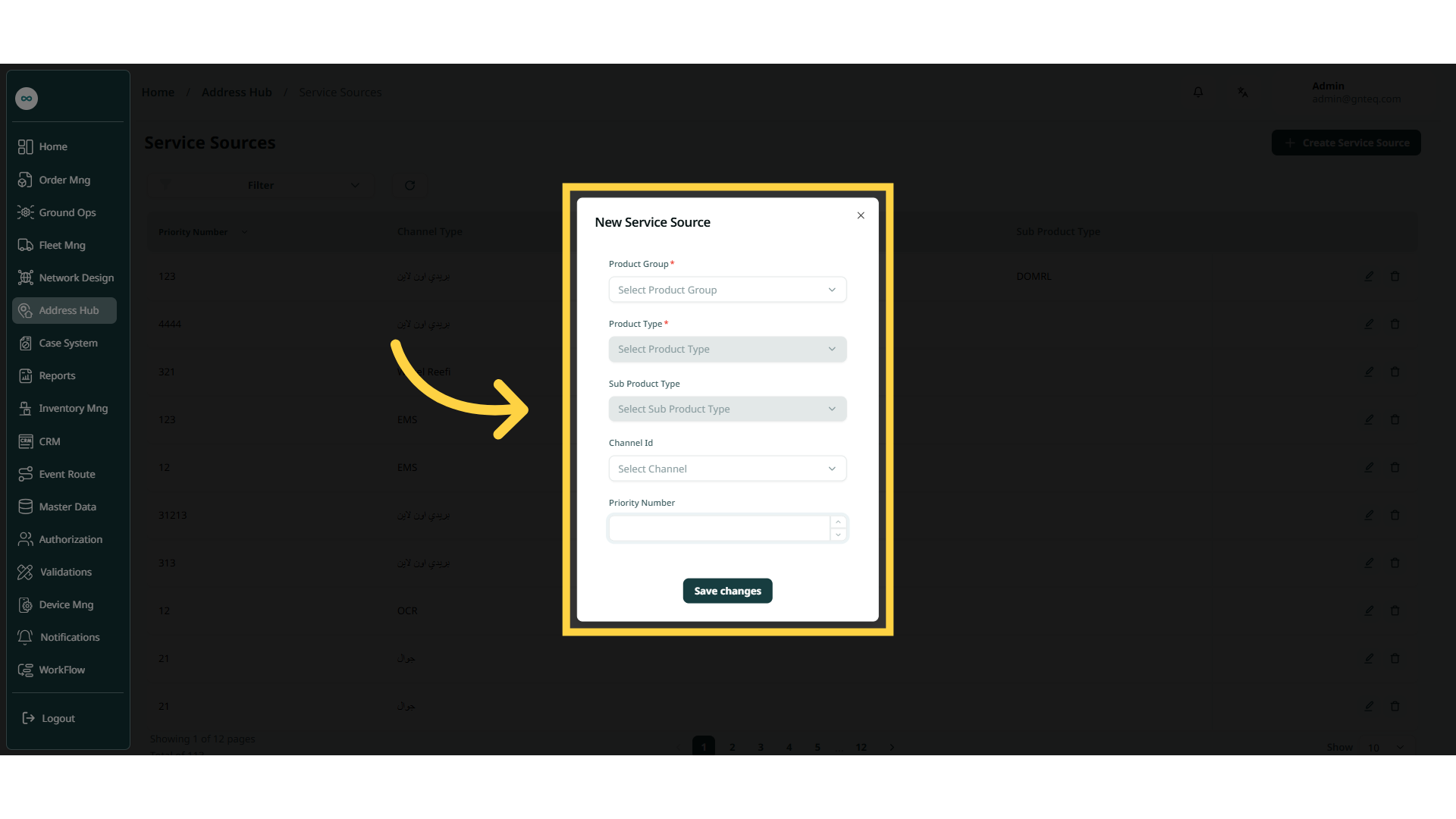
The user can create a new service source by clicking on Create Service Source by navigating to the ‘Service Source’ screen via the Address Hub.
-
Product Group: this field represents the delivery service.
-
Product Type: this field represents the delivery service type e(express DOM, express international…..etc.)
-
Sub Product Type: this field represents the delivery service sub type(banks, government documents, …….etc.).
-
Channel Id: this field represents the channel type (official mail, wasel reefi ,……….etc. ).
-
Priority Number: this field represents the number of the priority.
By clicking on Save Changes the service address will be added successfully.