
1. Wallet Management
1.1 Dashboard
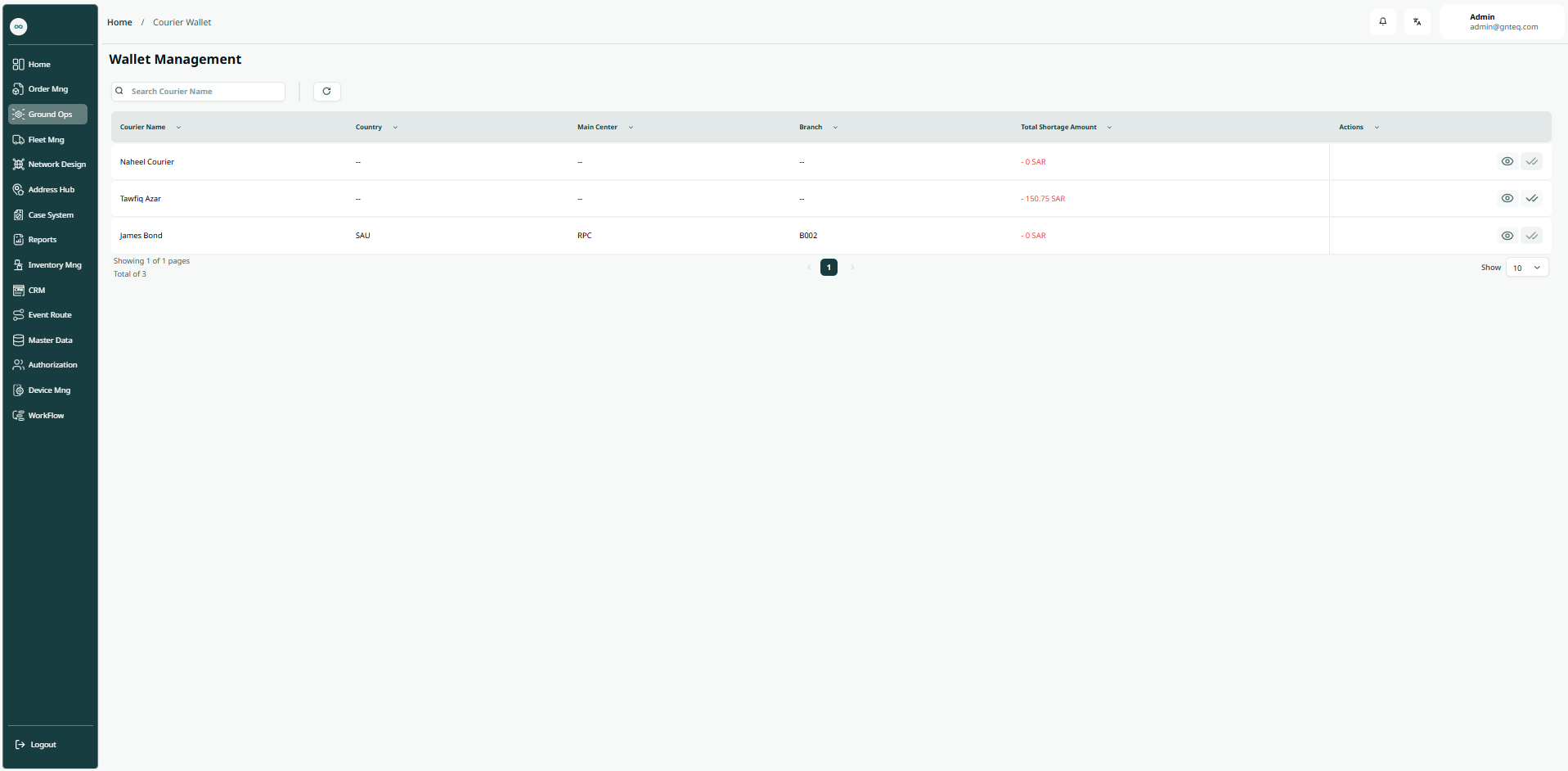
The supervisor can view the defined shortage amount in the system by navigating to the ‘Wallet Management’ screen in the Finance module from the left navigation panel as follows:
-
Search: the user can search for the wallet by typing the courier name.
-
Filter: the user can search for the wallet by selecting the courier code, country, main branch…..etc.
-
Rows Per Page: the user can select the number of items to show on each page..
-
Action: by clicking on this button the user can view details, complete payment .
1.1.1 View Details
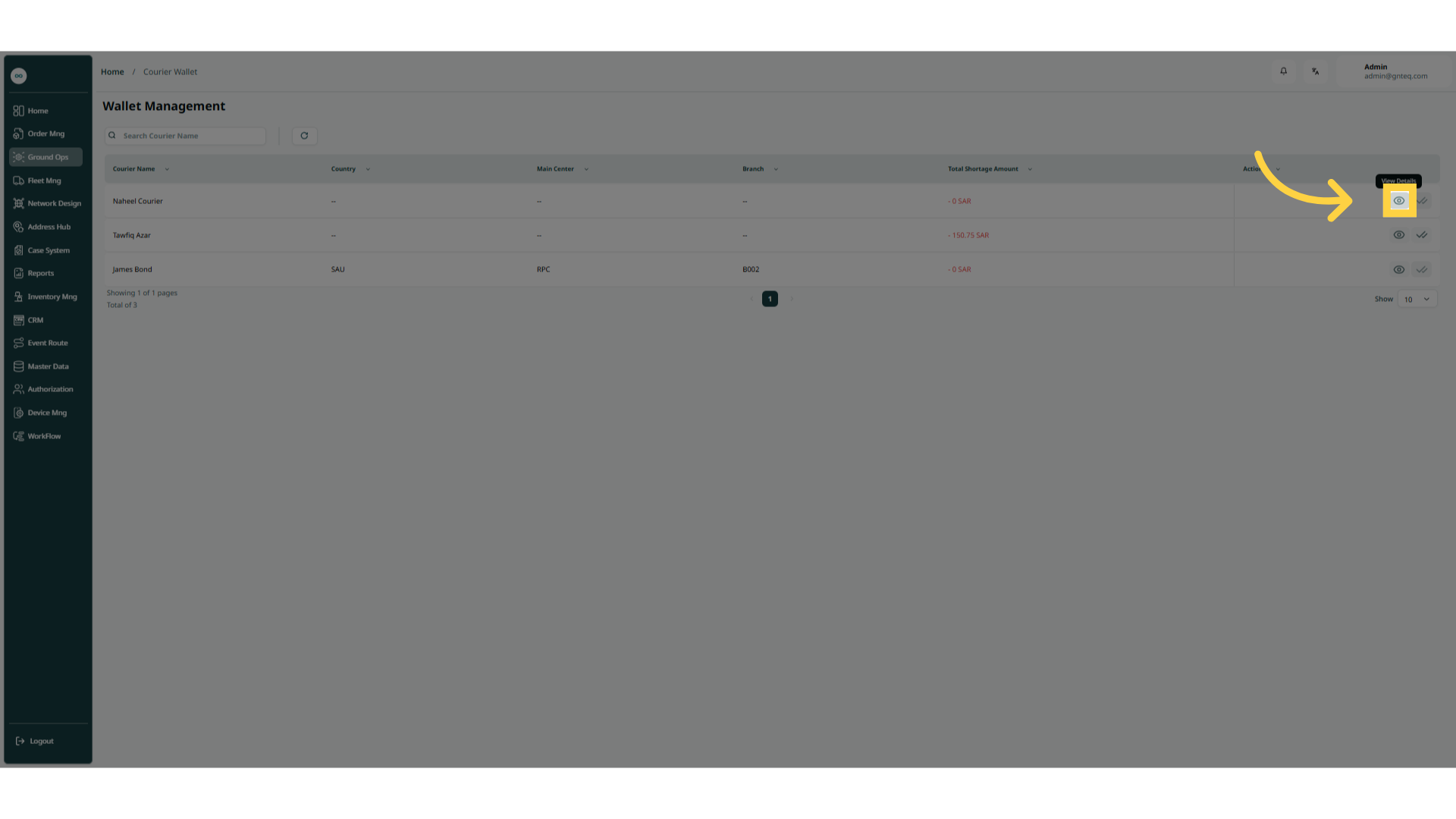
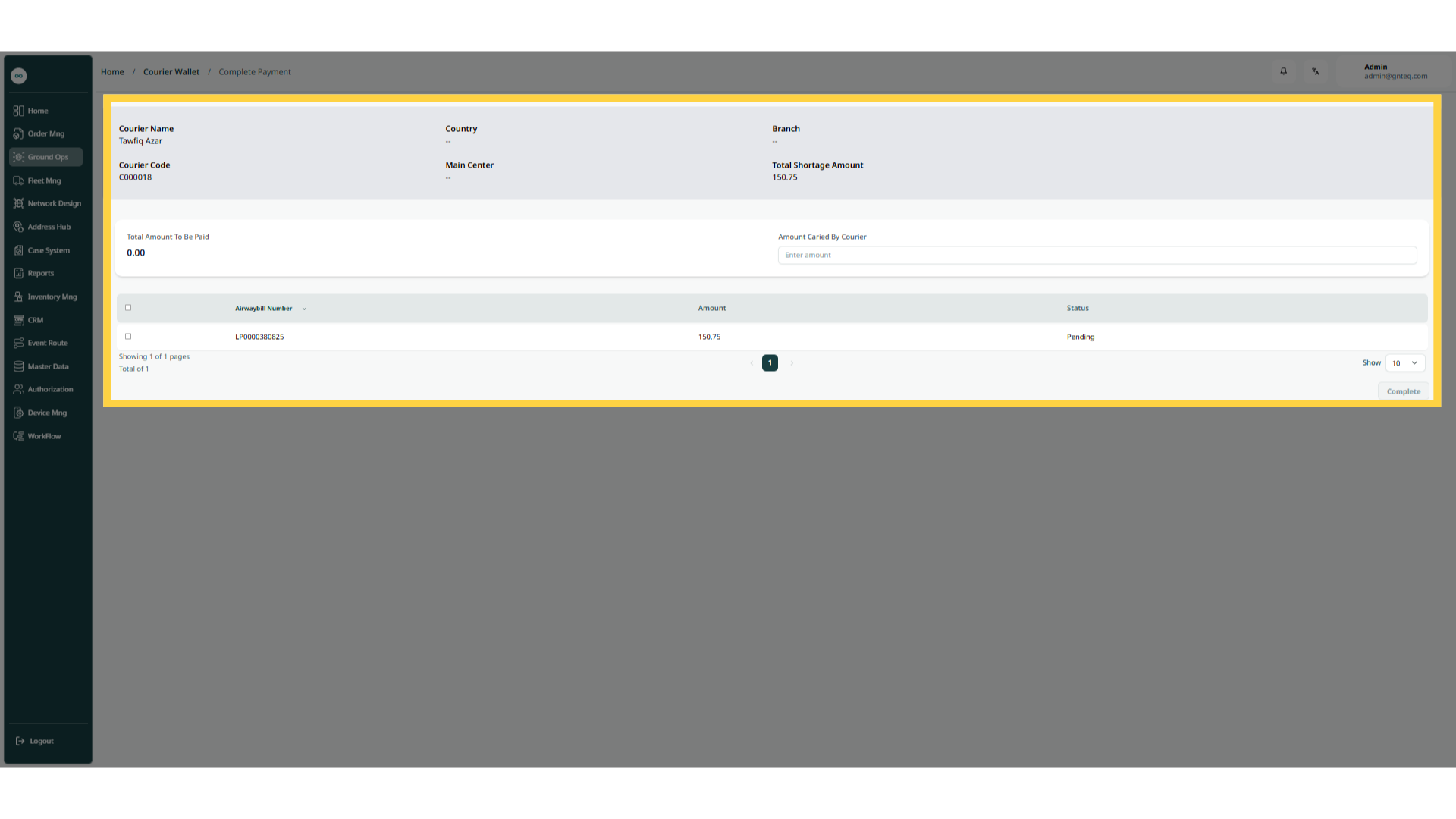
The supervisor can view details by navigating to the ‘Wallet Management’ screen via the Finance module and clicking on View Details from Actions as follows:
1.1.2 Complete Payment
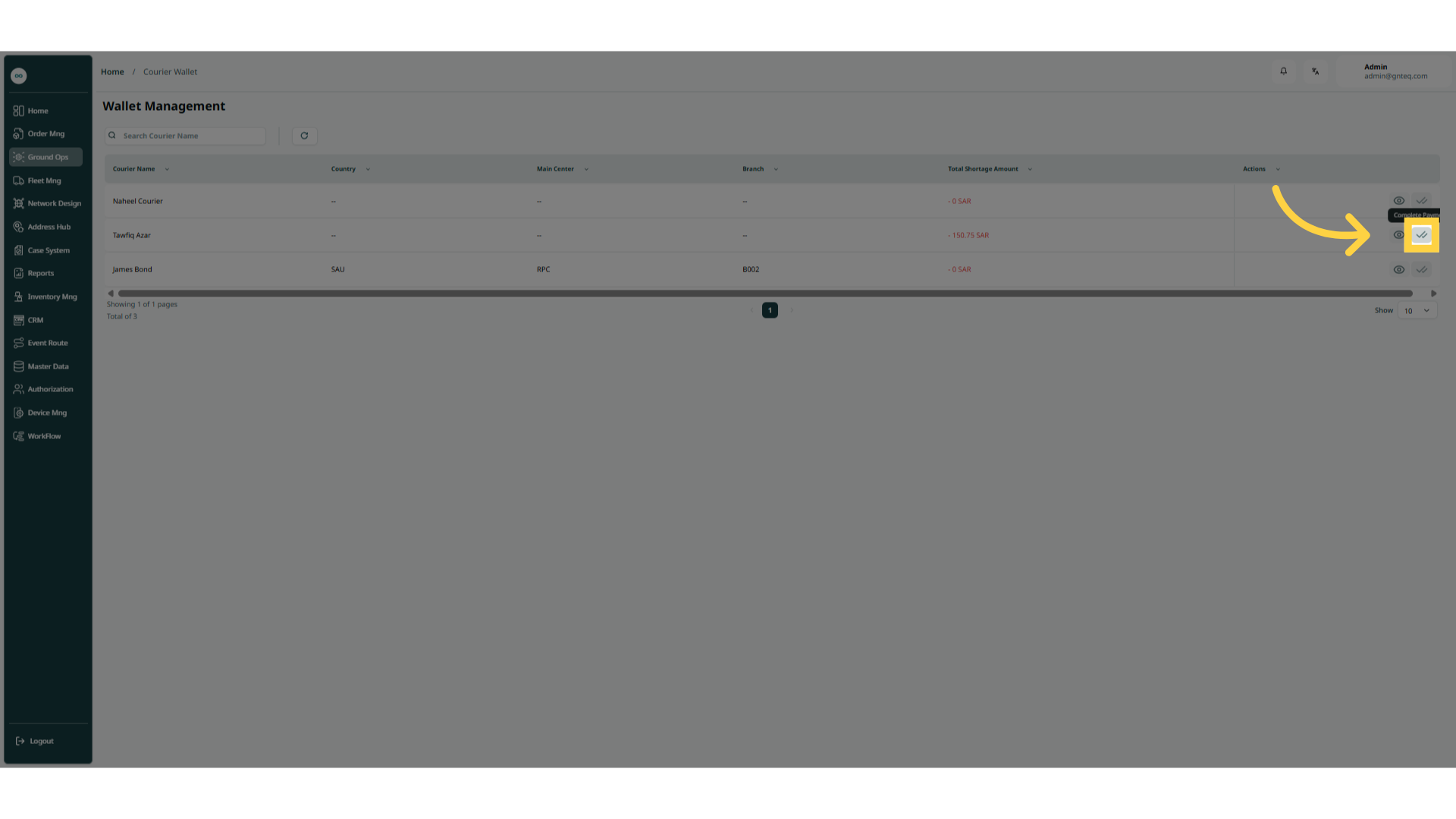
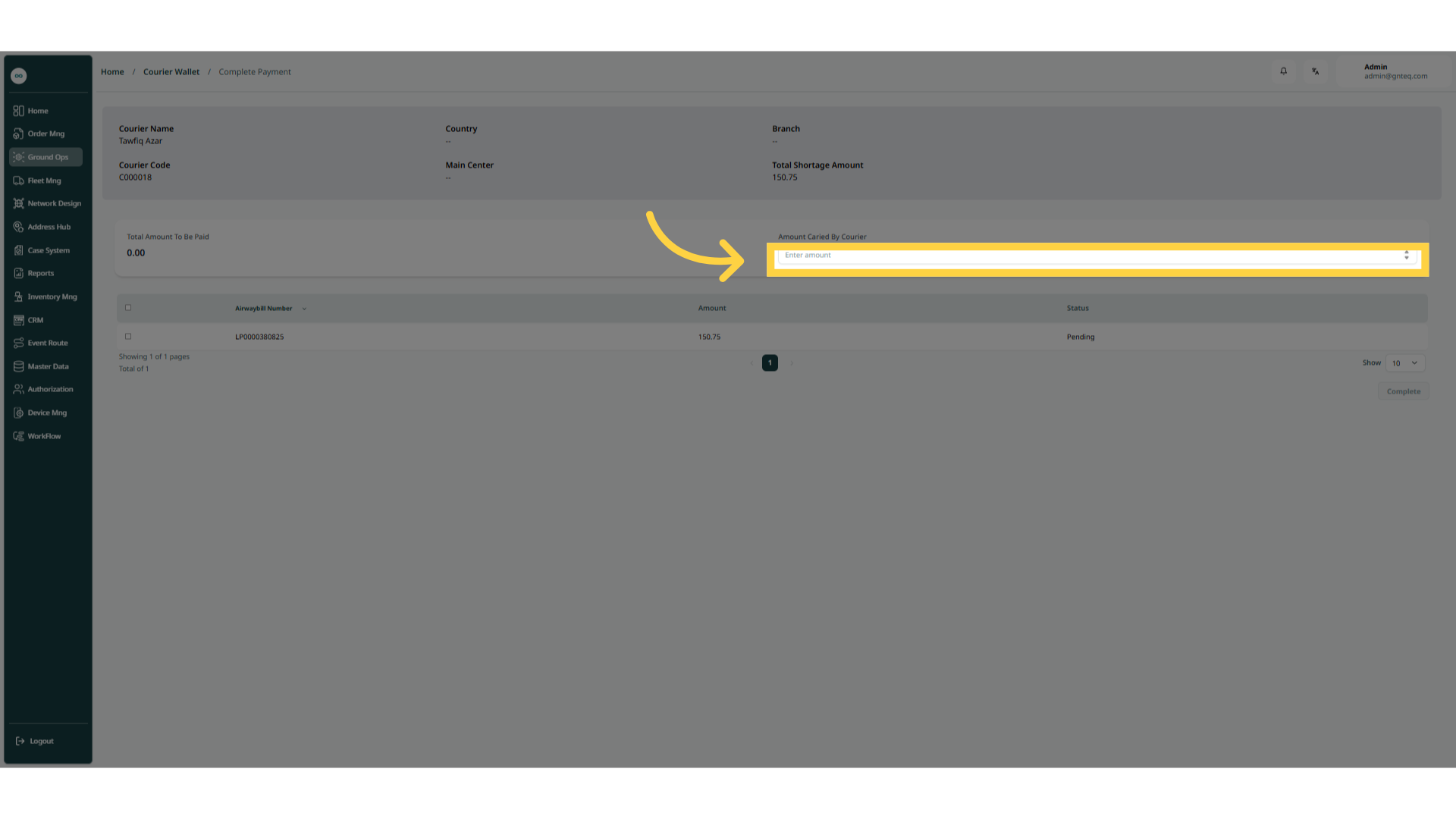
The supervisor can complete payment by navigating to the ‘Wallet Management’ screen via the Finance module and clicking on Complete Payment from Actions as follows:
-
Amount Carried By Courier: This field represents the amount of the trip amount received from the courier.
Note: when adding the amount, the system will automatically select the shipments that match the amount value.
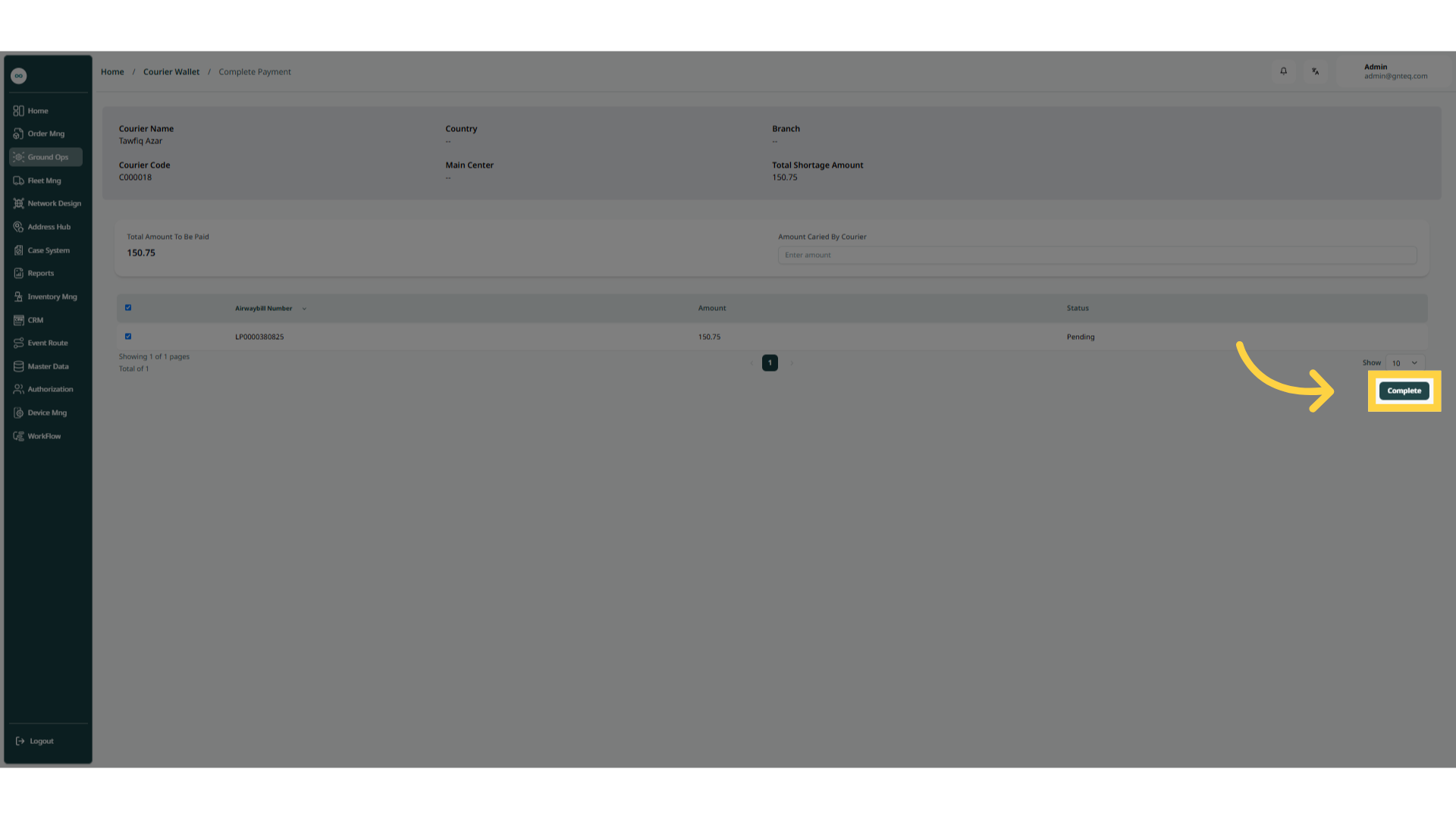
By clicking on Complete, the operation will be completed successfully.