
1. Maintenance Templates
1.1 Dashboard
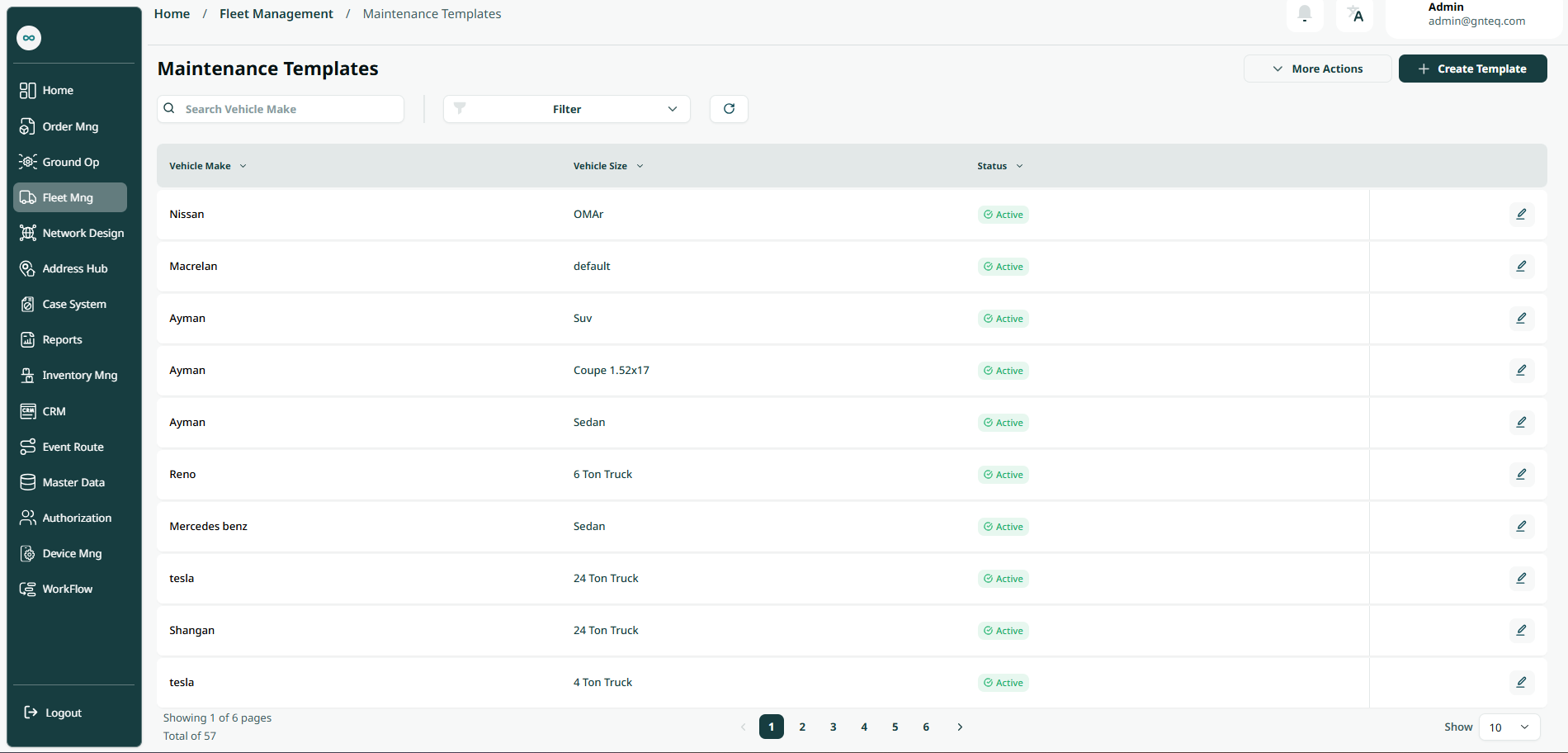
The user can create a new maintenance template by navigating to the ‘Vehicles’ screen via the Fleet Management Module and clicking on Maintenance Template button:
-
Create Template: the user can create a new template by selecting the Create Template button.
-
Export: The user can export the list as an Excel file by clicking the "More Actions" button.
-
Import: The user can download the list as an Excel file by clicking the "More Actions" button.
-
Download Template: The user can download a blank Excel template by clicking the "More Actions" button.
-
Filters: the user can search for the maintenance by the vehicle make model, vehicle size, status.
-
Search: the user can search for maintenance template by entering the vehicle make.
-
Rows Per Page: the user can select the number of items to show on each page.
-
Actions: by clicking on Actions, the user can edit the maintenance by going to the edit maintenance section.
1.1.1 Edit Information
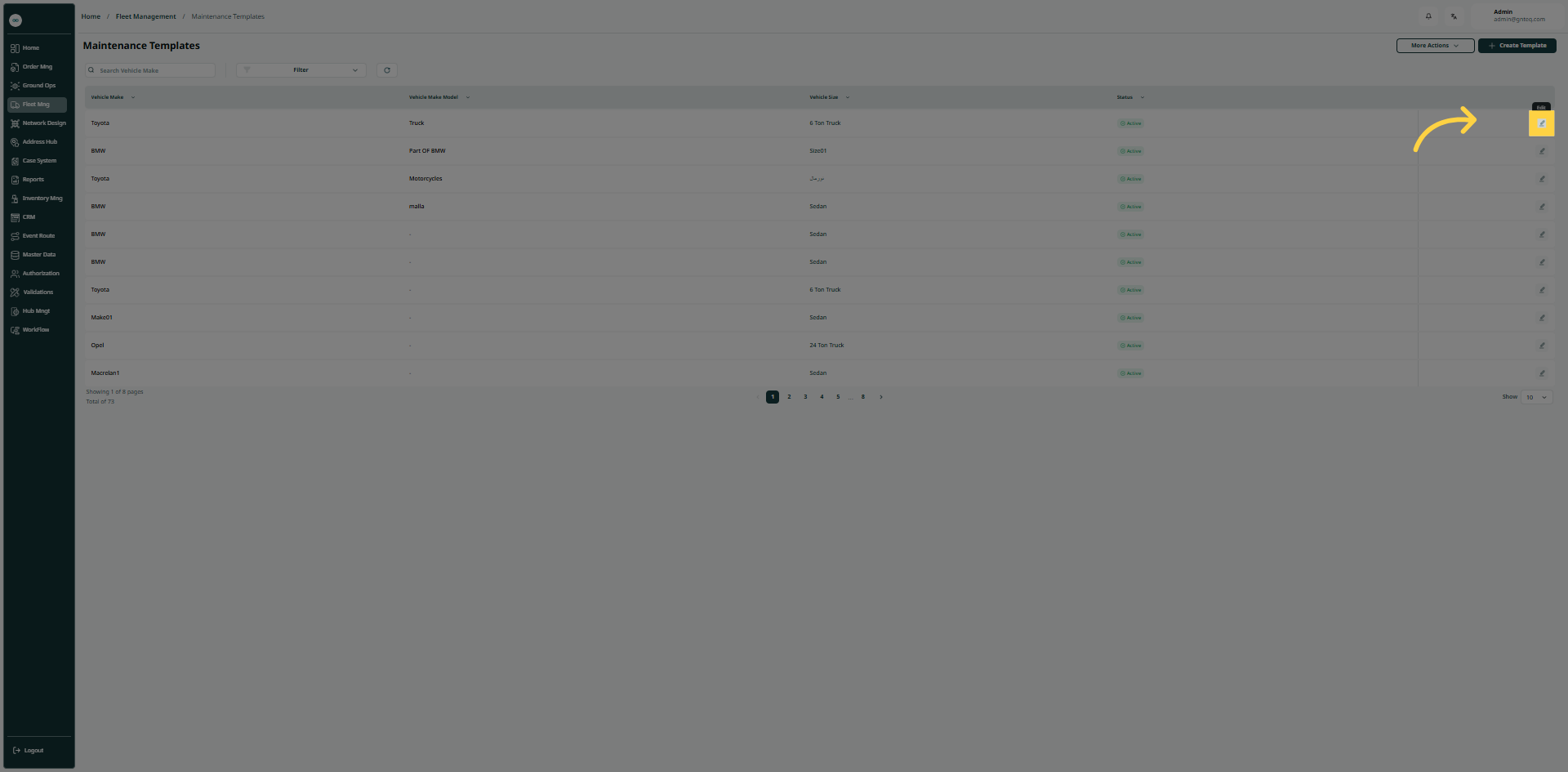
The user can edit the maintenance template in the system by going to the “Maintenance Templates” screen via the Fleet Management module and clicking the Edit button from Action:
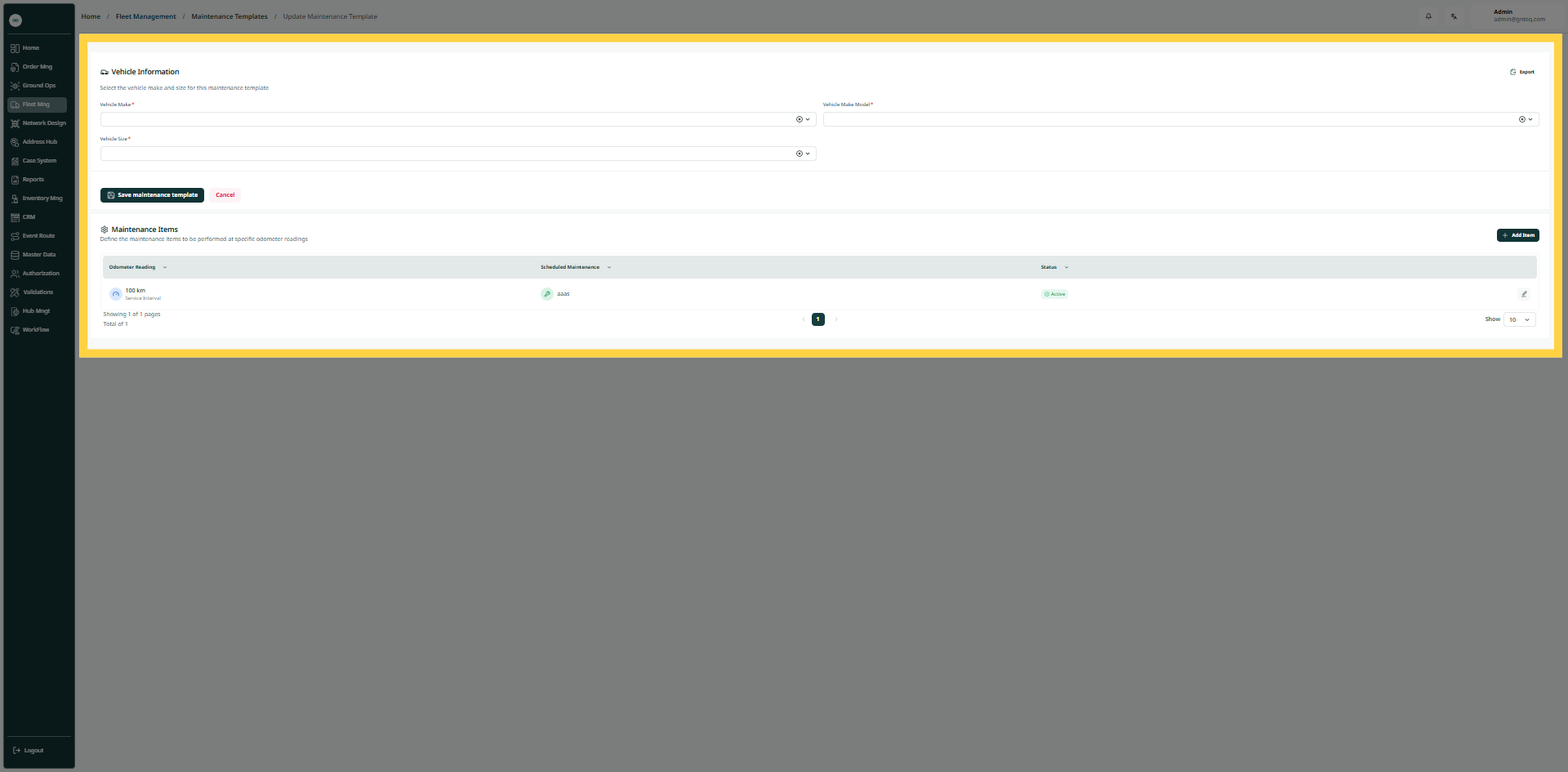
Add Item: Users can add maintenance items to the vehicle by clicking "Add Item."
By clicking "Save Maintenance Template," maintenance information will be successfully modified.
1.2 Create Template
The user can create a maintenance template that includes details about the vehicle via the Fleet Management Module and clicking on Create Template button:

-
Vehicle Make Model: this field represents the year of manufacture.
-
Vehicle Make: this field represents the vehicle brand name.
-
Vehicle Size: this field represents the vehicle type e.g. (Van, Trucks, Trailer) …etc.
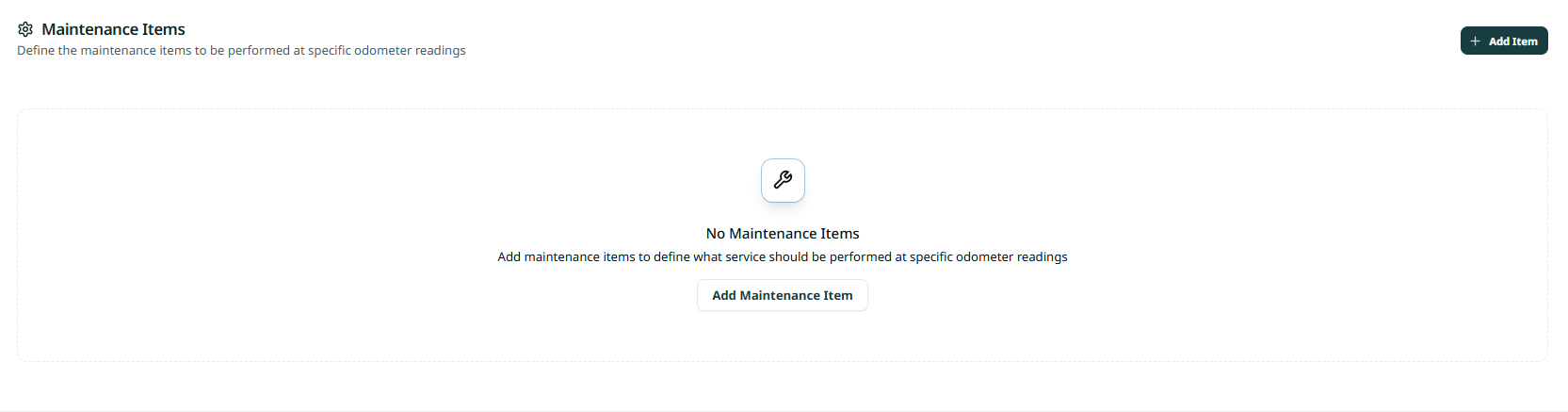
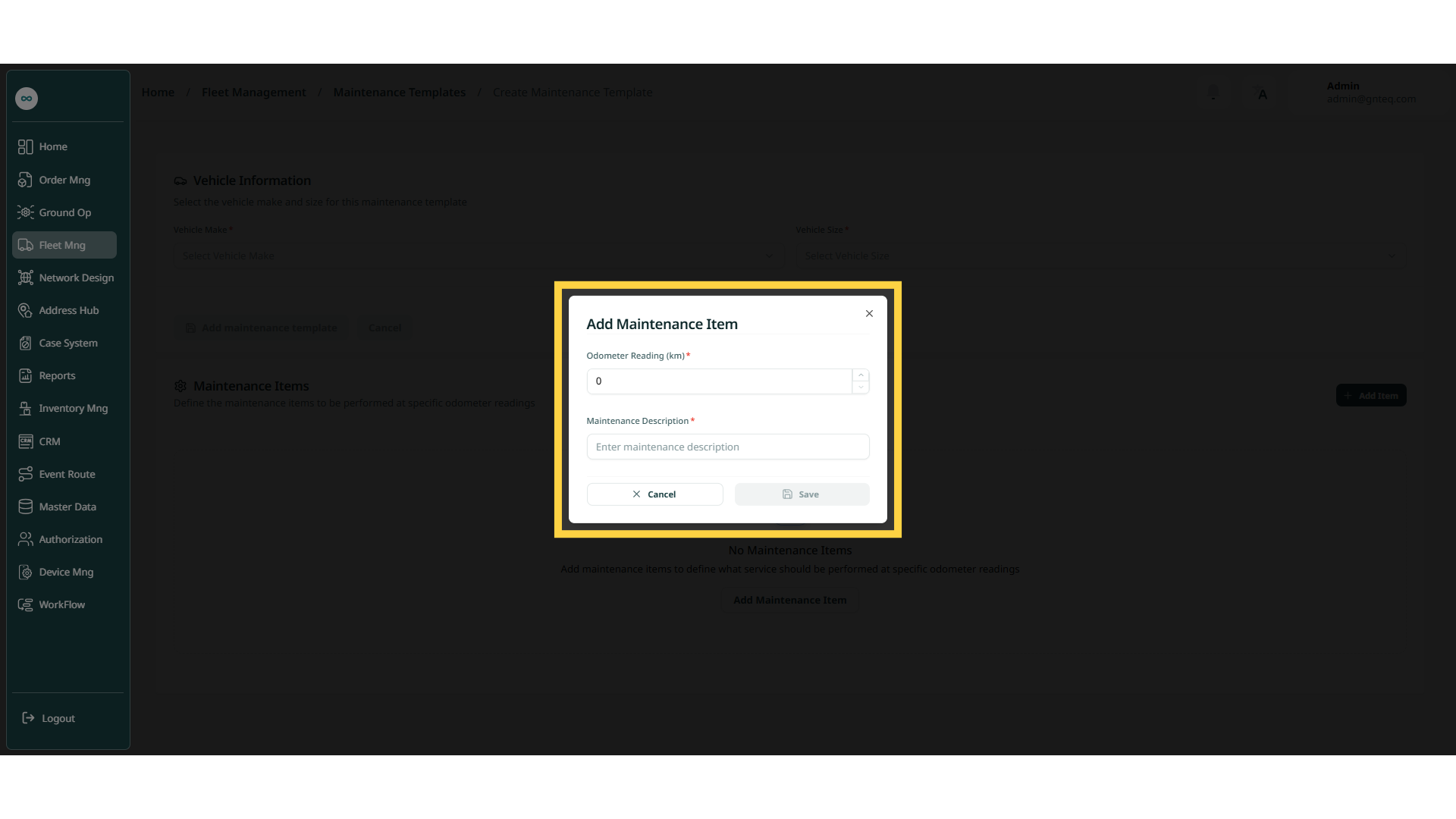
By clicking ‘Add Item’ the user can add more information about the vehicle e.g. odometer reading, Scheduled Maintenance)
-
Odometer Reading: this field represents the total distance a vehicle has traveled since it was manufactured.
-
Maintenance Description: this field represents maintenance information.

By clicking on ‘Add Maintenance Template’, the template will be successfully added to the system.