
1. Customs Declaration
1.1 Dashboard
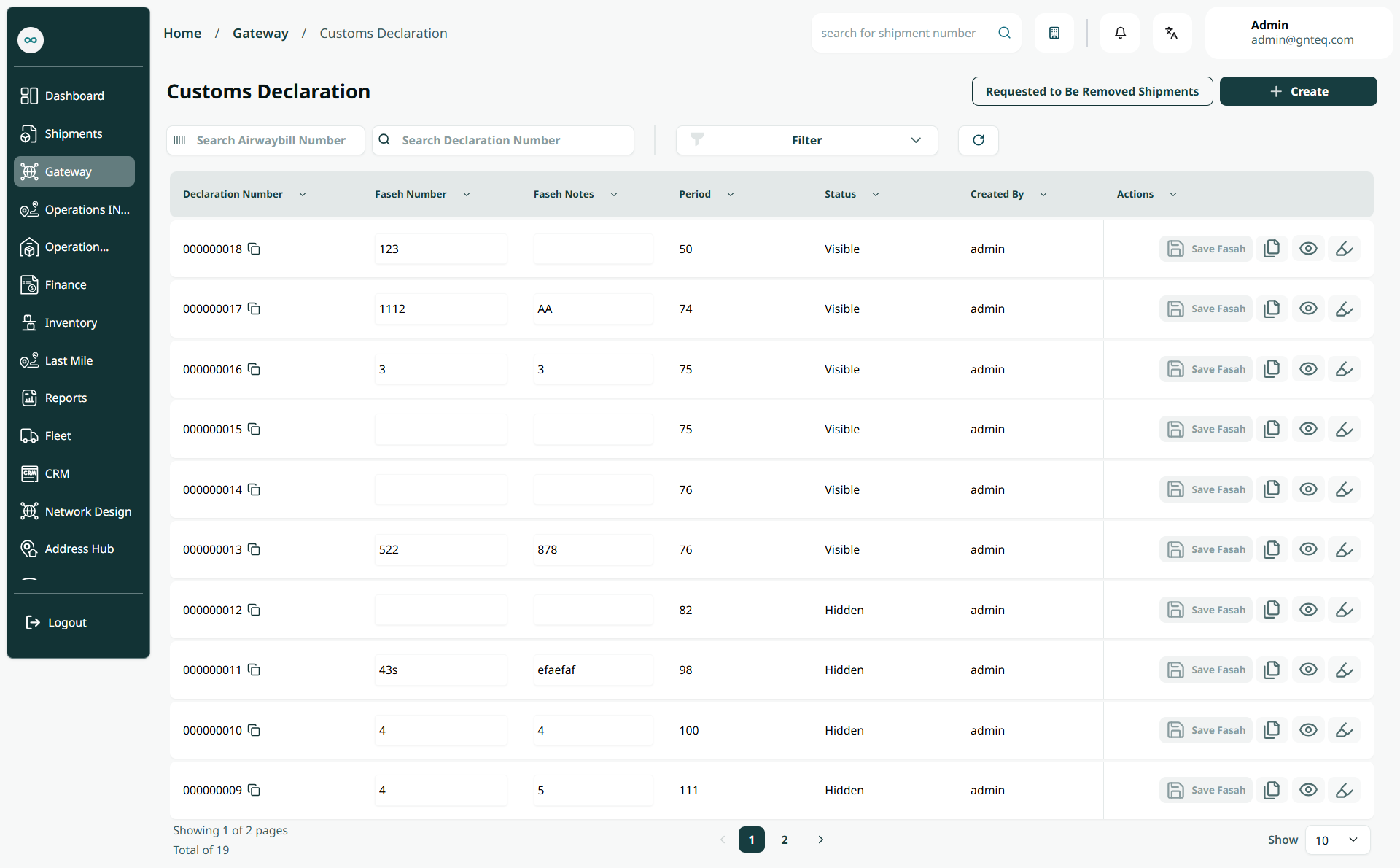
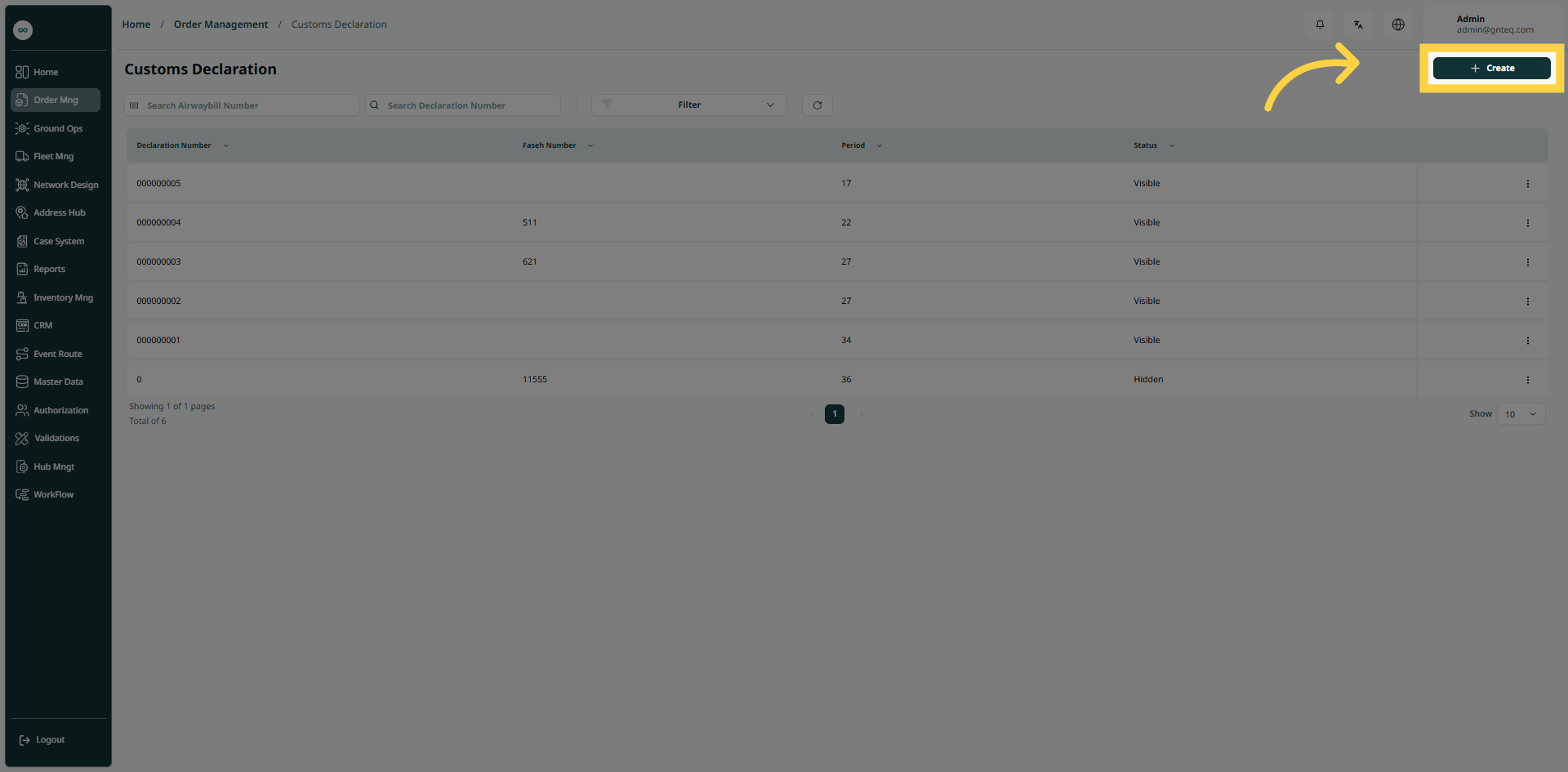
The user can view the defined customs declaration in the system by navigating to the ‘Customs Declaration’ screen in the Gateway from the left navigation panel as follows:
-
New Customs Declaration: the user can add a new customs declaration by clicking “Create.”
-
Filters: the user can search for the customs declaration by faseh number or status.
-
Search: the user can search for the customs declaration by entering the airwaybill number or declaration number.
-
Rows on Page: the user can specify the number of items to be displayed on each page.
-
Actions: by clicking on Actions, the user can view the customs declaration details in the “View Customs Declaration Details” section, edit the customs declaration in the “Edit Customs Declaration” section, and hide the customs declaration.
1.1.1 View Details
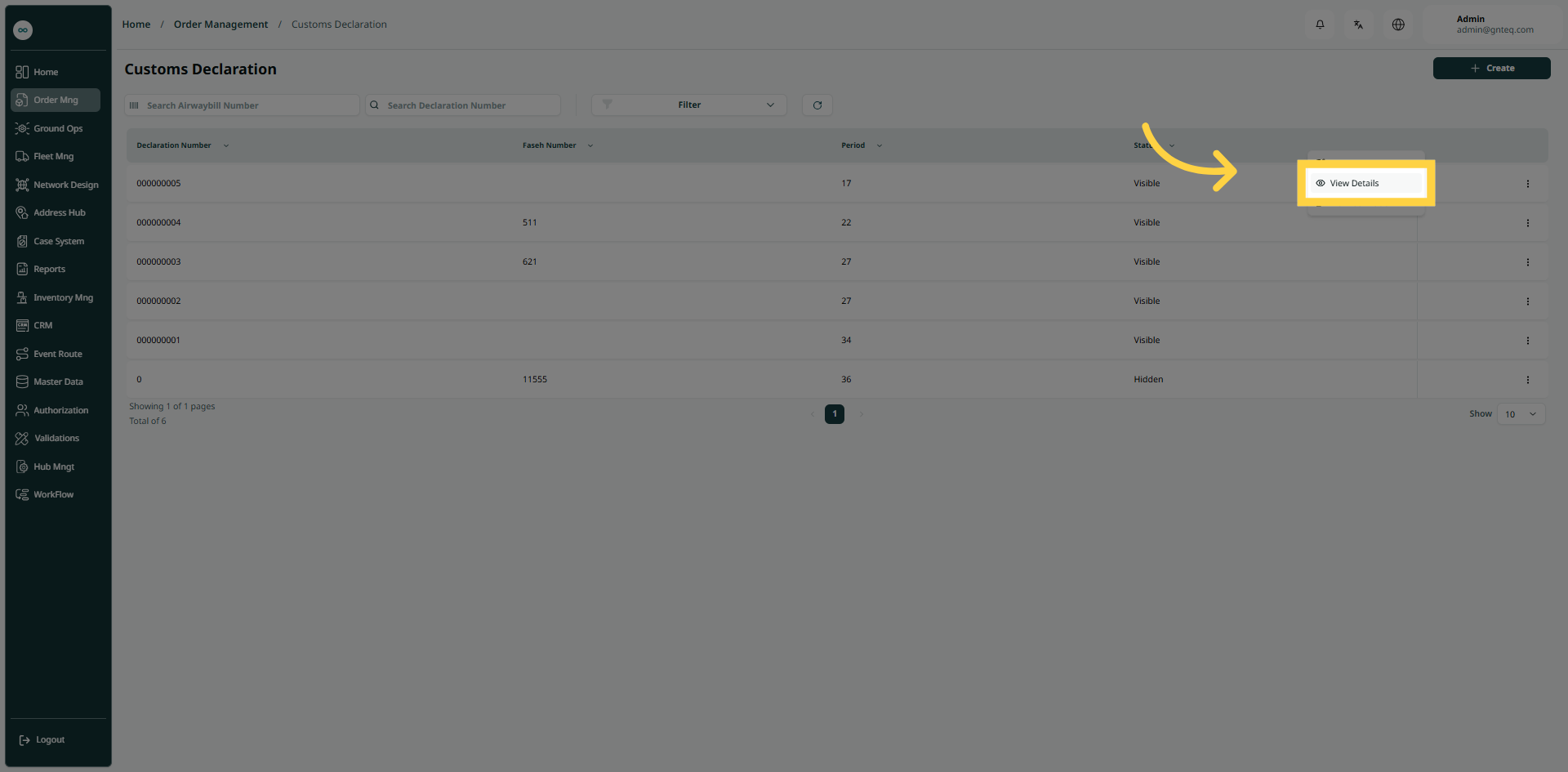
The user can view the customs declaration details by navigating to the ‘Customs Declaration’ screen via the Gateway and clicking on View Details from Actions as follows:
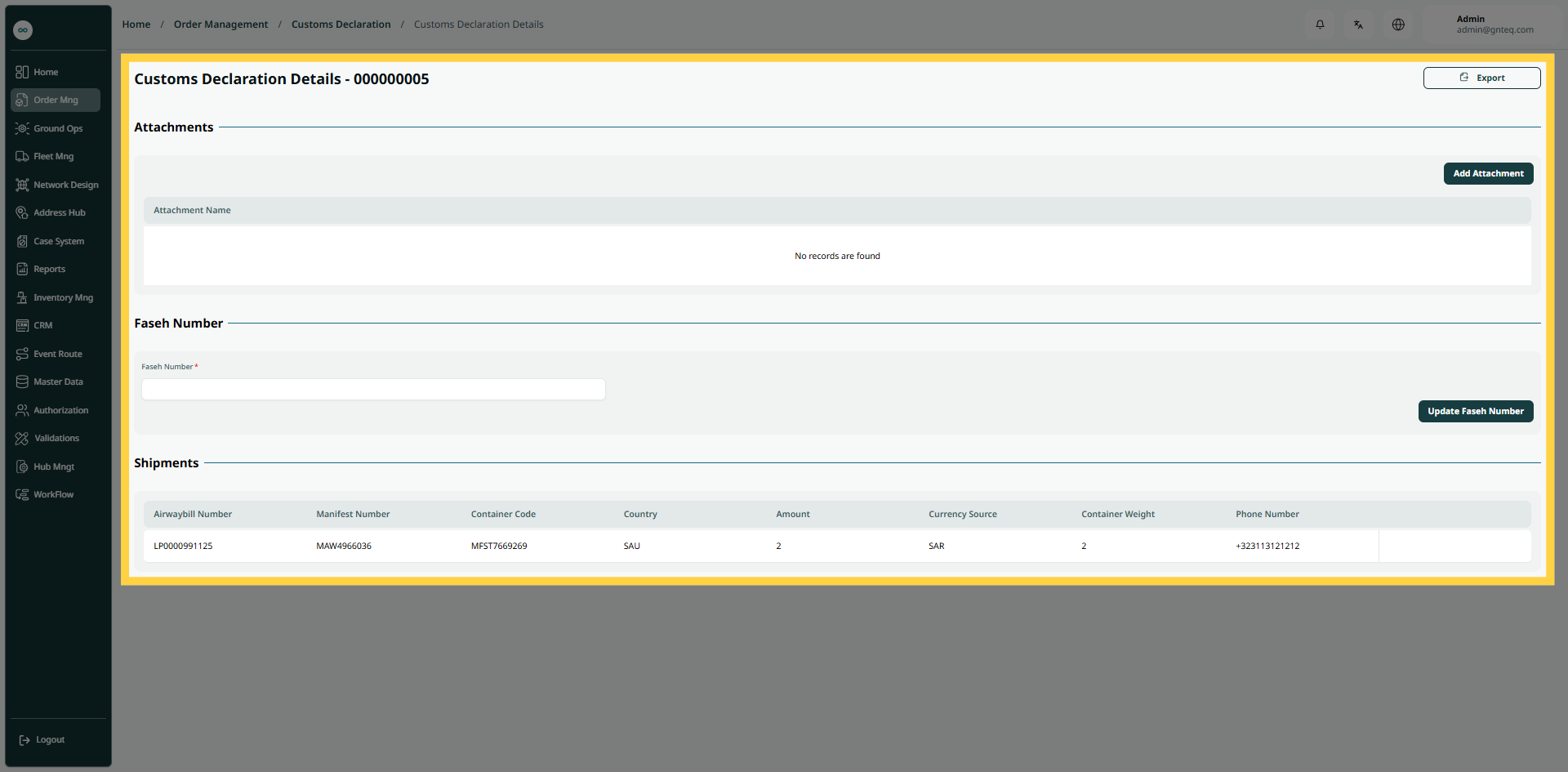
Add Attachment: the user can add attachments related to the customs declaration in the view details by clicking on “Add attachment”.
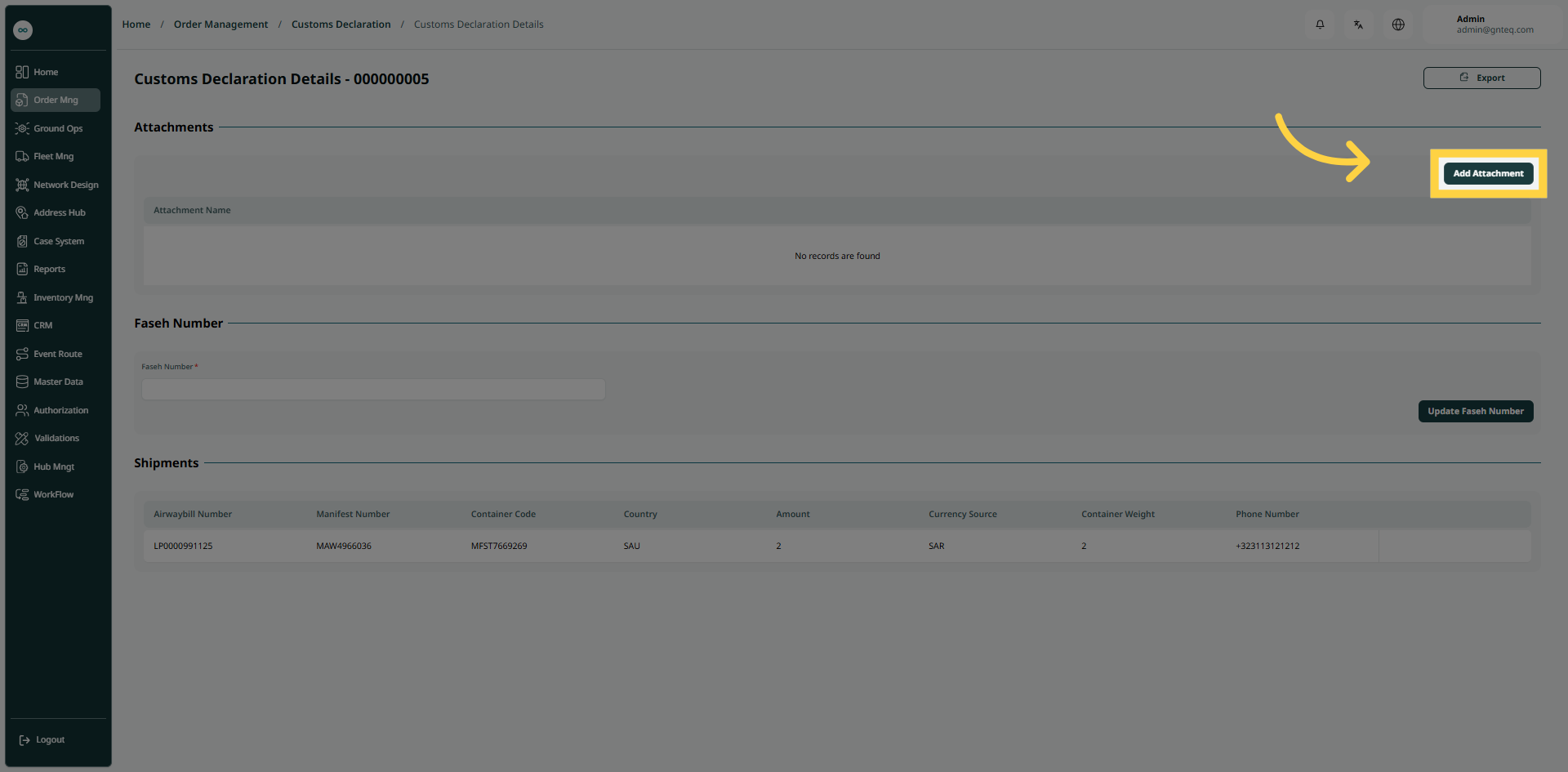
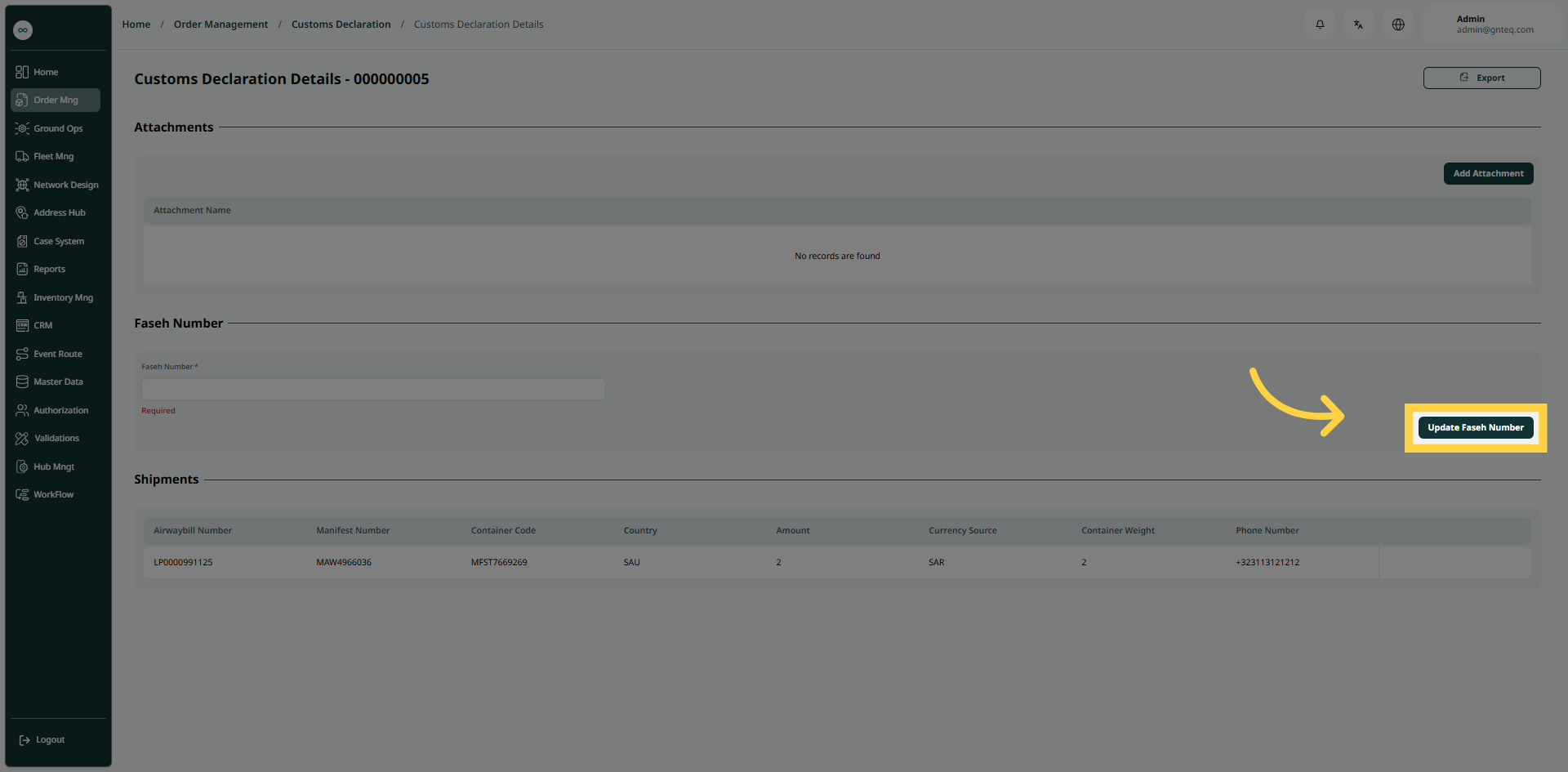
Update Faseh Number: The user can add a faseh number related to the customs declaration in the view details by clicking on “Update Faseh number”.
-
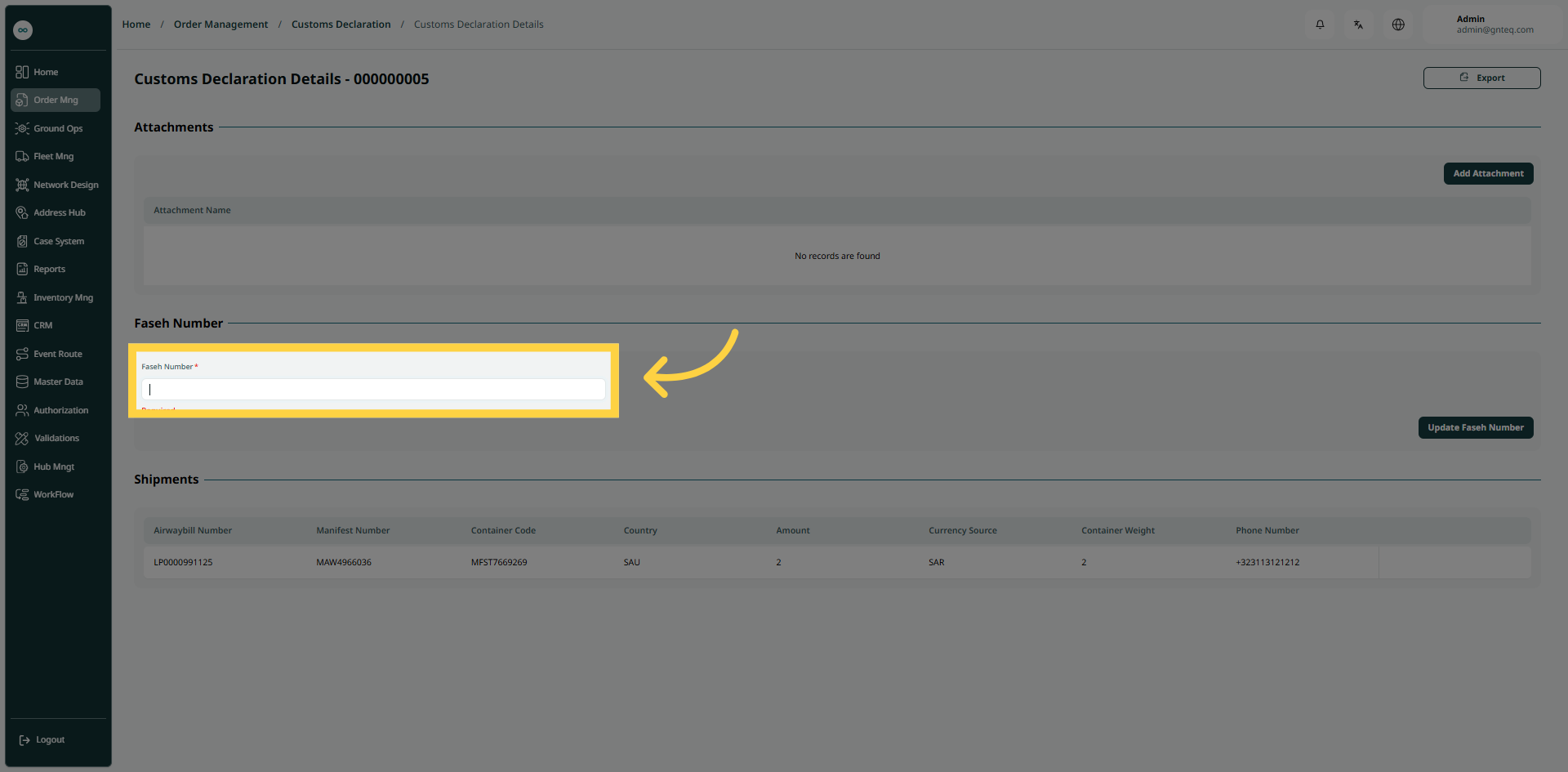
Faseh Number: this field represents the faseh number related to the customs declaration.
1.1.2 Mark As Hidden
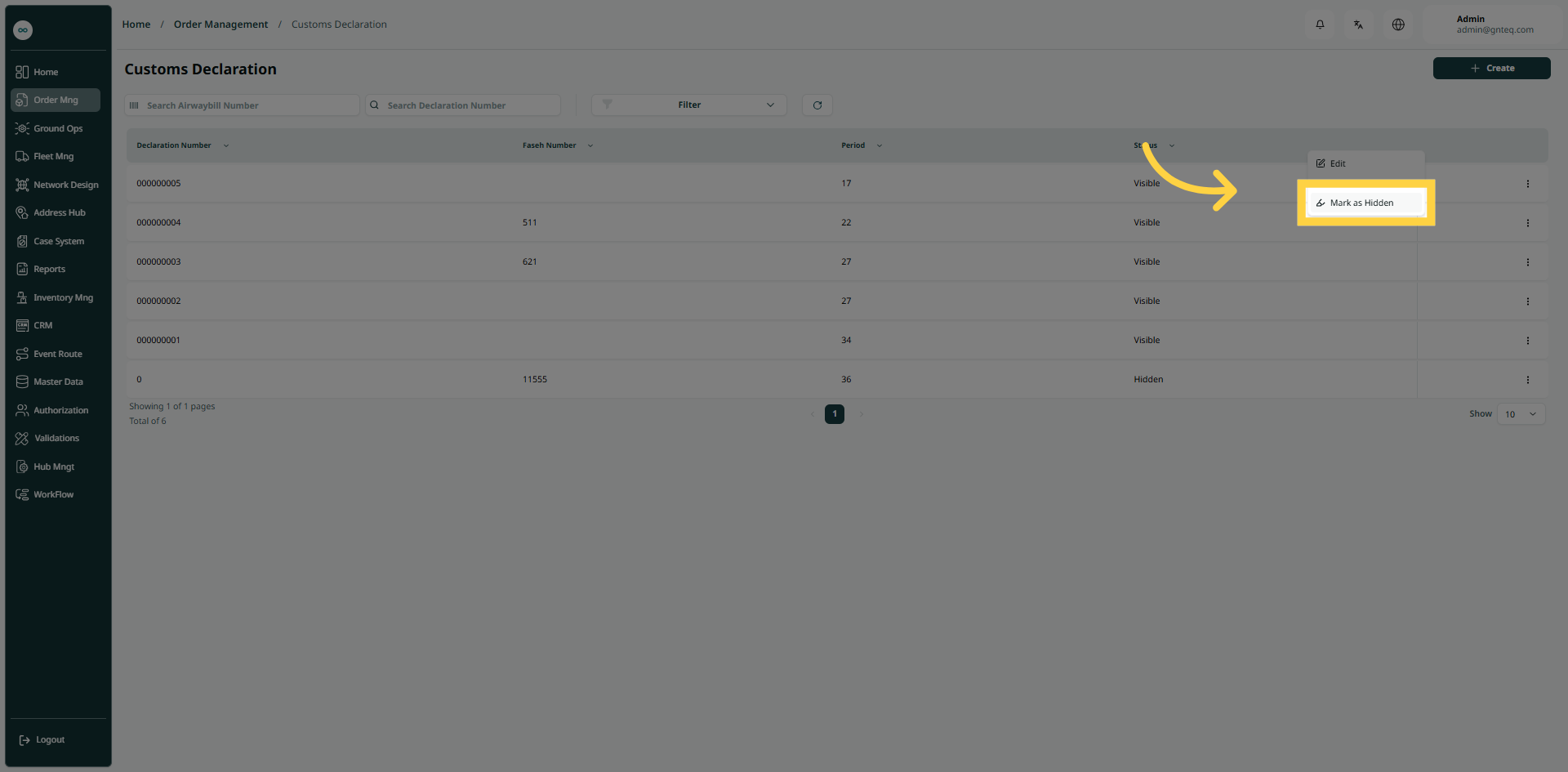
The user can hide the customs declaration details by navigating to the ‘Customs Declaration’ screen via the Gateway and clicking on Mark As Hide from Actions as follows:
1.1.3 Add Attachments
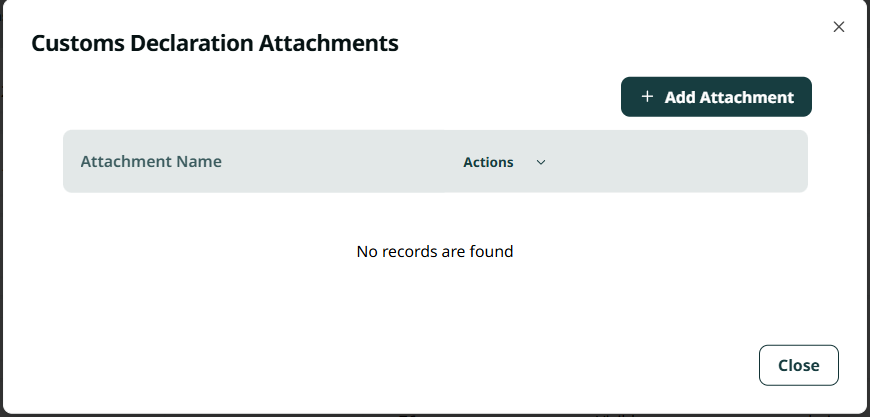
The user can add attachments to the existing customs declaration information by navigating to the 'Customs Declaration' screen via the Gateway and clicking on Add Attachments from the Actions as follows:
-
By clicking the Add Attachment button, the user can attach any of the documents available on the device.
1.2 Add New Customs Declaration
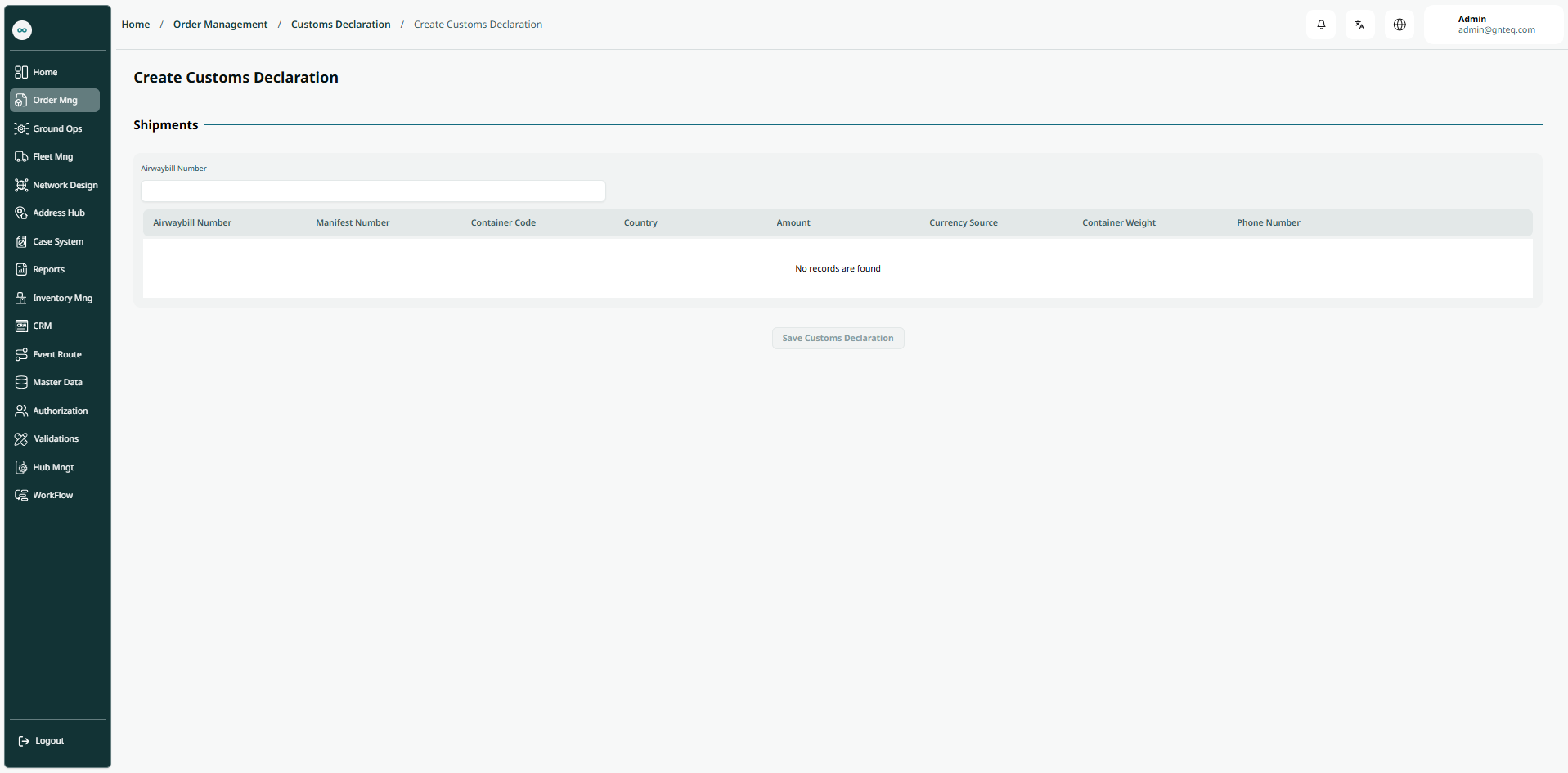
The user can create a new customs declaration on the system by clicking on Create and going to the “Customs Declaration” screen via Gateway.
-
Airwaybill Number: this field represents the shipment airwaybill number.
By clicking on Save Customs Declaration, the customs declaration will be added successfully to the system.